
FILTERPANELÖFFNEN Befehl
Öffnet das Panel Filter.

Alias: FILTER
Beschreibung
Öffnet das Panel Filter, um es im aktuellen Arbeitsbereich anzuzeigen.Das Panel Filter wird in derselben Größe und an derselben Position angezeigt, die es vor dem Schließen oder Zusammenklappen des Fensters eingenommen hat. Wie jedes andere andockbare Panel kann auch das Panel Filter schwebend, angedockt oder gestapelt sein.
Das Panel Filter ermöglicht es Ihnen, anhand festgelegter Regeln eine Auswahl von Objekten zu erstellen oder zu ändern.
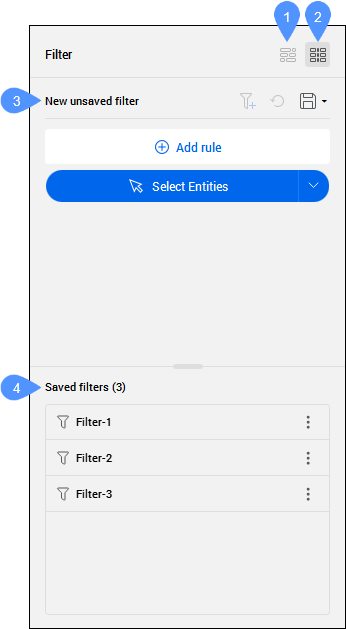
- Filterregeln in der Bubble-Ansicht anzeigen
- Filterregeln in Tabellenansicht anzeigen
- Neuer, nicht gespeicherter Filter
- Gespeicherte Filter
Filterregeln in der Bubble-Ansicht anzeigen
Zeigt Filterregeln werden als Sprechblasen an, die durch Doppelklicken bearbeitet werden können.
Filterregeln in Tabellenansicht anzeigen
Zeigt Filterregeln als Tabellenelemente an, sodass sie direkt im Panel bearbeitet werden können. Dies ist die Standardoption.
Neuer, nicht gespeicherter Filter
Verwaltet die Objektsauswahl, indem es Ihnen ermöglicht, einen Filter zu definieren oder einen bestehenden Filter zu ändern.
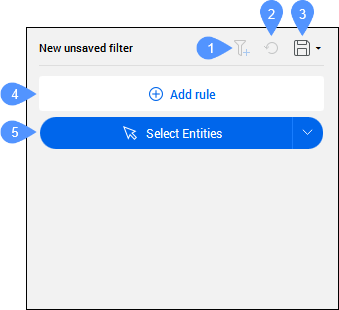
- Neuen Filter hinzufügen
- Änderungen rückgängig machen
- Filter speichern
- Regel hinzufügen
- Objekte auswählen
- Neuen Filter hinzufügen
- Ermöglicht das Erstellen eines neuen Filters.
- Änderungen rückgängig machen
- Macht alle Änderungen des aktuellen Filters rückgängig.Anmerkung: Ein Sternchen (*) erscheint neben dem Filternamen, wenn der Filter ungespeicherte Änderungen aufweist.
- Filter speichern
- Speichert einen neuen Filter oder wendet Änderungen auf den aktuellen Filter an.
Beim Speichern neuer Filter erscheint den Dialog Filter speichern, in dem Sie einen Filternamen eingeben können. Um die Änderungen an einem neuen Filter zu speichern, klicken Sie auf den Pfeil rechts, um ein Dropdown-Menü zu öffnen, und wählen Sie Speichern als aus.
Anmerkung: Die Filter werden im Abschnitt Gespeicherte Filter des Panels aufgelistet und im Programmordner Filter gespeichert (C:\Users\%Benutzername%\AppData\Roaming\ Bricsys\BricsCAD\V27x64\de_DE\Support\Filtersx64\de_DE\Support\Filters).
- Regel hinzufügen
- Öffnet den Dialog Regel hinzufügen, in dem Sie eine Objekteigenschaft auswählen können, die als Regel für den aktuellen Filter hinzugefügt werden soll. Weitere Informationen finden Sie im Artikel Regel hinzufügen Dialog.Wichtig: Die hinzugefügten Regeln sind in einem Regelsatz organisiert, der die Erfüllung aller seiner Eigenschaften erfordert. Sie können weitere Regelsätze erstellen, die durch den OR-Operator getrennt sind. Objekte können ausgewählt werden, wenn sie mindestens einen Regelsatz erfüllen.
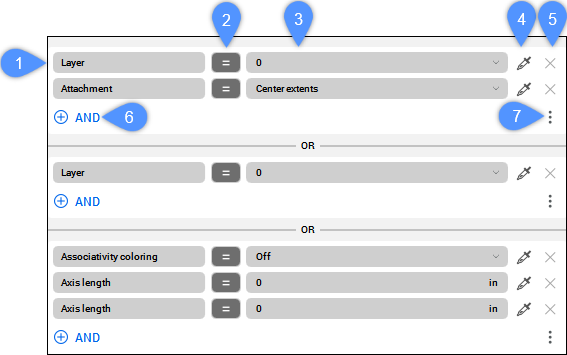
- Eigenschaft
- Operator
- Wert
- Wert aus Objekt auswählen
- Regel entfernen
- UND
- Menü
- Eigenschaft
- Ermöglicht Ihnen die Bearbeitung der aktuellen Eigenschaft.
- Operator
- Steuert die Beziehung zwischen der Eigenschaft und dem Wert. Klicken Sie auf den aktuellen Operator, um die Liste aller Operatoren anzuzeigen und ihn zu einem anderen zu ändern.
- Wert
- Zeigt den Wert der ausgewählten Eigenschaft an. Klicken Sie auf den aktuellen Wert, um einen anderen auszuwählen.
- Wert aus einem Objekt auswählen
- Hiermit können Sie einen Wert festlegen, indem Sie ihn aus einem Objekt auswählen.
- Regel entfernen
- Löscht die ausgewählte Regel aus dem aktuellen Filter.
- UND
- Öffnet den Dialog Regel hinzufügen, um dem Regelsatz eine weitere Regel hinzuzufügen.
- Menü
- Öffnet ein Menü mit zusätzlichen Optionen zum Hinzufügen von Regelsätzen.
- Fügen Sie eine "ODER"-Regel hinzu
- Fügt dem Filter einen neuen Regelsatz hinzu.
- Duplikat
- Dupliziert den ausgewählten Regelsatz.
- Leeren
- Löscht alle Regeln aus dem ausgewählten Regelsatz.
- Entfernen
- Löscht den ausgewählten Regelsatz.
- Objekte auswählen
- Wählt die Objekte der Zeichnung aus, die den Regeln des aktuellen Filters entsprechen.
Klicken Sie auf den Pfeil auf der rechten Seite, um ein Dropdown-Menü mit zusätzlichen Auswahlmöglichkeiten zu öffnen.
- Auf die Auswahl anwenden
- Wendet den Filter nur auf den aktuellen Auswahlsatz an.
- Zur Auswahl hinzufügen
- Fügt die gefilterten Objekte zum aktuellen Auswahlsatz hinzu.
- Aus der Auswahl entfernen
- Entfernt die gefilterten Objekte aus dem aktuellen Auswahlsatz.
- Objekte anzeigen
- Zeigt die gefilterten Objekte in der Zeichnung an.
- Objekte ausblenden
- Blendet die gefilterten Objekte in der Zeichnung aus.
- Objekte isolieren
- Isoliert die gefilterten Objekte in der Zeichnung.
Gespeicherte Filter
Zeigt die Liste aller gespeicherten Filter an. Die Gesamtzahl der gespeicherten Filter wird in Klammern angezeigt. Klicken Sie auf die drei Punkte auf der rechten Seite, um einen gespeicherten Filter umzubenennen, zu entfernen oder zu duplizieren. Sie können außerdem Auswahlsätze basierend auf diesem Filter auswählen, abwählen oder aktualisieren.
Klicken Sie auf einen gespeicherten Filter, um ihn als aktuellen Filter festzulegen. Anstelle des Abschnitts Neuer, nicht gespeicherter Filter werden der Filtername und die Regeln angezeigt, sodass Sie diese bearbeiten können.