
License pooling
When multiple license levels are available, the Bricsys Network License Server allocates the seats to BricsCAD machines in the order of the ID number in the LIC file. If you want to control this action in detail, you can edit the options file: bricsys.opt.
Editing the options
You can edit the options in 2 ways:
- In the bricsys.opt file, located in the Bricsys Network License Server installation folder.
- On the web interface (Reprise License Server Administration).
- Browse to http://localhost:5054 on the Network License Server.
- Click Status in the menu on the left side.
- Click bricsys in the OPTIONS column for the bricsys ISV row.
Commonly used options
| Option | Description | Syntax | Example |
|---|---|---|---|
| GROUP | Defines a group of usernames. | GROUP name list-of-usernames | GROUP engineers userA userB userC |
| HOST_GROUP | Defines a group of hostnames. | HOST_GROUP name list-of-hostnames | HOST_GROUP firstFloor machineA machineB machineC |
| INTERNET_GROUP | Defines a group of IP-addresses. | INTERNET_GROUP name list-of-ip-addresses | INTERNET_GROUP networkGhent 192.168.1.* 192.168.2.* Note: The wildcard character (*) can be used in IP addresses.
|
| RESERVE | Reserve a number of seats to a specific (group of) user(s). | RESERVE num product user|host|group|host_group|internet|internet_group|project who [id=nnn] | RESERVE 20 bricscad GROUP engineers id=nnn |
| MAX | Limit the number of seats available to a specific (group of) user(s). | MAX num product user|host|group|host_group|internet|internet_group|project who [id=nnn] | MAX 5 bricscad HOST_GROUP firstFloor id=nnn |
| INCLUDE | Only allow licenses for a product to a specific (group of) user(s). Anyone not specified by the INCLUDE line is not allowed to use the product. | INCLUDE product userhost|group|host_group|internet|internet_group|project who [id=nnn] | INCLUDE bricscad GROUP bricscadusers id=nnn |
| EXCLUDE | Disallow licenses for a product to a specific (group of) user(s). | EXCLUDE product user|host|group|host_group|internet|internet_group|project who [id=nnn] | EXCLUDE bricscad INTERNET_GROUP networkGhent 192.168.1.* id=nnn Note: The wildcard character (*) can be used in IP addresses.
|
| TIMEOUT | Sets the inactivity timeout per product. | TIMEOUT secs [product [id=nnn]] | TIMEOUT 3600 bricscad id=nnn Note: The default minimum TIMEOUT in RLM is 3600 seconds.
|
| TIMEOUTALL | Sets the inactivity timeout for all licenses present on the server. | TIMEOUTALL secs | TIMEOUTALL 3600 Note: The default minimum TIMEOUTALL in RLM is 3600 seconds.
|
More options can be found in the RLM end user manual, under the The ISV Options File chapter.
License file identifiers
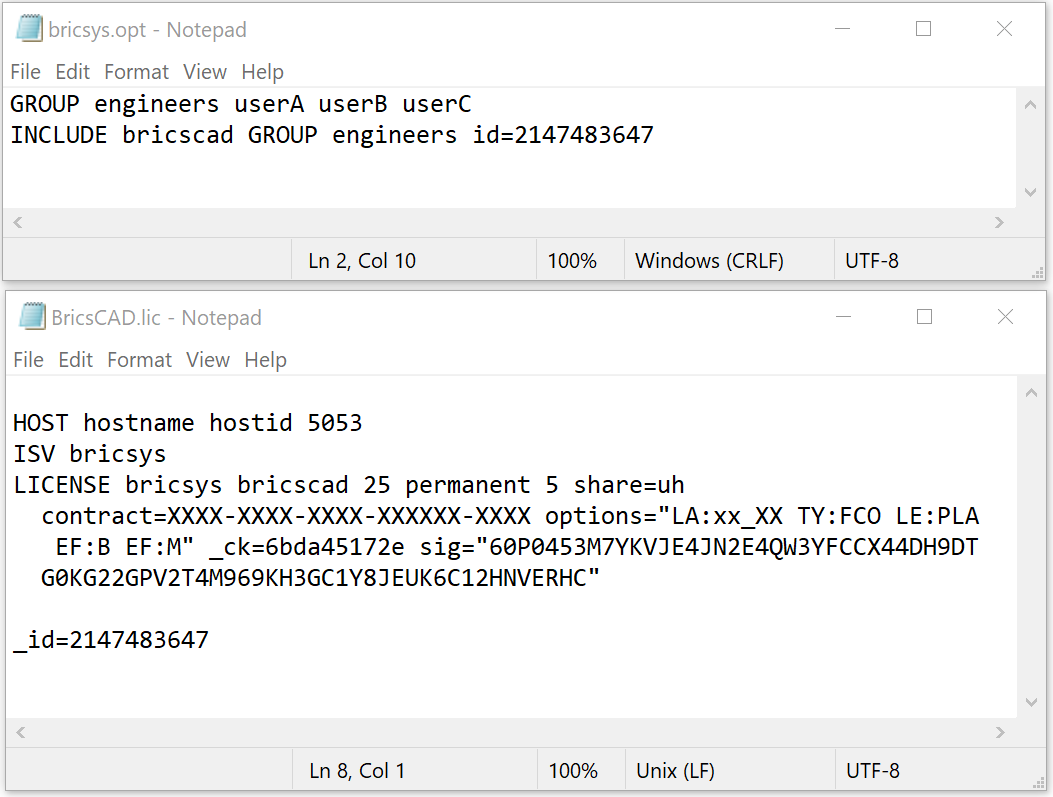
Each license file has an identifier as follows:
- After activation of a new network license, an '_id=nnn(*)' field is auto-generated, and it is added at the end of the license file. The (*) nnn is the number of the generated ID and can be modified.
- After upgrading an existing network license, its original IDentifier number remains unchanged.
The ID is used to identify each license file, and it will be used for license pooling options.
When specifying an [id=nnn] parameter for an added OPTION, that OPTION will only have effect on the pooling of the seats from the corresponding license.
License pooling by RLM_PROJECT
When multiple network license levels are activated on the same RLM server, users can obtain the license level when opening BricsCAD if the RLM_PROJECT environment variable is set.
The RLM_PROJECT environment variable should match the license server options. The license seats will be reserved on the license server for the specific PROJECT users by an IDentifier.
Actions for the RLM server
For example, if you have two license files with different IDentifiers (Lite _id=xxxxxxxx and Pro _id=yyyyyyyy), add the RESERVE options (in the bricsys.opt file) for all license seats:
RESERVE 5 bricscad PROJECT bc_lite id=xxxxxxxx
RESERVE 5 bricscad PROJECT bc_pro id=yyyyyyyy
Actions for the BricsCAD users
- Create a script that SETs a temporary environment variable, RLM_PROJECT, on the user's machine, allowing BricsCAD to negotiate with the RLM server for the PROJECT license pool.
- Execute a specific script to allow BricsCAD to pull the desired license level.
For example:
- *.CMD (command prompt) files:
-
@echo off set RLM_PROJECT=bc_lite call "C:\Program Files\Bricsys\BricsCAD V26 en_US\bricscad.exe" -
@echo off
set RLM_PROJECT=bc_pro
call "C:\Program Files\Bricsys\BricsCAD V26 en_US\bricscad.exe"
-
- *.PS1 (PowerShell) files:
-
$env:RLM_PROJECT = "bc_lite" Start-Process -FilePath "C:\Program Files\Bricsys\BricsCAD V26 en_US\bricscad.exe" -
$env:RLM_PROJECT = "bc_pro"
Start-Process -FilePath "C:\Program Files\Bricsys\BricsCAD V26 en_US\bricscad.exe"
-
- *.CMD (command prompt) files:
Because all license seats are reserved in the RLM options, BricsCAD cannot acquire a license if the RLM_PROJECT variable is missing or its value does not match the ISV server options.
Increasing available seats above 5 or reducing the RESERVE count below 5 makes some licenses available.
The RLM_PROJECT option works with other options, such as EXCLUDE and INCLUDE, which allows flexible configurations.