
Advanced configurations
The Network license server uses the following ports:
- 5053 - Default for the license seats broadcasting
- 5054 - Default for the RLM web UI (localhost:5054)
- ISV port - Dynamically assigned at startup
Firewalls, proxy servers, anti-virus software and other security measures can block these ports, preventing the server from operating correctly. After the Network license server installation, ensure the required ports are open and available, and the license server application (rlm.exe on Windows or rlm on Linux) is not blocked by any security software.
Note: If a proxy server exists between BricsCAD and the Network license server, proxy settings should be configured in BricsCAD. See the Proxy settings on a client computer article.
How to set a fixed value for the ISV port
The ISV port value changes dynamically at startup. To prevent this, set a fixed value in the license file. For multiple licenses, assign a fixed ISV port in each file.
- Check which ISV port is currently in use
-
- Go to the RLM web UI (localhost:5054).
- In the Status page, next to the bricsys entry, the ISV port number currently in use is shown.
- Set a fixed value for the ISV port
-
- Open the license file in a text editor (for example Notepad).
- In the
ISV bricsysline, add the port number as followsISV bricsys port=[port_number].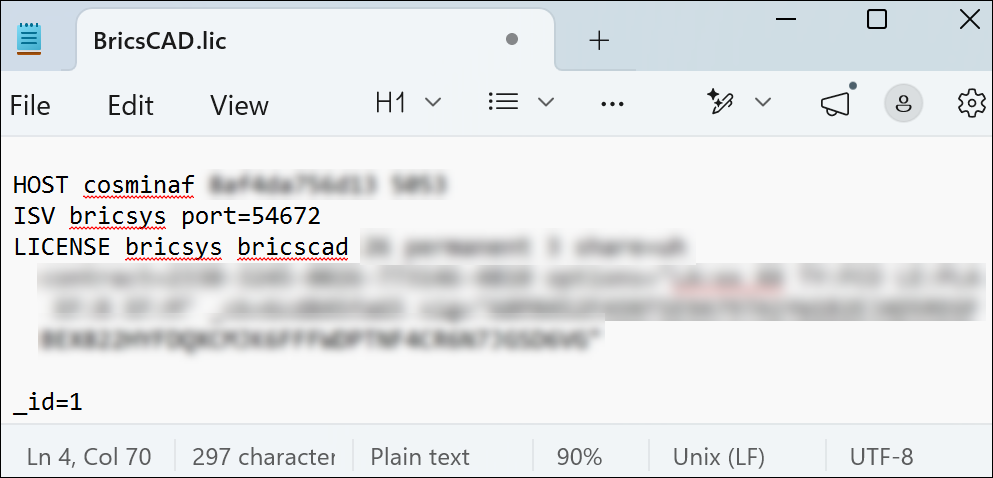
- Restart the computer or restart the RLM service from OS Services.
Important: For NWLS V1.1.0
- The default location of the license files is C:\Program Files\Bricsys\Bricsys Network License Server.
- The Bricsys Network License Manager executable can be found in the C:\Program Files\Bricsys\Bricsys Network License Server folder.
- The NetworkLicenseManager.exe must be able to reach the following:
- license.bricsys.com
- api.bricsys.com
- port 443
- port 80
Important: For NWLS V2.0.0
- The default location of the license files is C:\Program Files\Bricsys\BricsCAD Network License Server.
- The BricsCAD Network License Manager executable can be found in the C:\Program Files\Bricsys\BricsCAD Network License Server folder.
- The NetworkLicenseManager.exe must be able to reach the following:
- license.bricsys.com
- api.bricsys.com
- port 443