
License pooling
When multiple license levels are available, the Network license server allocates the seats to BricsCAD machines in the order of the ID number in the LIC file. If you want to control this action in detail, you can edit the options file bricsys.opt.
Editing the options
- Open the bricsys.opt file, located in the Network license server installation folder.Note: If the bricsys.opt file does not exist, create it in a text editor, such as Notepad, running in administrator mode. Save the file in the installation folder as bricsys.opt with the file type set to All Files (*.*).
- Add the syntax for each option.
- Save the changes in the bricsys.opt file.
- Go to the RLM web UI (localhost:5054) and reread/restart the license server.
Commonly used options
| Option | Description | Syntax | Example |
|---|---|---|---|
| GROUP | Defines a group of usernames. | GROUP name list-of-usernames | GROUP engineers userA userB userC |
| HOST_GROUP | Defines a group of hostnames. | HOST_GROUP name list-of-hostnames | HOST_GROUP firstFloor machineA machineB machineC |
| INTERNET_GROUP | Defines a group of IP-addresses. | INTERNET_GROUP name list-of-ip-addresses | INTERNET_GROUP networkGhent 192.168.1.* 192.168.2.* Note: The wildcard character (*) can be used in IP addresses.
|
| RESERVE | Reserve a number of seats to a specific (group of) user(s). | RESERVE num product user|host|group|host_group|internet|internet_group|project who [id=nnn] | RESERVE 20 bricscad GROUP engineers id=nnn |
| MAX | Limit the number of seats available to a specific (group of) user(s). | MAX num product user|host|group|host_group|internet|internet_group|project who [id=nnn] | MAX 5 bricscad HOST_GROUP firstFloor id=nnn |
| INCLUDE | Only allow licenses for a product to a specific (group of) user(s). Anyone not specified by the INCLUDE line is not allowed to use the product. | INCLUDE product userhost|group|host_group|internet|internet_group|project who [id=nnn] | INCLUDE bricscad GROUP bricscadusers id=nnn |
| EXCLUDE | Disallow licenses for a product to a specific (group of) user(s). | EXCLUDE product user|host|group|host_group|internet|internet_group|project who [id=nnn] | EXCLUDE bricscad INTERNET_GROUP networkGhent 192.168.1.* id=nnn Note: The wildcard character (*) can be used in IP addresses.
|
| TIMEOUT | Sets the inactivity timeout per product. | TIMEOUT secs [product [id=nnn]] | TIMEOUT 3600 bricscad id=nnn Note: The default minimum TIMEOUT in RLM is 3600 seconds.
|
| TIMEOUTALL | Sets the inactivity timeout for all licenses present on the server. | TIMEOUTALL secs | TIMEOUTALL 3600 Note: The default minimum TIMEOUTALL in RLM is 3600 seconds.
|
More options can be found in the Reprise Documentation. Choose your RLM version, then click Next and go to the The ISV Options File section.
License file identifiers
Each license file has an identifier as follows:
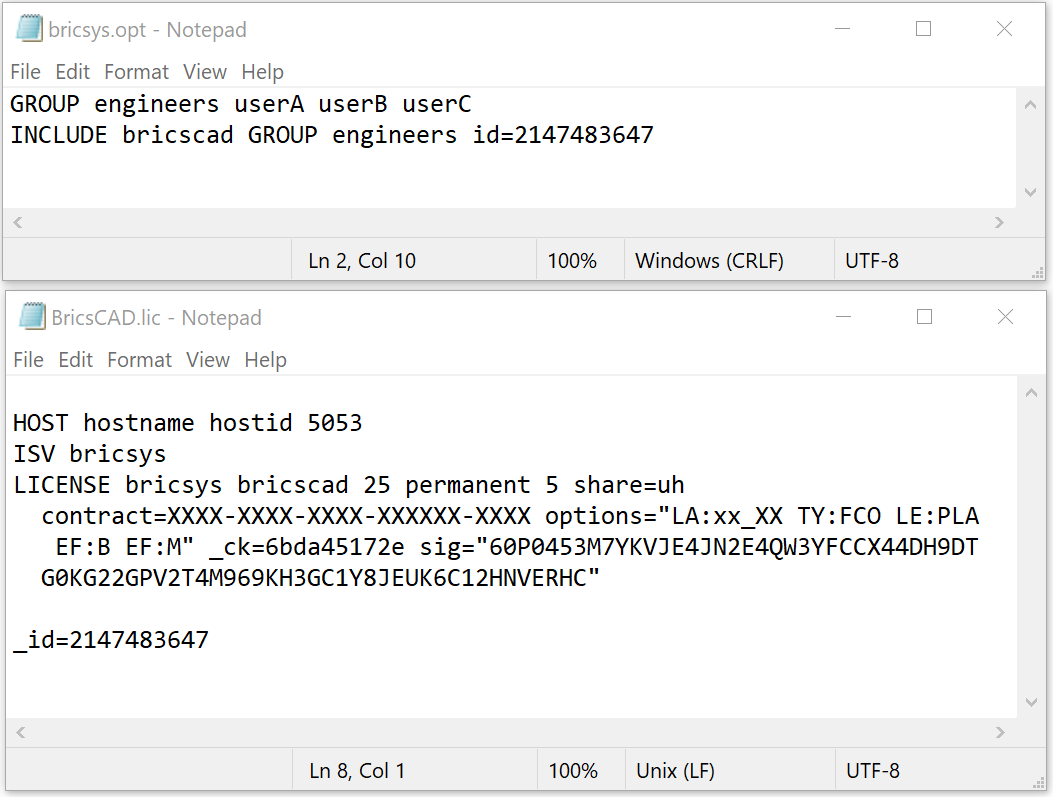
- After activation of a new network license, an '_id=nnn(*)' field is auto-generated, and it is added at the end of the license file. The (*) nnn is the number of the generated ID and can be modified.
- After upgrading an existing network license, its original IDentifier number remains unchanged.
The ID is used to identify each license file, and it will be used for license pooling options.
When specifying an [id=nnn] parameter for an added option, that option will only have effect on the pooling of the seats from the corresponding license.
License pooling by RLM_PROJECT
When multiple network license levels are activated on the same RLM server, users can obtain the license level when opening BricsCAD if the RLM_PROJECT environment variable is set.
The RLM_PROJECT environment variable should match the license server options. The license seats will be reserved on the license server for the specific PROJECT users by an IDentifier.
Actions for the RLM server
- Example
-
If you have two license files with different IDentifiers (Lite _id=xxxxxxxx and Pro _id=yyyyyyyy), add the RESERVE options (in the bricsys.opt file) for all license seats:
RESERVE 5 bricscad PROJECT bc_lite id=xxxxxxxx
RESERVE 5 bricscad PROJECT bc_pro id=yyyyyyyy
Actions for the BricsCAD users
- Create a script that SETs a temporary environment variable, RLM_PROJECT, on the user's machine, allowing BricsCAD to negotiate with the RLM server for the PROJECT license pool.
- Execute a specific script to allow BricsCAD to pull the desired license level.
- Examples
-
- *.CMD (command prompt) files:
-
@echo off set RLM_PROJECT=bc_lite call "C:\Program Files\Bricsys\BricsCAD V27 en_US\bricscad.exe" -
@echo off
set RLM_PROJECT=bc_pro
call "C:\Program Files\Bricsys\BricsCAD V27 en_US\bricscad.exe"
-
- *.PS1 (PowerShell) files:
-
$env:RLM_PROJECT = "bc_lite" Start-Process -FilePath "C:\Program Files\Bricsys\BricsCAD V27 en_US\bricscad.exe" -
$env:RLM_PROJECT = "bc_pro"
Start-Process -FilePath "C:\Program Files\Bricsys\BricsCAD V27 en_US\bricscad.exe"
-
- *.CMD (command prompt) files:
As all license seats are reserved in the RLM options, BricsCAD cannot acquire a license if the RLM_PROJECT variable is missing or its value does not match the ISV server options.
Increasing available seats above 5 or reducing the RESERVE count below 5 makes some licenses available.
The RLM_PROJECT option works with other options, such as EXCLUDE and INCLUDE, which allow flexible configurations.