
Complete guide to Single-user licensing
1. Overview of licensing options
1.1. License levels
There are 5 license levels for BricsCAD:
- BricsCAD Lite
- BricsCAD Pro
- BricsCAD BIM
- BricsCAD Mechanical
- BricsCAD Ultimate
To see a detailed comparison of each license level, see the Compare BricsCAD product levels web page.
1.2. License types
There are 2 license types for BricsCAD:
- Perpetual license
- Subscription license
Perpetual license
When you purchase a perpetual license, you own the software. BricsCAD editions run on Microsoft Windows, macOS and Linux.
If you want to keep your software up to date, there are 2 options:
- The BricsCAD Maintenance that includes automatic upgrades and support.
- Purchasing upgrades at your own discretion.
Subscription license
When you choose the subscription option, you have access to the latest version of BricsCAD for 1 year. It includes Priority Support and access to all new versions released while your subscription is active.
2. Installing BricsCAD
Browse to Download BricsCAD and download the installer.
2.1. Interactive installation
Steps for Interactive installation
- Double-click the installer file.
- Click Next.
- Tick the checkbox to accept the License Agreement.
- Click Next.
- Do one of the following:
- Accept the default installation folder.
- Click the Change... button and select an installation folder.
- Click Next.
- Click Install to start the installation.
- Choose whether to add a shortcut on the desktop and/or to display the release notes when the installation process has finished.
- Click Next.
- Click Finish to finish the installation process.
2.2. Silent installation
Open PowerShell or Command Prompt with administrator rights, change the directory (cd) to the folder containing the BricsCAD MSI installer and run msiexec /i BricsCAD-V27.1.05-1-en_US(x64).msi /qn /norestart to perform a silent installation without user interaction or automatic restart.
More options
ADDDESKTOPSHORTCUT=""suppresses the addition of a desktop shortcut.SHOWRELEASENOTES=""suppresses the display of the Release Notes when the installation completes.APPLICATIONFOLDER="your_app_folder"installs BricsCAD in a custom folder.BRXLICENSEDESTFILE="path_to_lic_file"specifies a folder for the license file if any of the properties BRXLICENSEKEY, BRXLICENSEFILE or BRXLICENSESERVER are defined.The default folder is: C:\ProgramData\Bricsys.
BRXLICENSEKEY="your_license_key"activates the license and stores it in the folder specified by BRXLICENSEDESTFILE.BRXLICENSEFILE="your_license_file"copies the license file to the folder specified by BRXLICENSEDESTFILE.BRXLICENSESERVER="host", orBRXLICENSESERVER="port@host"(*) creates a license file in the folder specified by BRXLICENSEDESTFILE, containing the server host specification.(*) If your license server uses a port other than the default port 5053.
REBOOT=ReallySuppresssuppresses a restart after the installation is complete.- (On 32-BIT only)
INSTALLVBA="0"orINSTALLVBA=""does not install VBA.Note: The 32-BIT version is only available for BricsCAD V20 and older.
Examples of command prompts
- To perform a silent installation while suppressing the creation of a desktop shortcut and the display of Release Notes:
msiexec /i "BricsCAD-Vxx.x.xx-x-en_US(x64).msi" /qn ADDDESKTOPSHORTCUT="" SHOWRELEASENOTES="" - To execute a silent installation and activate the license using the provided license key:
msiexec /i "BricsCAD-Vxx.x.xx-x-en_US(x64).msi" /qn BRXLICENSEDESTFILE=
"C:\ProgramData\Bricsys\BricsCAD.lic" BRXLICENSEKEY="****-****-****-****-****"
The license file, BricsCAD.lic, is generated at the specified location, C:\ProgramData\Bricsys, ensuring that all BricsCAD versions automatically find it.
- To create the license file containing the server host specification in the assigned folder, C:\ProgramData\Bricsys, ensuring that all BricsCAD versions automatically find it:
msiexec /i "BricsCAD-Vxx.x.xx-x-en_US(x64).msi" /qn BRXLICENSESERVER="port@host"
BRXLICENSEDESTFILE="C:\ProgramData\bricsys\BricsCAD.lic"
3. Trial mode
BricsCAD can run in trial mode, fully functional, for 30 days as a BricsCAD Ultimate license. After this period, you need to activate a valid commercial license.
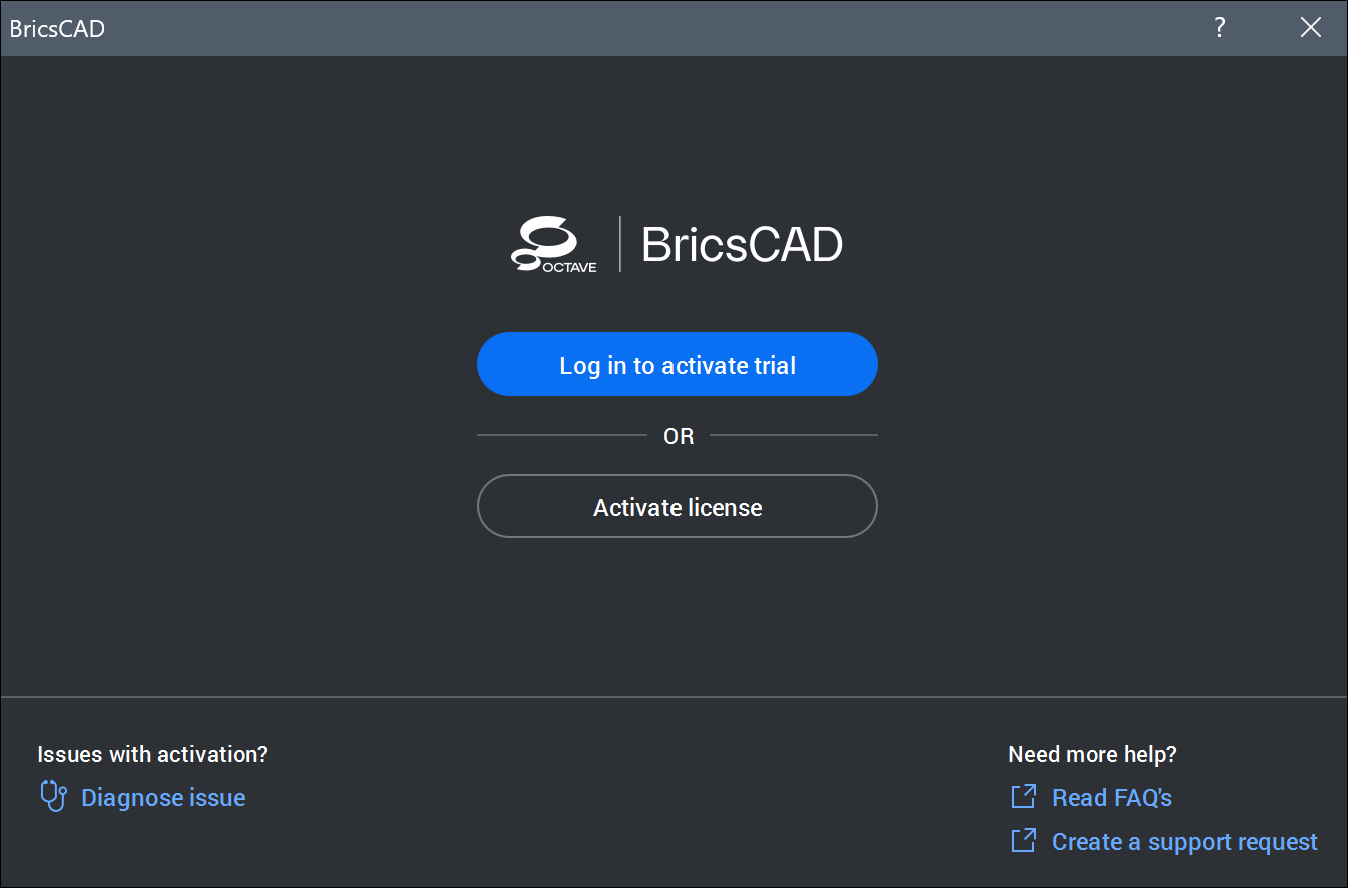
Click the Log in to activate trial button to activate the trial license over the internet. The BricsCAD website opens, allowing you to log in to your BricsCAD account. For more information on how to log in, see the Log in with your account article.
4. Working with Single-user licenses
4.1. Activate
- We strongly recommend activating BricsCAD online. For online activated licenses, deactivation and reactivation are unlimited.
- When activating offline:
- The license locks on the computer and Operating System, and the deactivation is not possible.
- BricsCAD cannot automatically update the license.
Steps for Online activation
- Launch BricsCAD.Note: When your trial period has expired, click the Activate license button in the BricsCAD Setup dialog box and proceed to step 5.
- Launch the LICENSEMANAGER command to open the BricsCAD License Manager dialog box.
- Click the Manage License button to open the dialog box.
- Click the Modify button to open the dialog box.
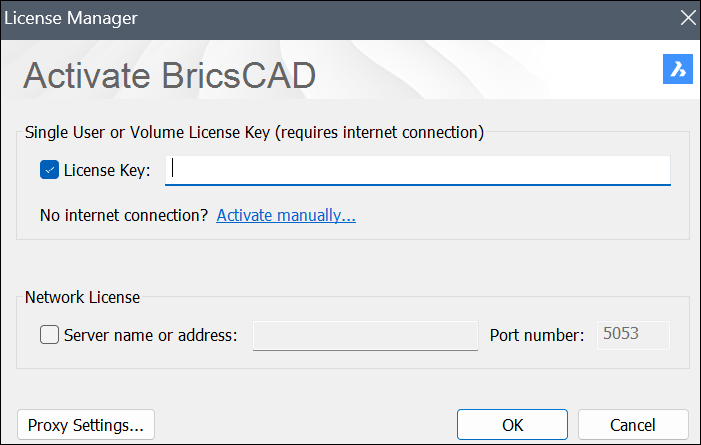
- Retrieve your key from the My Licenses section in your account (see also the Where can I find my licenses? article).
- Paste your license key in the License Key field.
- Click the OK button to activate the license.
Steps for Offline/manual activation
- Launch BricsCAD.
- Do one of the following:
- If you start BricsCAD for the first time, click Activate license in the BricsCAD dialog box.
- If you replace or upgrade an existing license, launch the LICENSEMANAGER command, click Manage License and click Modify....
- Click Activate manually... in the dialog box.
The dialog box opens.
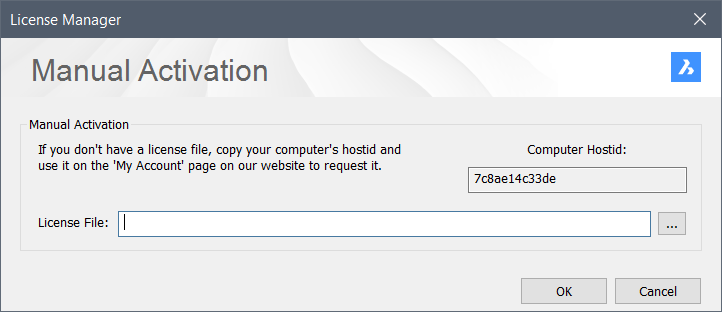
- Copy the full content of the Computer Hostid(1) field and use it to generate the license file.Note: To generate the license file:
- Log in to the BricsCAD website using the BricsCAD account of your company that contains the license. Contact your account manager if needed.
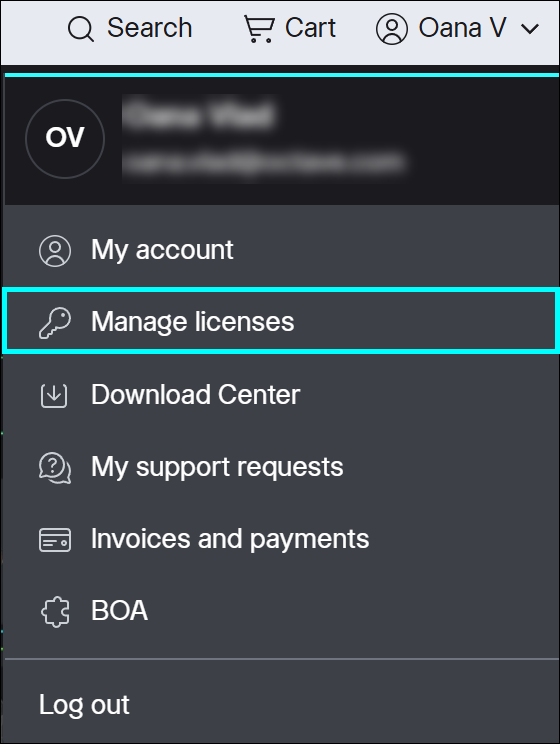
- Click your name in the upper right corner and select Manage licenses from the menu.
- Click the pencil icon (
 ). The License details page displays.
- Click Manual activation.
- In the Host ID field, paste the host ID of the computer you installed BricsCAD on.
- Click the Activate button.
A license file is generated and available for download.
- Click the Download License File button.
The license file BricsCADVxx.lic is downloaded to your default download folder.
- In the dialog box specify the downloaded license file path. Click the browse button to open the Select BricsCAD license dialog box, select the LIC file and click Open.
- Click the Activate button to activate the license offline.
4.2. Upgrading your license or extending your subscription
Upgrading your license or extending your subscription requires an internet connection.
Upgrading BricsCAD version
If your license has an active maintenance plan or you have purchased a version upgrade, BricsCAD automatically updates your license to the latest version. Install and open the new version of BricsCAD.
Upgrading BricsCAD level
If you have purchased a level upgrade, reactivate your license by following the next steps:
- Launch BricsCAD.
- Launch the LICENSEMANAGER command to open the BricsCAD License Manager dialog box.
- Click the Manage License button to open the dialog box.
- Click the Modify button to open the dialog box.Note: Your key is already pre-filled in the License Key field.
- Click the OK button to reactivate the license.
Extending your subscription
If you have purchased an extension for your subscription, BricsCAD automatically updates the expiration date after your initial subscription expires.
4.3. Deactivate a BricsCAD license
When to deactivate
Make sure you deactivate a license before:
- Migrating a license to another computer.
- Permanently removing BricsCAD from a computer.
- Installing a new hard disk.
- Restructuring the disk partitions.
- Upgrading the operating system.
Steps to deactivate a license
- Launch BricsCAD.
- Launch the LICENSEMANAGER command to open the BricsCAD License Manager dialog box.
- Click the Manage License button to open the dialog box.
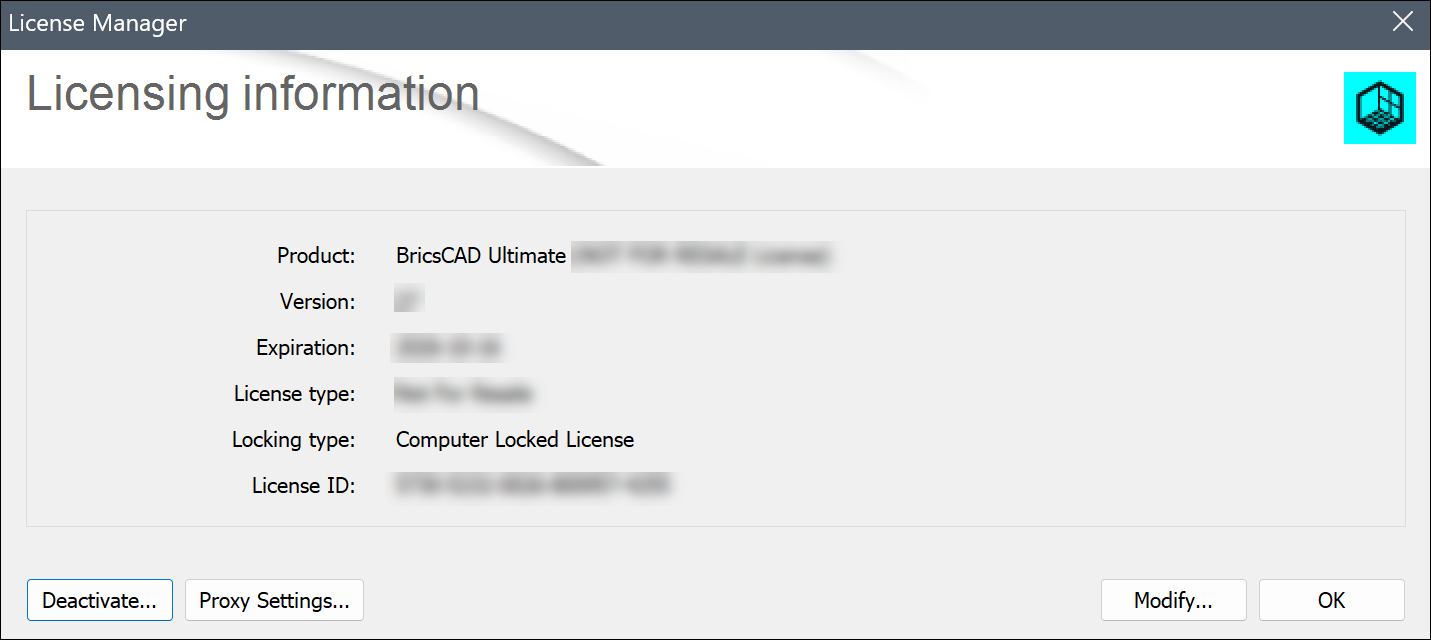
- Click the Deactivate... button.
- Click the Yes button to confirm the license deactivation.
- To deactivate a BricsCAD license, an internet connection is required.
- You cannot deactivate network licenses and manually activated single-user licenses.
- To automate license deactivation, see the How to automate activation and deactivation of local BricsCAD licenses using the LicTool application article.
4.4. Proxy settings for a single-user license
Configuring the proxy settings
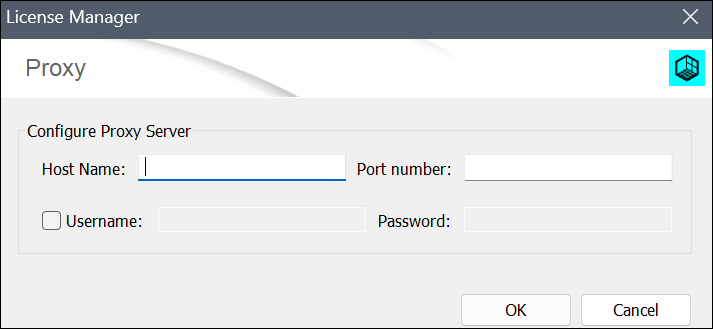
To configure the proxy settings complete the necessary fields in the dialog box.
Configuring the proxy settings permanently
For multiple license activations, deactivations, reactivations or license updates, BricsCAD must connect to the Internet for each licensing operation.
To configure the proxy settings permanently, proceed as follows on the computer running BricsCAD:
- Create the HTTP_PROXY variable:
HTTP_PROXY=[ProxyServerHostName]:[PortNumber]. - (Optional) If the proxy server supports basic authentication, create the HTTP_PROXY_CREDENTIALS variable:
HTTP_PROXY_CREDENTIALS=[UserName]:[Password].
4.5. Revoke a BricsCAD license
- The revoke possibility is limited to 2 per key.
- If you revoke a license, you are no longer eligible for a refund.
Steps to revoke a license
- Log in to the BricsCAD website.
- Click your name in the upper right corner and select Manage licenses from the menu.
Make sure you log in with the BricsCAD account of your company that contains the license. Contact your BricsCAD account manager if needed.
- Click the pencil icon (). The License details page displays.
- Scroll down and click the X icon to revoke the license.
5. Migrating a Single-user license to another computer
Do the following:
- Deactivate the license on the old computer.
- Launch BricsCAD on the new computer.
- Activate the license on the new computer.
6. Managing BricsCAD licenses with multiple BricsCAD accounts
You can share licenses with one or more other BricsCAD accounts to allow them to view, activate and revoke your license(s).
Do the following:
- Log in to the BricsCAD website.
- Click your user name and select Manage licenses in the drop-down menu.
- Hover over the license you want to share and click the Pencil icon ().
The License details page displays.
- Under Managers, click Add Manager.
- Type the login email address of the new manager and click the plus icon.
The new manager is added and receives an email notification.
- Managers must have a BricsCAD account.
- To remove a manager, click the X icon after the name.
7. Troubleshooting
For troubleshooting errors, see the Error codes section from our Help Center.
Common errors: