
PDFATTACH command
Attaches a PDF file as an underlay.

Icon: 
Description
Opens the PDF Underlay File dialog box to select a PDF file to reference into the current drawing. After selecting the file, click the Open button to display the Attach PDF Underlay dialog box. It enables you to specify where and how to attach the PDF file.
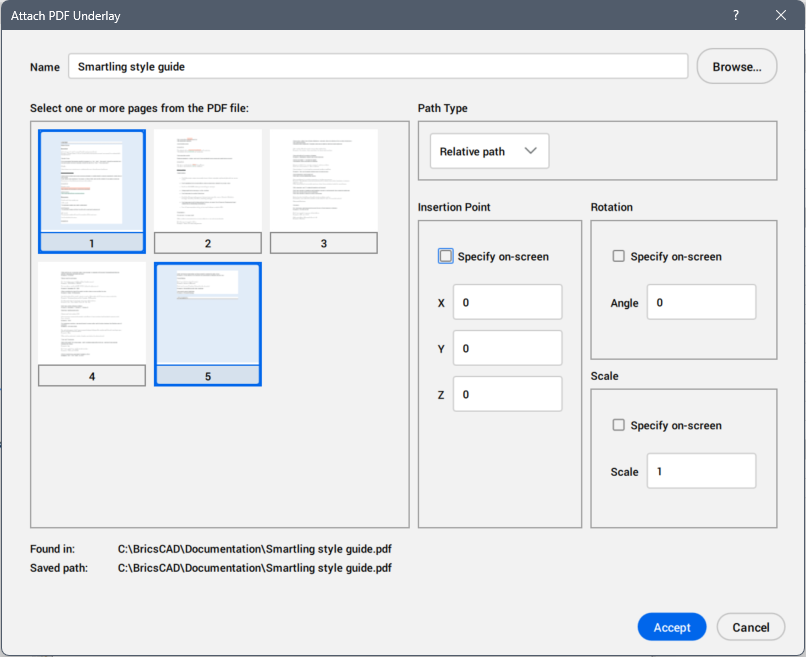
The Attach PDF Underlay dialog box allows you to attach a PDF file as an underlay into the current drawing.
Help
Opens the BricsCAD Help article about the Attach PDF Underlay dialog box.
Name
Displays the name of the PDF file to attach.
Browse
Opens the Select PDF underlay file dialog box from where you can select another PDF file than the one already selected.
Select one or more pages from the PDF file
Displays all pages of the PDF file and lets you select which pages to attach to the drawing. Hold the Ctrl key to select pages one by one, hold the Shift key to select multiple pages at once, or press Ctrl + A to select all pages.
Found in
Displays the full path of the PDF file.
Saved path
Displays the file path based on the chosen path type.
Path type
Choose the way the program remembers the path to the PDF file. You can select from the drop-down list one of the following options:
- Full path
- Stores the drive and the folder(s) name to the PDF file as an absolute reference such as: C:\Users\user\PDFATTACH\filename.pdf.
- Relative path
- Stores the part of the path to PDF file’s folder, such as .\filename.pdf. This option does not work until the drawing has been saved at least once. (..\ means one folder higher)
- No path
- Strips the drive and folder names, leaving just the PDF file name, such as filename.pdf.
Insertion Point
Specifies the location of the underlay’s lower-left corner.
- Specify On-screen
- Determines how the insertion point is specified.
- On: specify the insertion point in the drawing after the dialog box is closed. Multiple pages are attached one after the other. Press the Esc key to skip the current page and move to the next one.
- Off: specify the insertion point in the dialog box, using the X, Y and Z fields.
- X, Y, Z
- Specifies the x, y, z coordinates for the PDF underlay’s insertion point. Use 0,0,0 to insert the underlay at the drawing’s origin.
Rotation
Specifies the rotation angle of the PDF underlay.
- Specify On-screen
- Determines how the rotation angle is specified:
- On: specify the rotation angle in the drawing after the dialog box is closed.
- Off: specify the rotation angle in the dialog in Angle field.
- Angle
- Specifies the rotation angle about the insertion point. Positive angles rotate the underlay counterclockwise. Negative angles rotate the image clockwise. Use 0 to keep the underlay at its original orientation.
Scale
Specifies the size of the PDF underlay.
- Specify On-screen
- Determines how the scale factors are specified:
- On: specify the scale factor in the drawing after the dialog box is closed.
- Off: specify the scale factor in the dialog box.
- Scale
- Allows you to enter the scale factor value.