
POINTCLOUDCROP command
Creates a crop boundary on a point cloud.

Icons:


Description
Creates a crop boundary on an attached point cloud, displaying only the part of the point cloud inside or outside a prismatic or cylindrical volume.
Method
If the current drawing has more than one point cloud attached, you are prompted to select which point cloud to crop.
If the current drawing has only one point cloud attached, it is automatically selected for the crop operation.
You can then immediately start selecting points based on the previously selected crop option (shown as <default>).
Alternatively, select a different crop option and proceed with the points selection.
Options within the command
- Rectangular
-
Crops the point cloud with a cuboid shape.
-
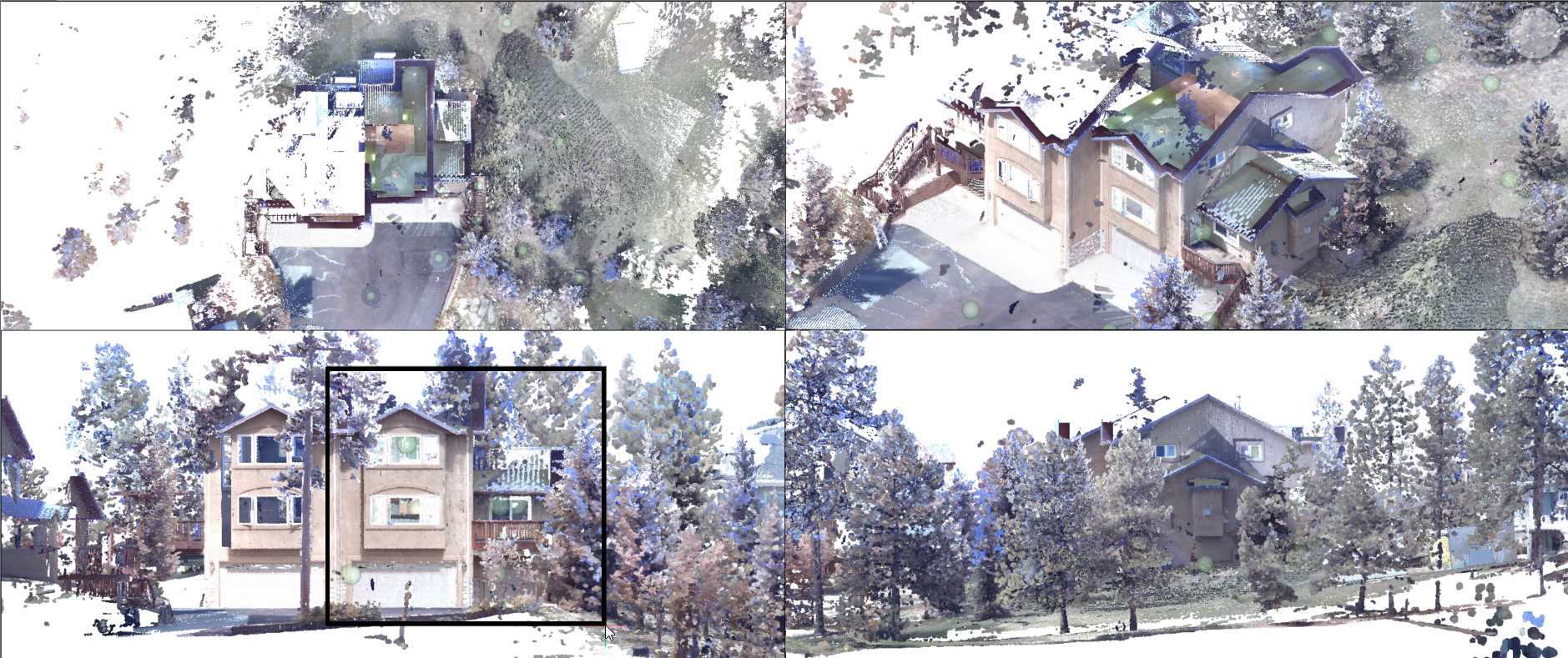
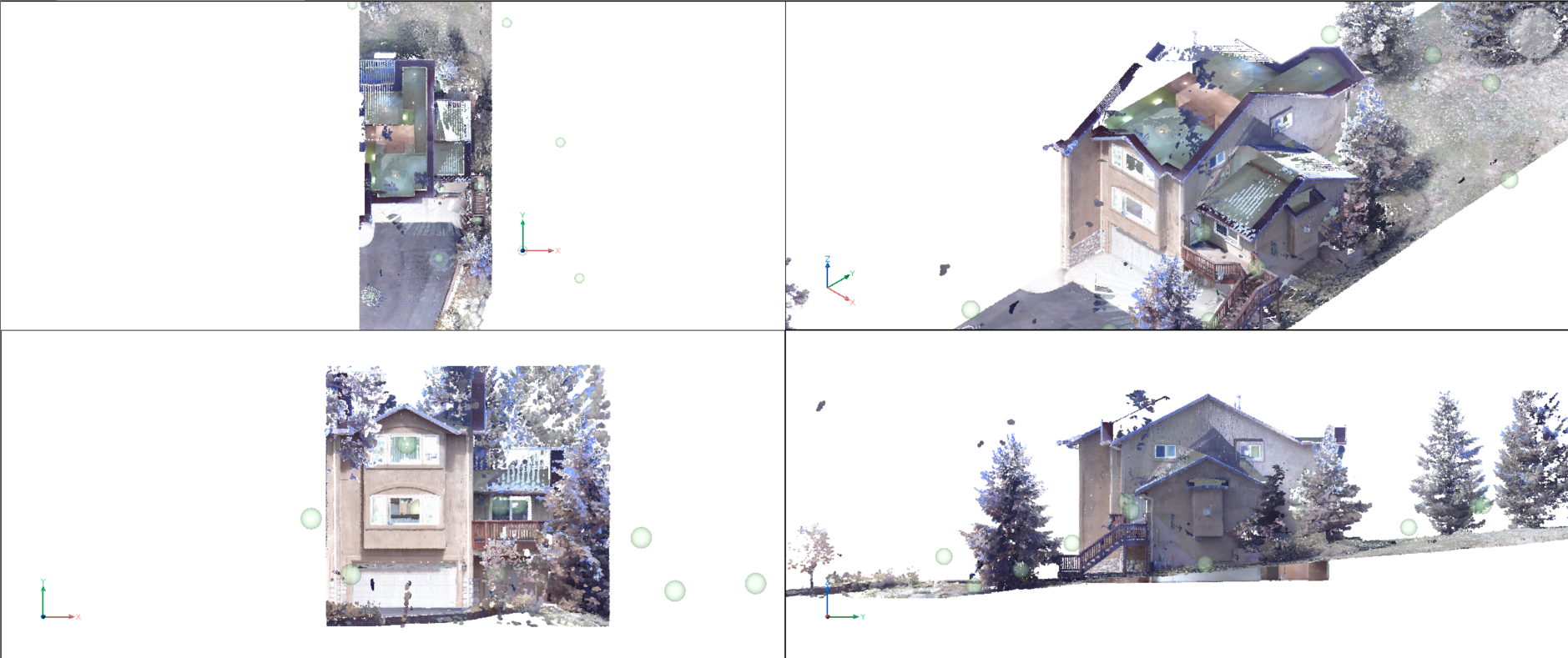
- Polygonal
-
Crops the point cloud with a polygonal prism shape.
-
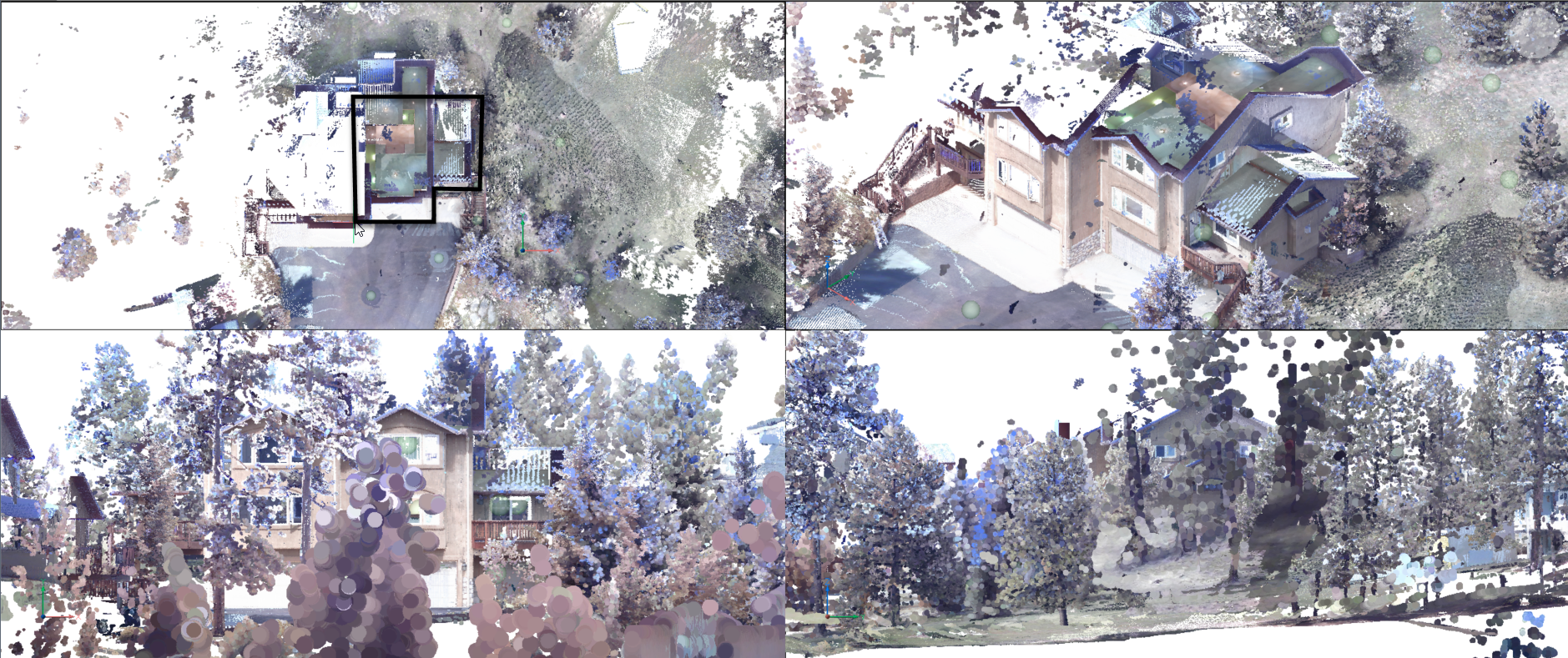
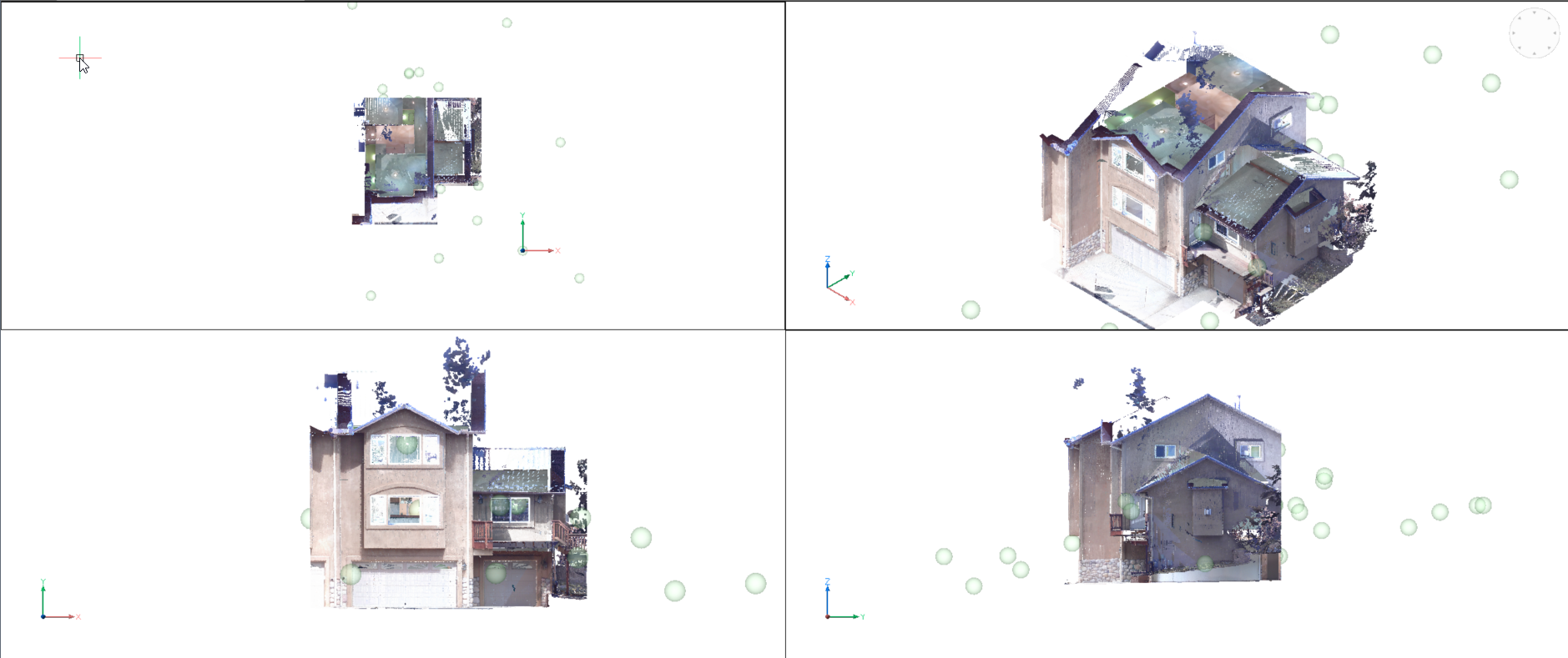
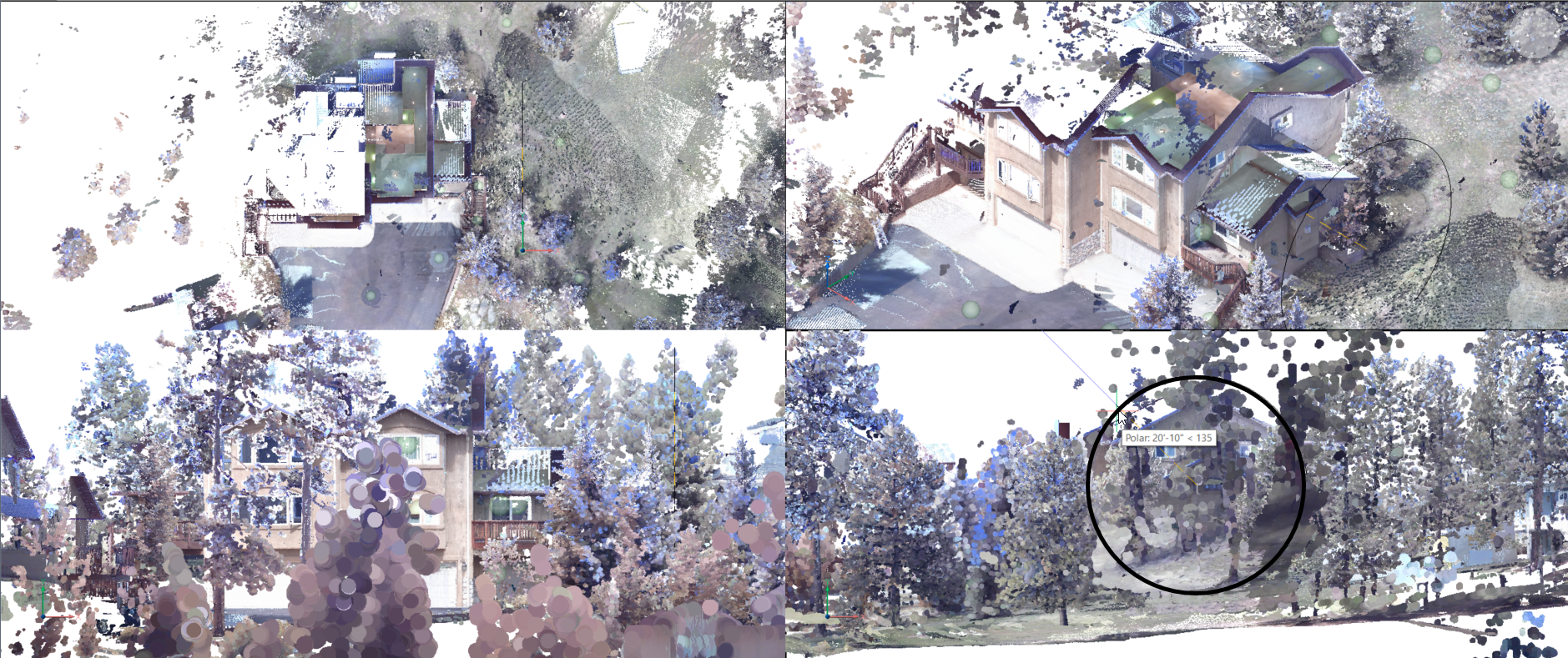
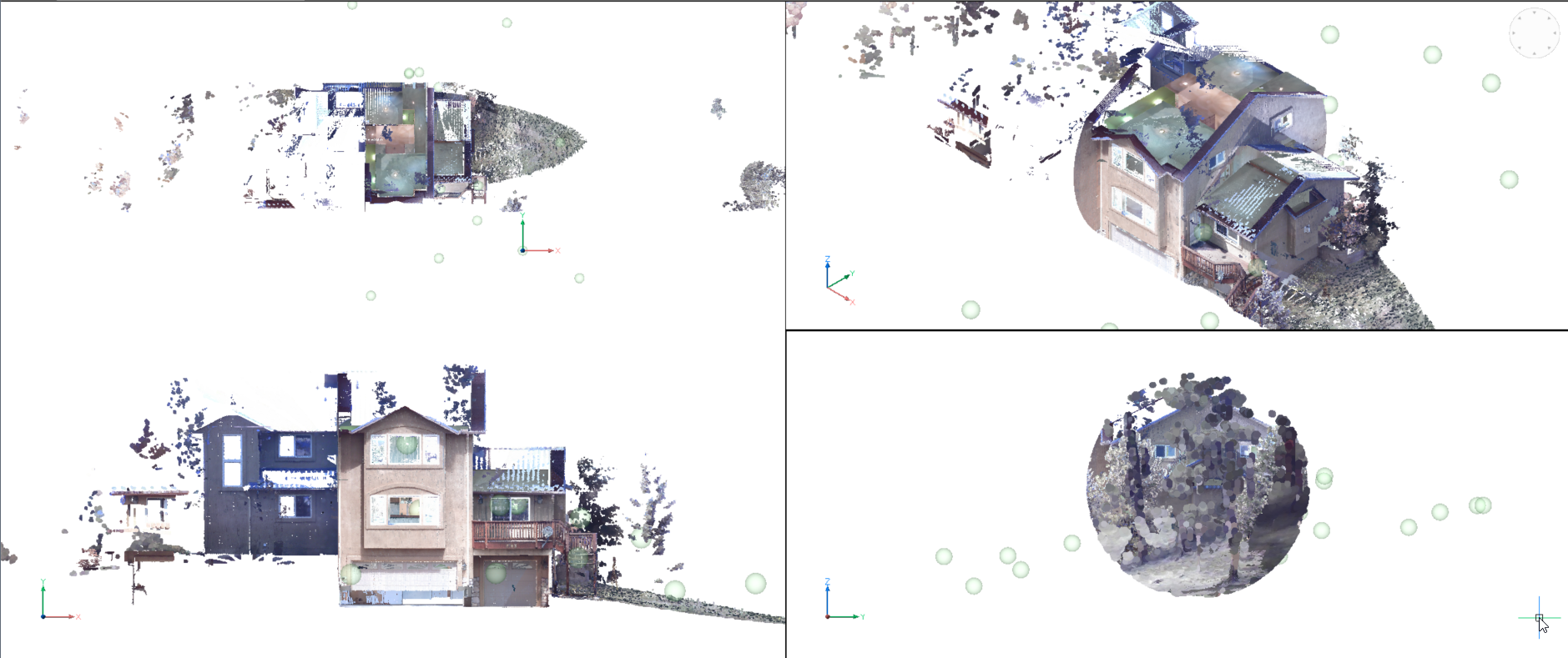
- Circular
-
Crops the point cloud with a cylinder shape.
-
- Segment
-
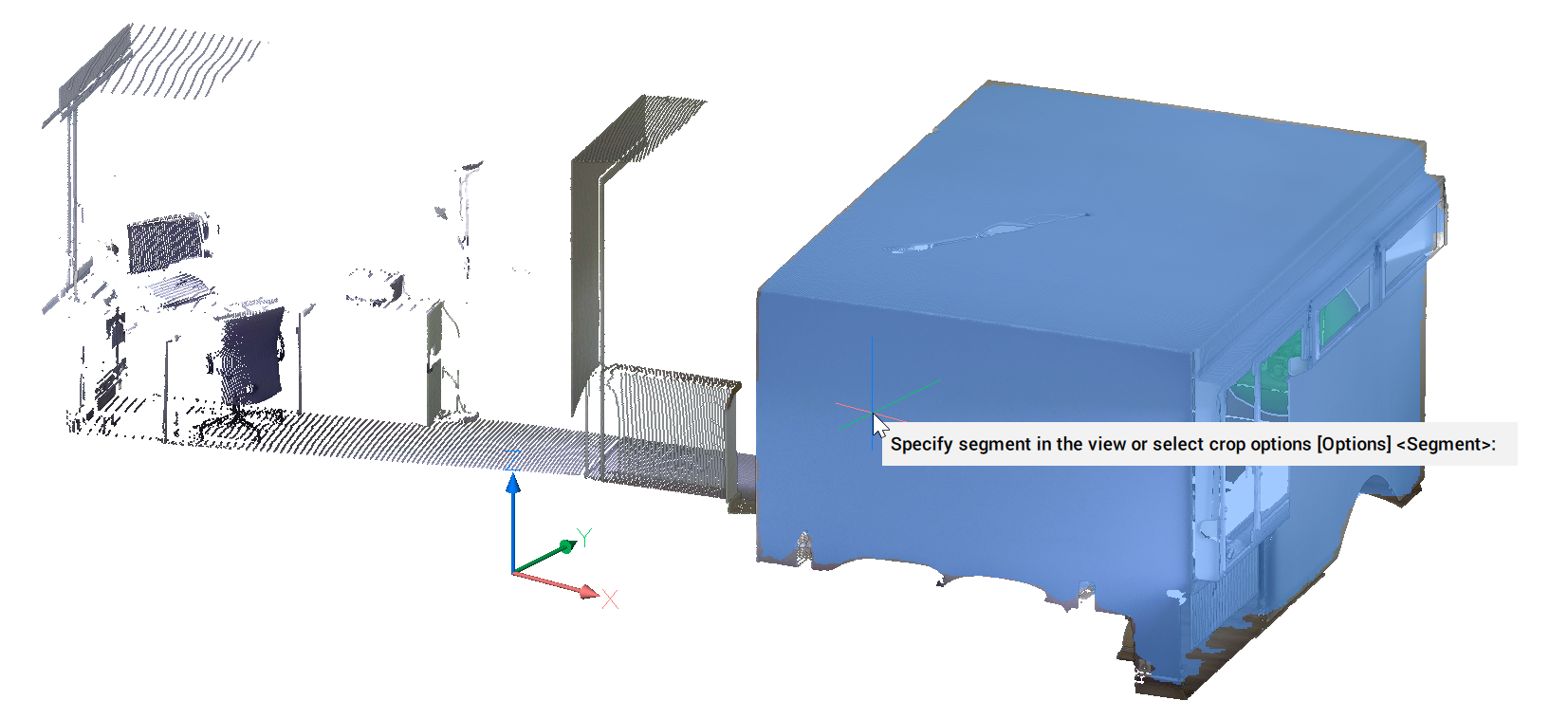
Crops the point cloud by image recognition.
Hover the cursor over the point cloud to show a preview of a boundary based on image segmentation.
Press the Tab key to cycle through possible candidate segments (for example, a window in a door, the door, the facade, etc.).
Click to confirm the segment in the view, then select between the Inside and Outside options.
- Invert
-
Inverts the current cropped part. Switches between Inside and Outside.
-
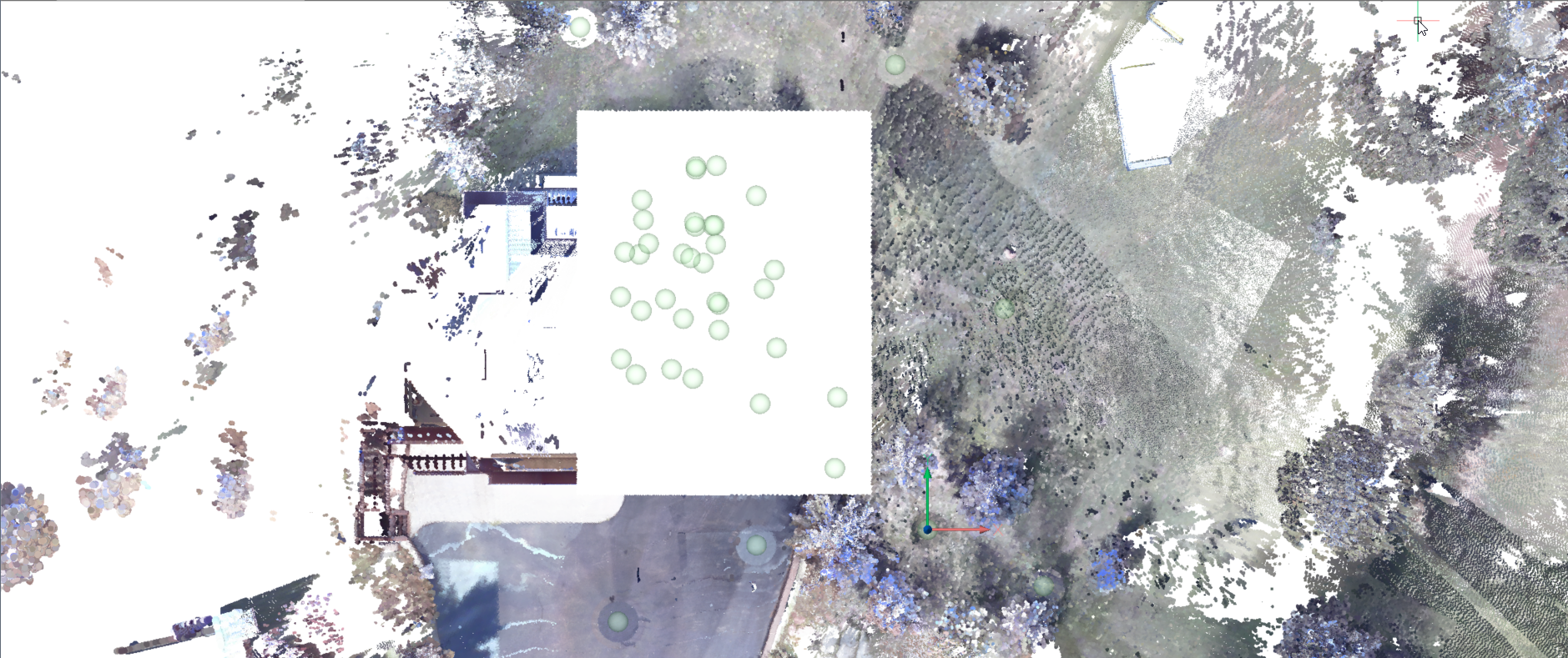
-
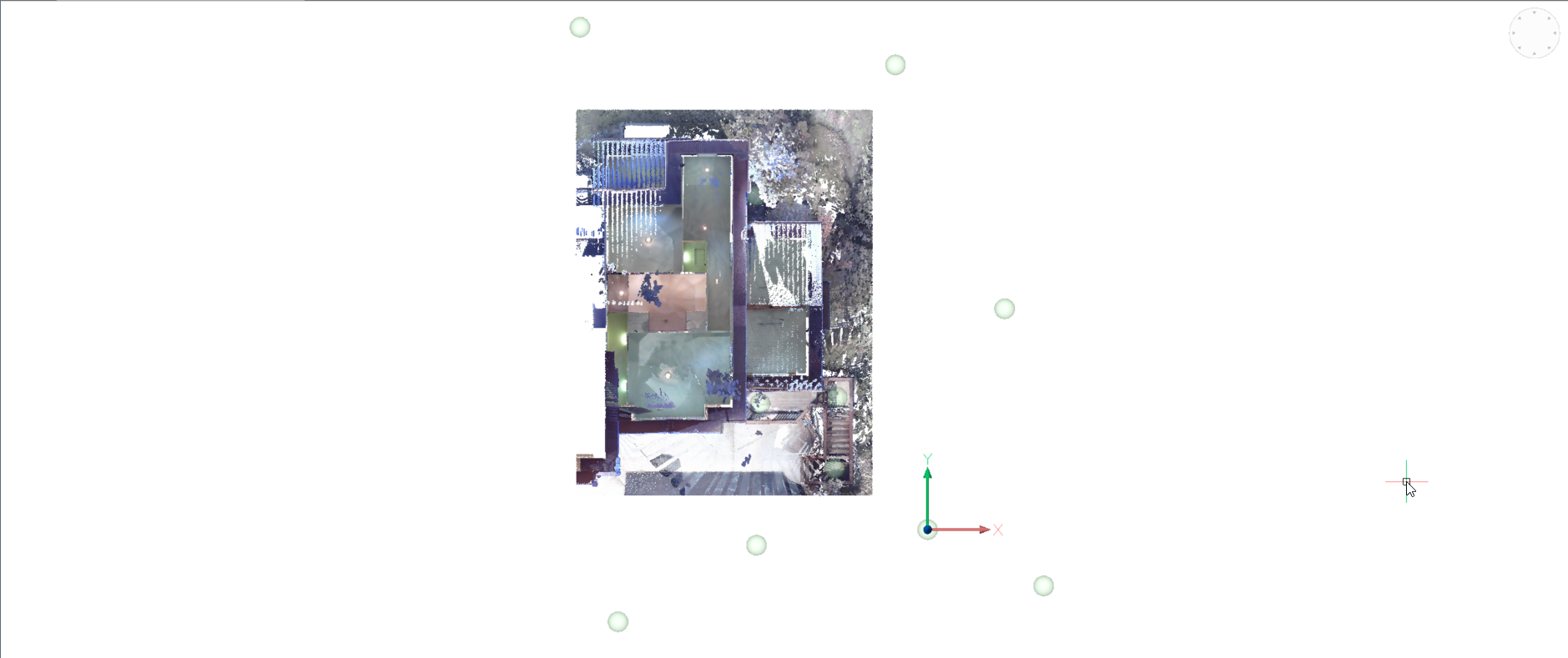
- Inside
- Displays the part of the point cloud inside the volume only.
-
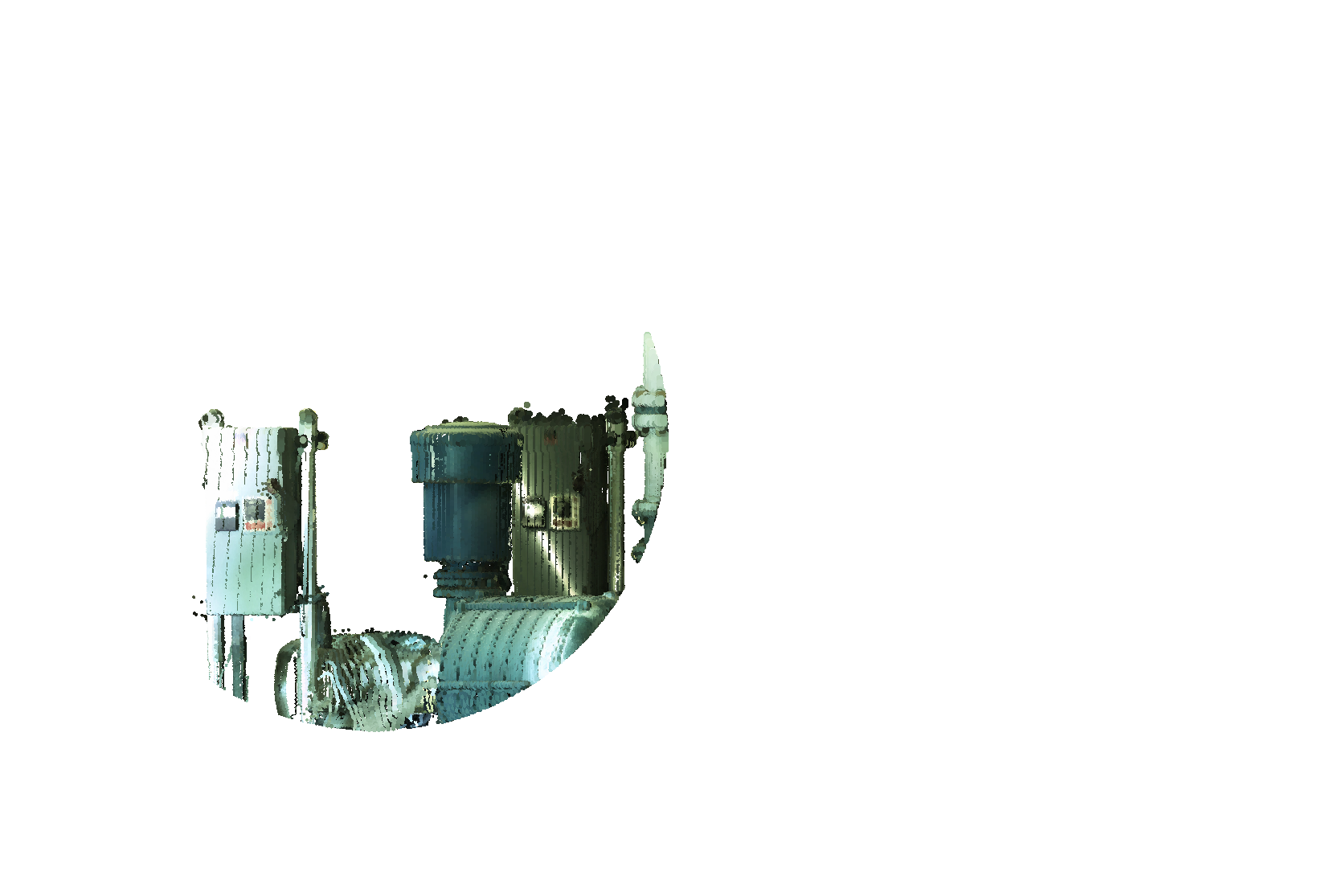
- Outside
- Displays the part of the point cloud outside the volume only.
-
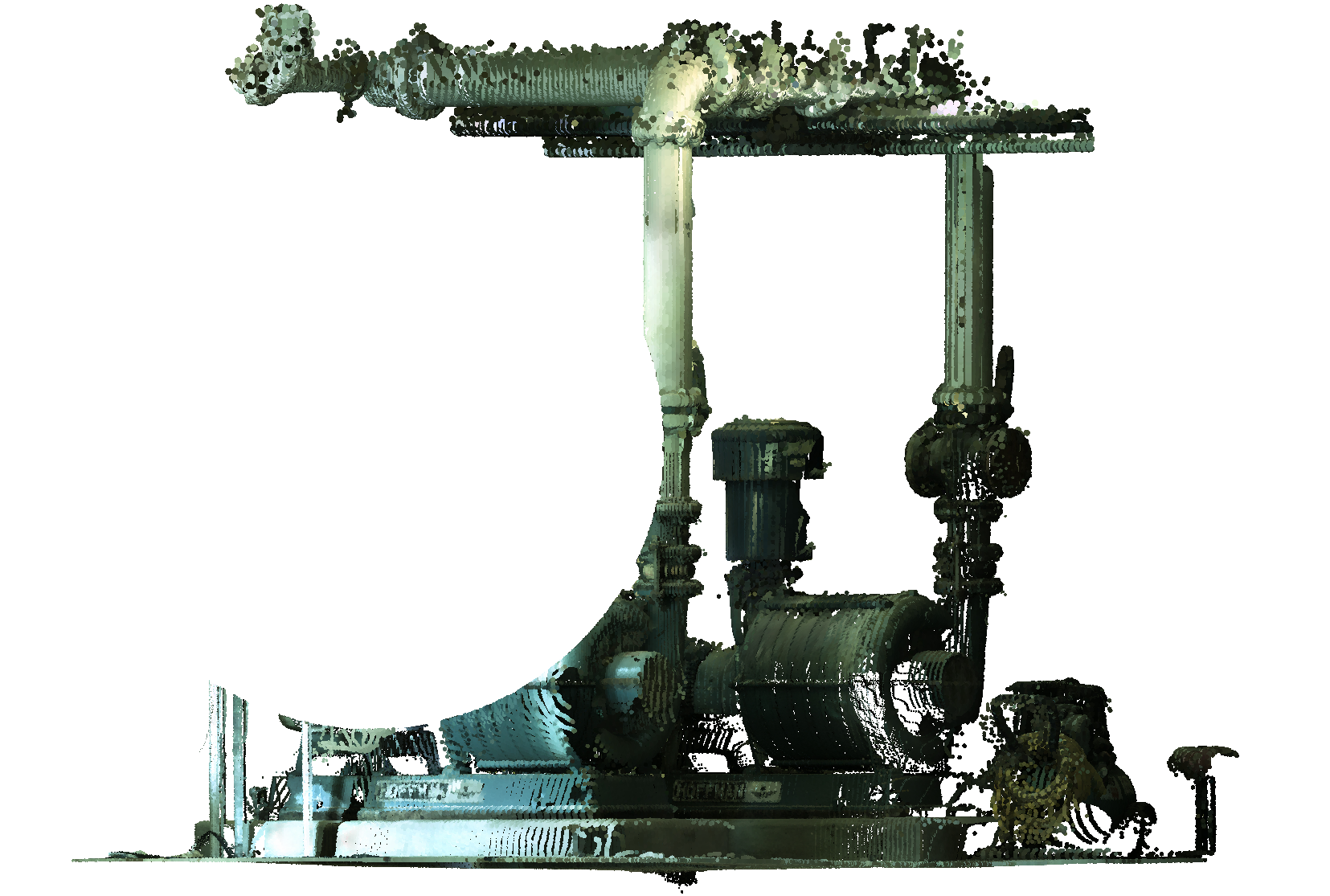
- show Toggle
-
Turns the point cloud crop display on or off.
- remove Last
-
Removes the most recently added cropping volume.
- remove All
-

Removes all cropping.