
POINTCLOUDDELETEITEM command
Deletes point cloud files.

Icon: 
Description
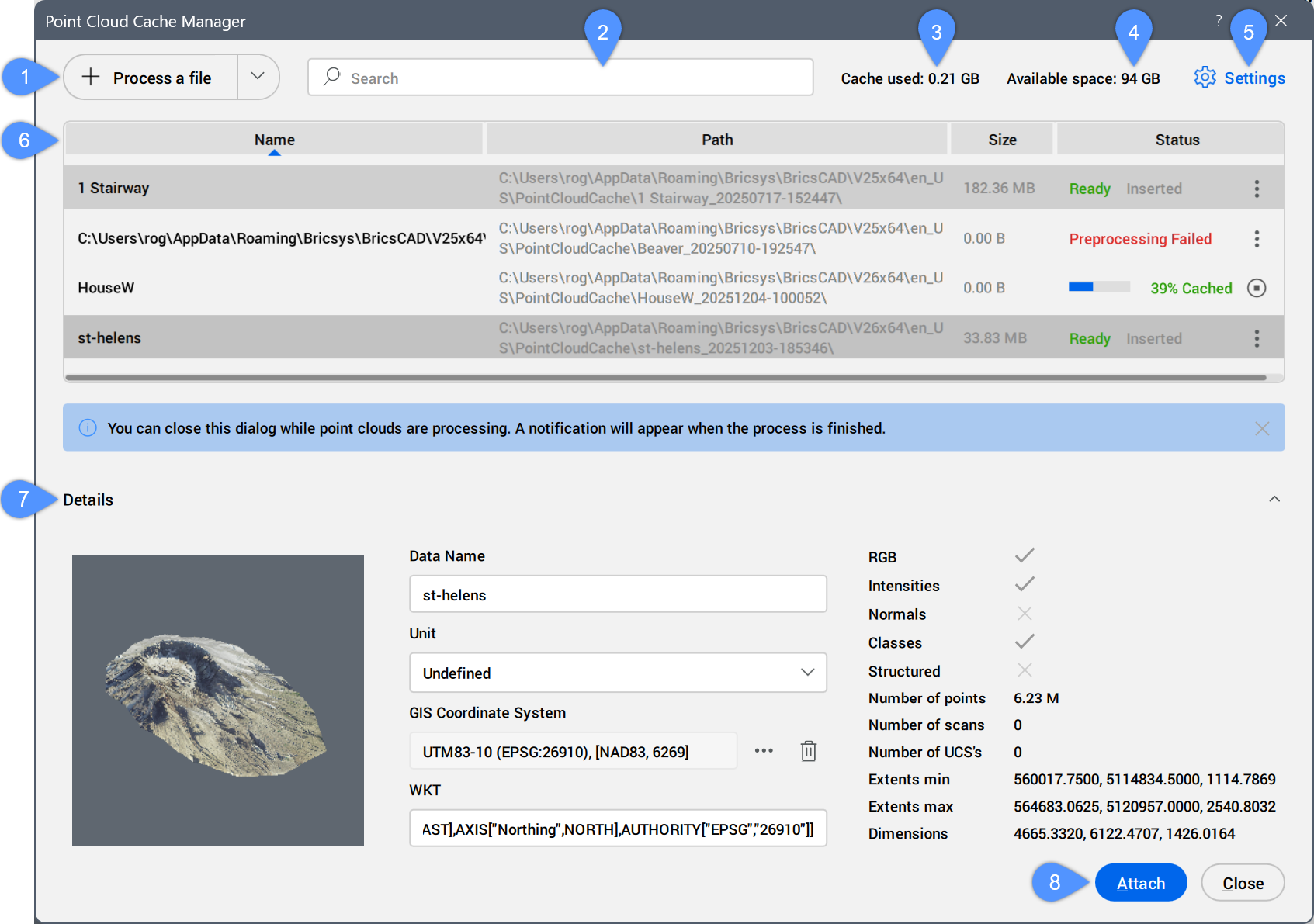
- Process a file
- Search
- Cache used
- Available space
- Settings
- Table of scans
- Details
- Attach
Process a file
Allows you to select a new point cloud file to preprocess, then attach it from the Attach Point Cloud dialog box. See also the Attach Point Cloud dialog box article.
- The supported files types are: *.e57, *.hspc, *.las, *.laz, *.lgsx, *.pack, *.pts, *.ptx, *.rcp, *.rcs, *.rdbx, *.rsp, *.zfs.
- For MacOS, the import of *.lgsx, *.rdbx, and *.rsp files is not supported.
Click the drop-down button to access the Process a folder option.
- Process a folder
- Opens the Choose Input Folder dialog box. Select a folder to process.
The point cloud file or folder is preprocessed in the background to create a cache entry. While processing, a progress bar is displayed in the Status column of the cache entry in the table of scans. A notification balloon displays when the point cloud is fully cached.
- The double-byte characters are accepted for the point cloud name.
- When the POINTCLOUDHSPC system variable is set to ON, the file is inserted in the HSPC format.
- When a LAS or LAZ file contains classification data, it is shown in the Point Cloud Manager panel. Visibility of the classified points can be toggled on or off per class. This information is only available if the point cloud is preprocessed in HSPC format.
- When geographic information is available in the original data, it is stored in the point cloud's cache (only if the point cloud is preprocessed in HSPC format). You can access this information in the Properties panel under the Misc category for a selected point cloud instance. To overwrite the DWG file's geographical information with that of the point cloud instance (possible only if the CRS of the point cloud is the same as the CRS of the DWG file), turn On the Geolocate property of the selected point cloud instance.
Search
Displays in the table of scans only the point clouds containing the typed search string. The results are filtered as you type.
Cache used
Specifies the total amount of the used cache.
Available space
Displays the total amount of available cache.
Settings
Opens the Settings dialog box to set the POINTCLOUDCACHEFOLDER system variable value that specifies the folders where point cloud cache files are stored.
Table of scans
Lists the available preprocessed point cloud scans.
- Columns list: Show or hide a table column by clicking on its name in the list.
- Show all columns: Shows all table's columns.
- Restore column positions: Restores the default position of all table's columns.
- Table columns
-
- Name
-
Displays the point cloud cache name.
Note:- The point cloud cache name is a user specified name for the preprocessed point cloud. It's the default point cloud name if you do not specify a point cloud name for insertion.
- The double-byte characters are accepted for the point cloud name.
-
- Status
-
Displays the point cloud file status.
- Progress bar: displays the preprocessing or classification percent of the file.
Click the Cancel button (
 ) to interrupt the process.
 - Ready: the file is available to be attached.
- Inserted: the file is inserted in the current drawing.
Click the Cache options button ( ) to display two options:
 - Delete cache
- Removes the selected point cloud in the list and deletes the point cloud cache from the disk cache folder. The Remove file pop-up dialog box opens for confirmation.
- Go to log file
- Opens the selected point cloud's log file in the default text editor.
- Progress bar: displays the preprocessing or classification percent of the file.
Details
Displays all available metadata of the selected preprocessed point cloud.
- Data Name
- Displays the point cloud name.
- Unit
- Displays the point cloud unit. Click the drop-down menu button and select a unit from the list.
- GIS Coordinate System
- Displays the point cloud GIS Coordinate System.
Click the menu button to open the Choose GIS Coordinate System dialog box and select a GIS Coordinate System.
Click the Remove button (
 ) to remove the GIS information from the selected point cloud file.
- WKT
- Displays the WKT string to be converted to a GIS Coordinate System.
Attach
Opens the Attach Point Cloud dialog box to attach the selected cache entry to the current drawing.
You can also double-click a cache entry to open the Attach Point Cloud dialog box and attach it.
- You can attach point cloud files to both saved and unsaved drawings.
- Multiple insertions can have the same or a different point cloud name.