
Load Application Files dialog box
Opens via: APPLOAD command
The Load Application Files dialog box loads and unloads the following application types to run inside BricsCAD:
- LSP - LISP applications from BricsCAD and other CAD programs.
- DES - DES LISP applications.
- BRX - BricsCAD runtime extension applications.
- TX - Teigha extension applications, from Open Design Alliance.
- ARX - AutoCAD® runtime extension applications from Autodesk®.
- DBX - DBX applications.
- DRX - Drawing runtime extension applications.
- DVB - Visual Basic applications.
- MNL - LISP expressions for menu files.
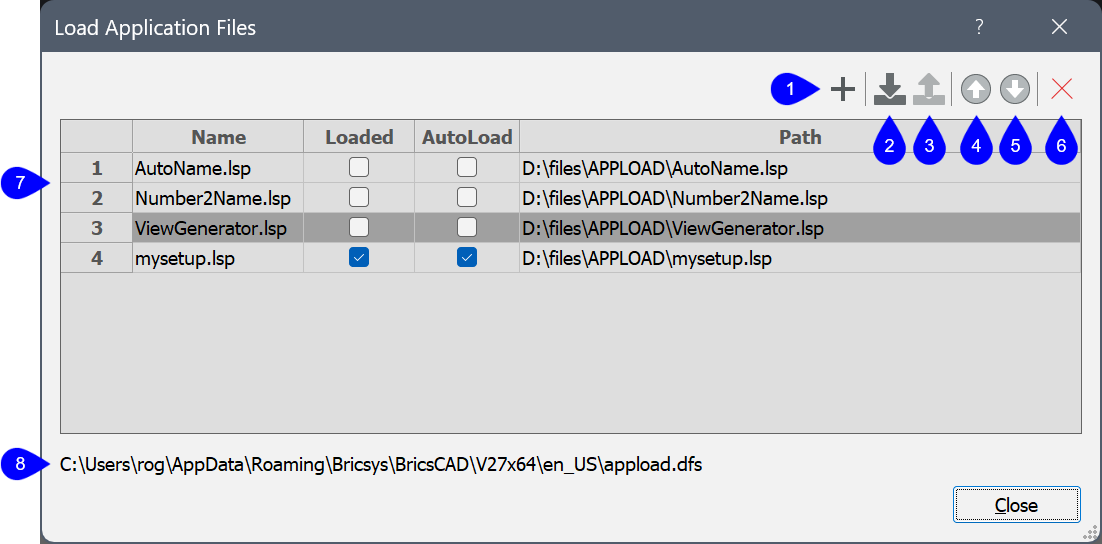
Add application file (1)
Opens the Select Application Files dialog box.
Load selected application (2)
Loads the selected applications into BricsCAD. Only compatible applications with BricsCAD can be loaded.
Unload selected application (3)
Unloads the selected applications from BricsCAD. The LISP applications have to be removed in order to be unloaded in the current BricsCAD session.
Move application upward (4)
Moves the selected applications up in the list.
Move application downward (5)
Moves the selected applications down in the list.
Remove selected application (6)
Removes the selected applications from the list.
Application files list (7)
Displays a list with application files that are available for load, unload, move up and down or remove.
- Name
- Specifies the name and the extension of the application file from the list.
- Loaded
- Specifies if a file is loaded or unloaded in the current BricsCAD session.
- Autoload
- Specifies if a file will be loaded automatically in the next BricsCAD session.
- Path
- Displays the location folder of the added files.
Application file path (8)
Displays the location folder of the appload.dfs file that contains all applications added, using the Select Application Files dialog box. You can open the file using Notepad.
Applications listed in the appload.dfs file are loaded on start-up.