
Weld Symbol dialog box
Opens via: AMWELDSYM command
The Weld Symbol dialog box defines the default weld symbols for the current drafting standard.
The parameters entered for the weld symbols are stored temporarily and used as default values for the next weld symbols setting.
The most recent revision of the standard to which this symbol conforms is displayed at the top of the dialog box.
The dialog box contains 2 main tabs, Symbol and Leader and text.
Symbol
Specifies the weld symbol characteristics.
Important: The available parameters depend on the type of weld and the standard to which this symbol complies. After creating a weld symbols, you are able to edit their parameters in the Weld Symbol dialog box or in the Properties panel.
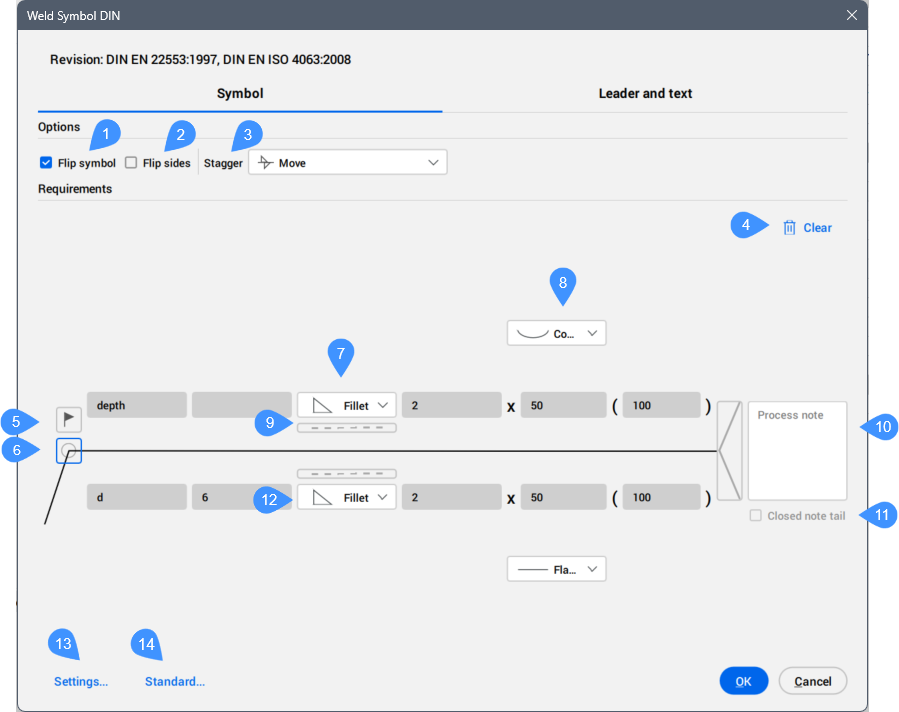
- Flip symbol
- Flip sides
- Stagger
- Clear
- Field weld
- All around
- Weld type for current process for the other side
- Contour
- Identification line
- Process notes
- Closed note tail
- Weld requirements for the arrow side
- Settings...
- Standard...
- Options
-
- Flip symbol
- Indicates whether the weld symbol on the reference line is oriented to the right or left.
- Not ticked: aligns to the right.
- Ticked: aligns to the left.
- Flip sides
- Swaps the weld symbol and its parameters between the arrow side and the other (opposite) side.Note: The Flip sides setting is taken into account next time you apply a weld symbol.
- Stagger
- Specifies whether intermittent welds are staggered. Available only if you select fillet welds or ANSI edge welds for both sides.
Select the stagger type from the right side drop-down list.
- None
- The intermittent weld symbols are not staggered.
- Move
- The intermittent weld symbols are staggered.
- Requirements
-
- Clear
- Clears all previously entered weld parameters, leaving the cells empty.
- Field weld
- Toggles the visibility of the Field weld symbol in the current operation. When ON, indicates that welding must be performed in the field during the erection of the structure.
- All around
- Toggles the visibility of the All around symbol (continuous weld) in the current operation. When ON, it indicates that welding is required along the entire contour.
- Weld type for current process for the other side
- Defines the weld type applied for the current process for the other side. Select the weld type from the drop-down list. Each option displays a symbol representing the simplified weld cross-section.
Define the weld parameters based on the selected weld type and the applicable standard. Hover over any field to see its parameter description
- Depth
- Defines the depth of the weld.
- Size
- Defines the size of the weld.
- Number
- Defines the quantity of welds.
- Length
- Defines the length of the weld.
- Spacing
- Defines the distance between intermittent welds.
- Contour
- Sets the finishing contour of the weld surface using the drop-down list.
- Identification line
- Displays the identification line.
- Process notes
- Adds note that specifies the welding requirements.
- Closed note tail
- Draws a box around the tail note.
- Weld requirements for the arrow side
- Defines the weld type and parameters for the arrow side, similar to the weld type for the other side.
- Settings...
- Opens the Welding Settings dialog box. See the Welding Settings dialog box article for more information.
- Standard...
- Opens the Standard Settings dialog box. See the Standard Settings dialog box article for more information.
Leader and text
Specifies the leader and text characteristics.
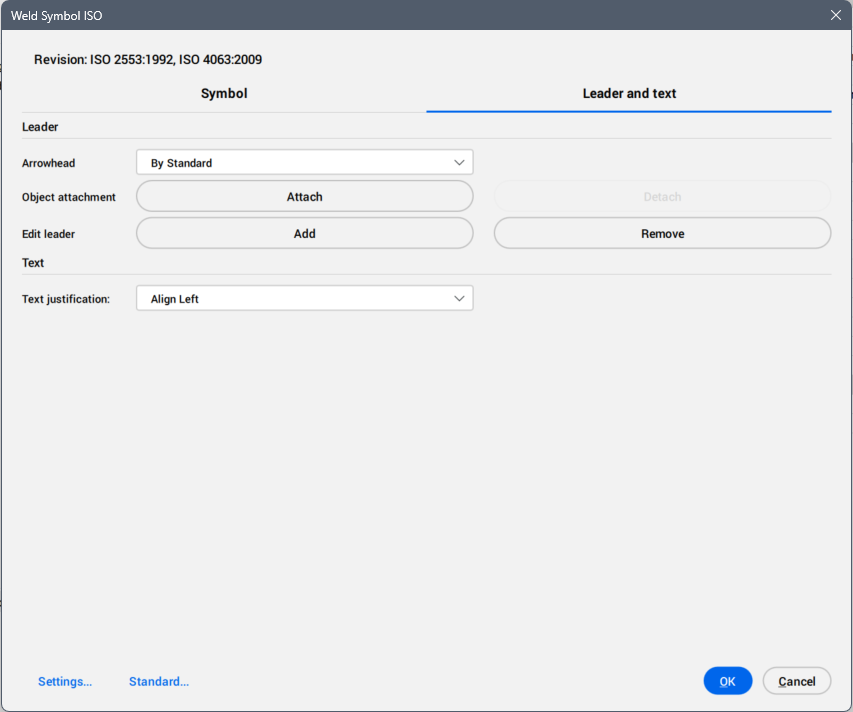
- Leader
-
- Arrowhead
- Defines the default arrowhead type for welding symbols.
- Object attachment
- Defines if the symbol leader is attached or detached to the object.
- Attach
- Attaches the symbol to the selected object.
- Detach
- Detaches the symbol from the object.
- Edit leader
- Edits leader segments.
- Add
- Adds new leader segments or leader nodes.
- Remove
- Removes leader segments or leader nodes.
- Text
-
- Text justification
- Specifies whether the symbol text is aligned to the right, center or left.