
Structure panel
To open the Structure panel:
- Run the STRUCTUREPANEL command.
- Right-click a ribbon panel or toolbar and choose Structure from the Panels list.
With the Structure panel you can:
- View the entire content of a drawing listed as a structure tree configured by predefined rules.
- Decide how the entities are displayed in the structure tree by selecting a Structure Tree Configuration or creating a new one via the Configure Structure Tree dialog box.
- Select specific entities from the structure tree to identify them in the model space (and vice versa).Note: BricsCAD does not support modifying sub-entities of blocks using the Structure panel.
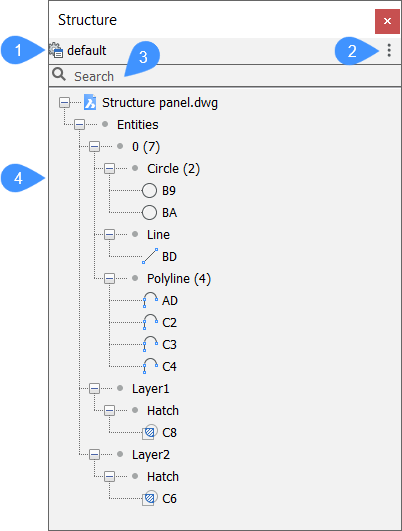
- Structure tree configuration
- Configurations menu
- Search field
- Structure tree
Structure tree configuration
Displays the name of the active configuration.
The settings are saved in a CST (Structure Tree Configuration) file. The active CST file is specified by the STRUCTURETREECONFIG system variable.
The location of CST files is specified by the SRCHPATH system variable.
To edit the active configuration or create a new one, click the name of the active configuration. This opens the Configure Structure Tree dialog box (see the Configure Structure Tree dialog box article).
Configurations menu
This drop-down menu lists the configuration (CST) files stored in the Support folder.
Select one to set it as the active structure tree configuration.
- default
- Displays entities sorted and grouped by layer-based structure.
- mechanical
- Displays entities sorted and grouped by based structure.
- bim
- Displays BIM entities sorted and grouped by based structure.
- bim - Composition
- Displays BIM entities sorted and grouped by composition. For example, you can see/select all concrete walls on all floors at once, or see at a glance which compositions are used.
- bim - Profiles
- Displays BIM entities sorted and grouped by profile.
- bim - Type
- Displays BIM entities sorted and grouped by BIM-type. For example, you can see/select all walls on all floors at once.
- Configure structure tree
- Opens the Configure Structure Tree dialog box to edit the existing configurations or to add your own structure tree configurations (see the Configure Structure Tree dialog box article).
- Select Configuration…
- Opens the Select Structure Tree Configuration File to set a new CST file as the active configuration.
Search field
Type in a string to search the structure tree for character strings that match what you typed. The structure tree adapts accordingly, displaying only the result entities.
Structure tree
Displays a structured tree view of the drawing content as defined by the active configuration.
- General usage information
- In the structure tree you can:
- Click the expand (+) icon to expand a node.
- Click the collapse icon (-) to collapse a node.
- Click a node or entity in the structure tree to select it in the drawing.Note: The Select entities when selected in tree option needs to be selected for the active configuration in the Options tab of the Configure Structure Tree dialog box. To open it, right-click a tree node or an entity in the structure tree and select the Configure... option.
Hold down the Ctrl key to compose a selection set.
Note: Select the drawing name. Next, right-click and choose Show in the context menu to display the entire drawing, or choose Show Entities in the General tab of the No Selection Quad.
Right-click a tree node or an entity to display the following options:
- Show
- Shows the selection set, when it was previously hidden.
- Hide
- Hides the selection set, and keeps all other drawing entities visible.
- Isolate
- Hides all other entities in the drawing, except the selection set.
- Zoom
- Zooms the view to the extents of the selected entities.
- Expand All
- Expands all nodes in the structure tree.
Select the drawing name and use this option to expand all nodes in the entire tree.
- Collapse All
- Collapses all nodes in the structure tree.
Select the drawing name and use this option to collapse the entire tree.
- Configure...
- Opens the Configure Structure Tree dialog box to edit the existing configurations or to add your own structure tree configurations (see the Configure Structure Tree dialog box article).