
Complete guide to migrating custom files from AutoCAD to BricsCAD
1. Overview of custom files to migrate and their paths
BricsCAD uses a variety of files that store your personal settings, customizations, profiles, and application data to assist you in creating your drawings.
| File type | Extension | Found in | Path | |
|---|---|---|---|---|
| Partial customization files |
|
Support folder |
|
|
| Linetypes | LIN | |||
| Hatch patterns | PAT | |||
| Tool palettes |
|
|||
| Command aliases | PGP | |||
| Shape files | SHP | |||
| Drawing templates | DWT | Templates folder |
|
|
| Plot files | Plot Styles |
|
PlotStyles folder |
|
| Plot Config |
|
PlotConfig folder |
|
|
| LISP files | LSP | Support folder |
|
|
Use the SETTINGS command to configure how BricsCAD locates and loads custom files. In the Settings dialog, you can define all support file paths, including folders for linetypes, shapes, fonts, Xrefs, plotters, and other resources required during migration.
Use the CUSTOMIZE command to modify how BricsCAD user interface behaves. In the Customize dialog box, you can change the actions of interface elements such as menus, ribbons, toolbars, and mouse buttons, ensuring that migrated custom files are properly integrated into your workspace.
- Manual migration of custom files
- Use the manual migration method when you want to transfer specific customization resources from AutoCAD®, a previous BricsCAD version, or BricsCAD installed on a different computer. Manual migration involves locating, copying, and loading individual customization files to the current BricsCAD installation.
2. Migrating custom files
2.1 Migrating partial customization files
CUI or CUIX files can load and save full or partial custom workspaces. Only partial customization files should be migrated. Loading a partial CUI file adds custom menus, toolbars, ribbon elements, and other interface customizations to the existing user interface. When you install BricsCAD, the default CUI file is copied to the Support folder.
- A CUIX file is a zipped package that contains all files required by the user interface. When loaded, it is automatically converted to a CUI file. Bitmap resources contained in a CUIX file are copied to a .RESZ resource file, which can be used as an alternative to a resource DLL. Supported image formats include BMP, JPG, PNG, ICO, GIF, TIFF, XBM, and XPM.
- When migrating a partial customization file, make sure that any referenced support files, custom icons, scripts and LISP routines are also transferred and that their file paths are correctly configured in BricsCAD.
Go to AutoCAD® and launch the CUSTOMIZE command. On the Transfer tab, select the desired partial CUI file from the drop-down list and save it.
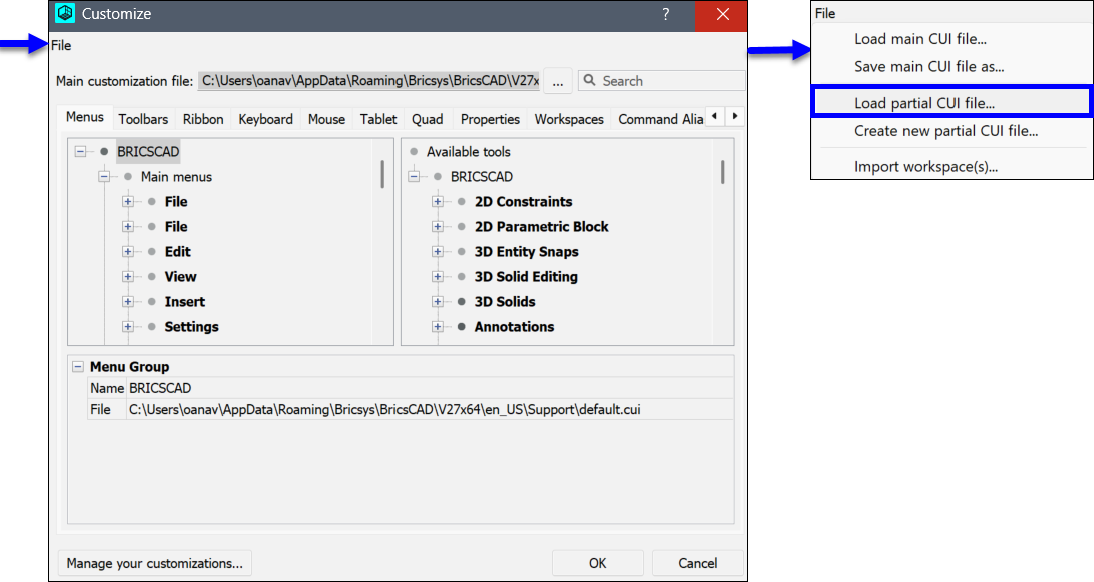
Then, go to BricsCAD and launch the CUSTOMIZE command to open the Customize dialog box. From the File menu, choose Load partial CUI file... to open the Choose a customization file dialog box. Select and load the desired partial customization file.
2.2 Migrating custom linetypes
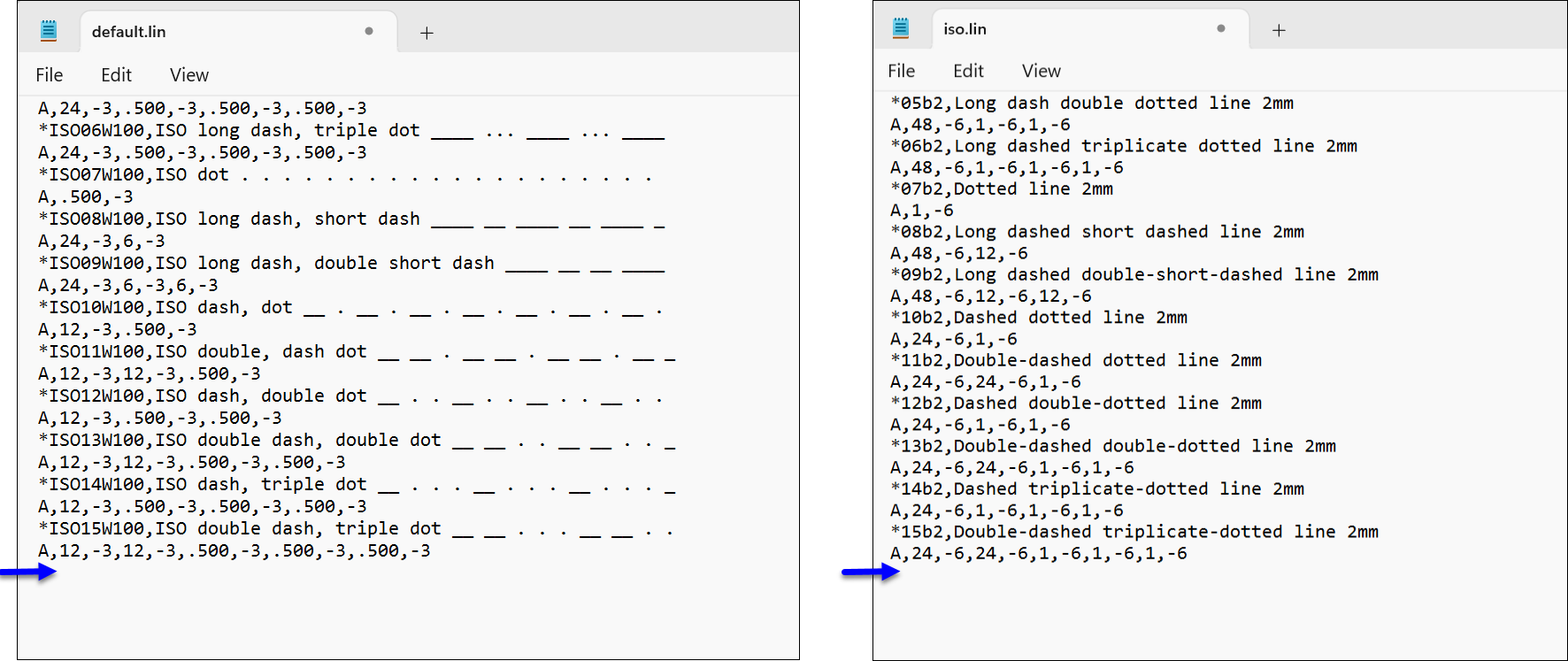
LIN files store linetype definitions. BricsCAD provides two default LIN files that you can customize: default.lin for imperial linetypes and iso.lin for metric linetypes. To migrate custom linetypes, copy the required linetype definitions from these files. You can also store custom linetypes in a separate LIN file and load it in BricsCAD.
To migrate custom linetypes, locate each file, copy the custom linetype definitions or the custom LIN file, and save them in the corresponding BricsCAD file.
- Migrating imperial or metric custom linetypes
- Go to AutoCAD® Support folder and open in a text editor the acad.lin file for imperial custom linetypes or the autocadiso.lin file for metric custom linetypes. Scroll down to the User Defined Linetype section, select the definition of the custom linetype and copy it.
Then, go to BricsCAD Support folder and open in a text editor the default.lin file for imperial custom linetypes or the iso.lin file for metric custom linetypes. Paste the definition of the custom linetype at the end of the file, then save and close it.
- Migrating custom LIN files
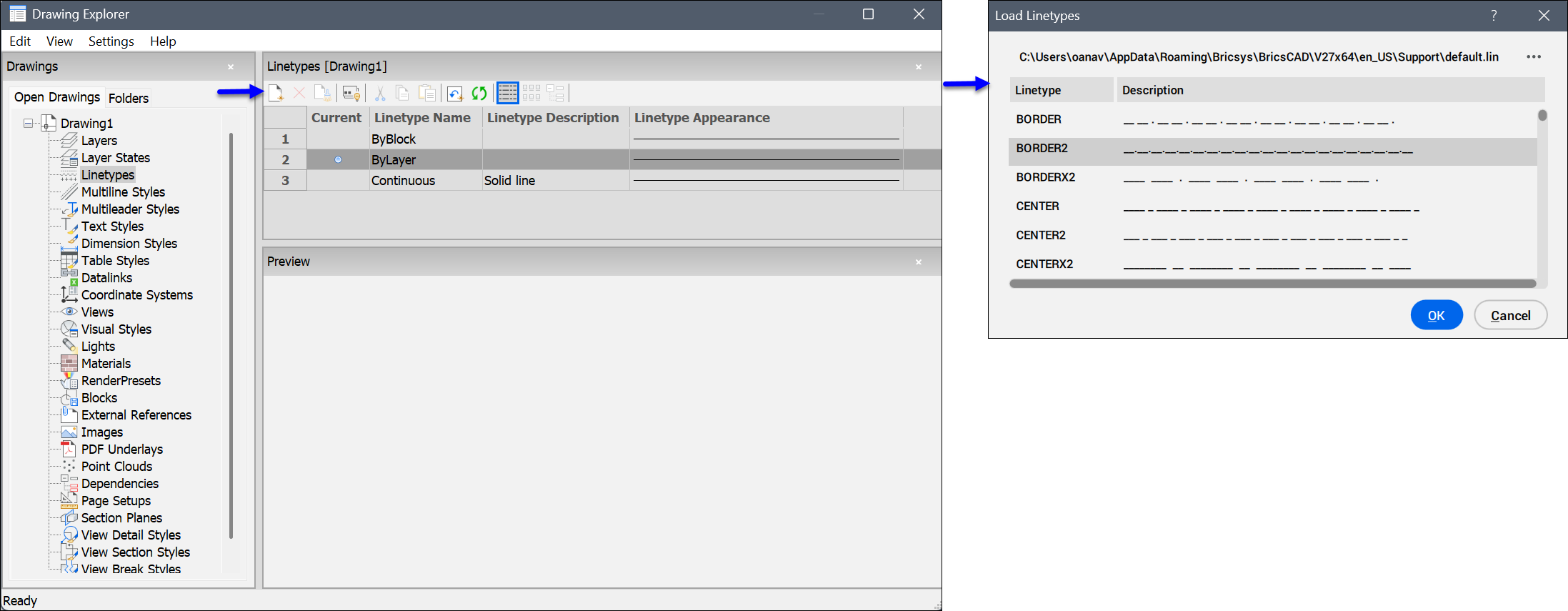
- Go to BricsCAD and run the LINETYPE command. Choose New to open the Load Linetypes dialog box and import your custom LIN file.
It is recommended to store the custom LIN files in BricsCAD Support folder.
2.3 Migrating custom hatch patterns
PAT files store the definition of the hatch patterns. There are two default PAT files, one for imperial hatch patterns and another for ISO hatch patterns. Custom hatch patterns can also be stored in an alternative PAT file.
To migrate custom hatch patterns, locate each file, copy the custom hatch patterns definitions or the custom PAT file, and save it in the corresponding BricsCAD file.
- Migrating imperial or metric custom hatch patterns
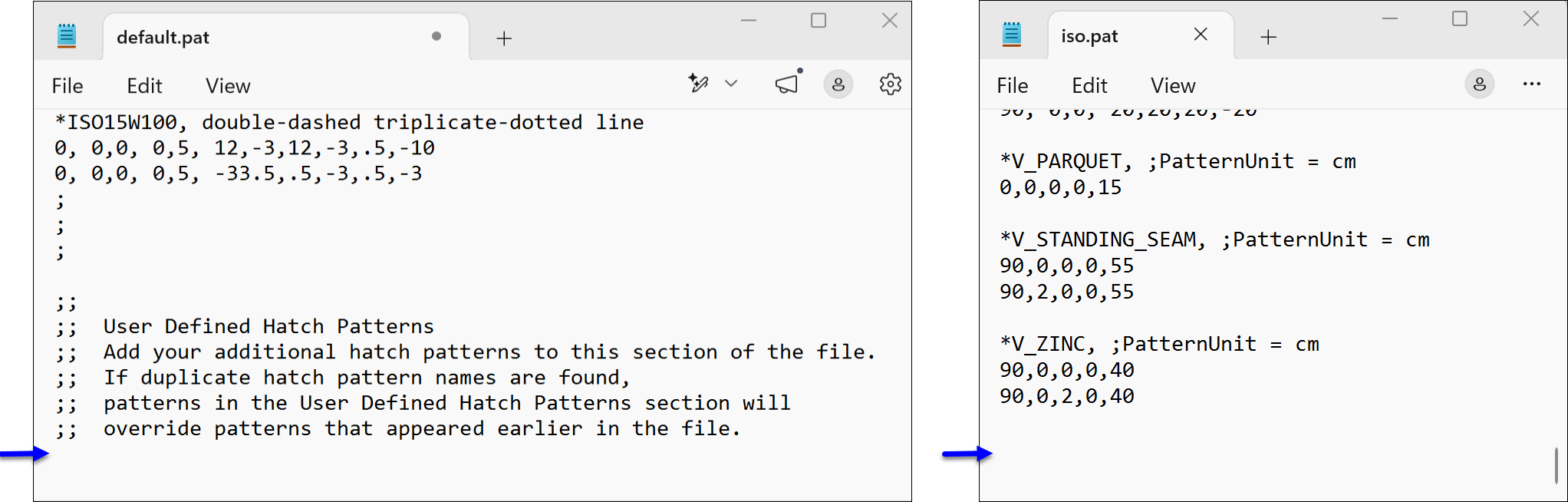
- Go to AutoCAD® Support folder and open in a text editor the acad.pat file for imperial custom hatch patterns or the acadiso.pat file for metric custom hatch patterns. Scroll down to the User Defined Hatch Patterns section, select the definition of the custom hatch patterns and copy it.
Then, go to BricsCAD Support folder and open in a text editor the default.pat file for imperial custom hatch patterns or the iso.pat file for metric custom hatch patterns. Paste the definition of the custom hatch patterns at the end of the file, then save and close it.
- Migrating custom PAT files
- Copy and store the custom PAT files as needed. To migrate them in BricsCAD choose one of the following:
- (Recommended) Go to BricsCAD Support folder and save there the custom PAT files.
- Add the location of your custom PAT files to the Support file search path section in the Settings dialog box (SRCHPATH system variable).
2.4 Migrating custom drawing templates
Drawing templates are DWT files that stores settings specific to the drawing and project requirements, such as units, layers, styles, layouts, etc.
To migrate custom drawing templates, locate each file, copy and save it in the corresponding BricsCAD folder.
Go to AutoCAD® and launch the OPTIONS command. Click the Files tab, go to the Template Settings section to find the location of the drawing template file and copy the files.
Then, go to BricsCAD and launch the TEMPLATEFOLDER command to open the folder where the drawing template files are stored. Paste the files.
2.5 Migrating custom plot files
Custom plot styles are stored in CTB or STB files. Plotter configurations are stored in PC3 files, and plotter model parameters associated with a PC3 are stored in PMP files.
- CTB and STB files are fully compatible. A drawing can use either CTB or STB plot styles, so the plot style table is displayed based on the current drawing plot style mode (see the CONVERTPSTYLES command article).
- In BricsCAD, PC3 plotter configuration files are supported only for Windows system printers, while AutoCAD® supports additional printer configuration types.
- Some PC3 configurations also require their associated PMP file when migrated.
To migrate custom plot files, locate each file, copy the files and save them in the corresponding BricsCAD file.
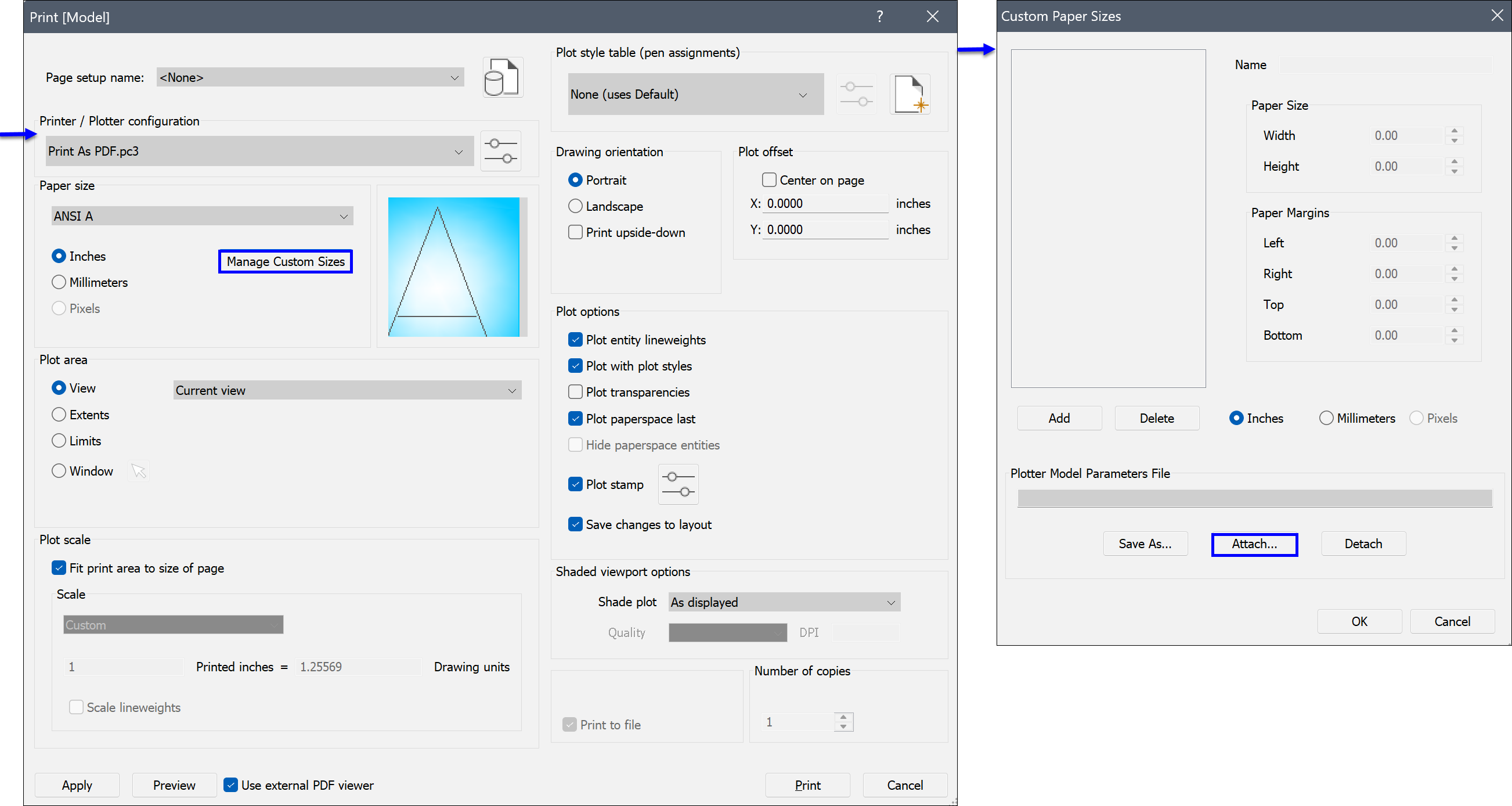
- Migrating Color-Dependent Plot Style Table (CTB) or Named Plot Style Table (STB)
- Go to AutoCAD® and launch the STYLESMANAGER command to open the Plot Styles folder and copy the files.
Then, go to BricsCAD and launch the STYLESMANAGER command to open the PlotStyles folder and paste the files.
- Migrating Plotter Configuration File (PC3)
- Go to AutoCAD® and launch the PLOTTERMANAGER command to open the Plotters folder and copy the files.
Then, go to BricsCAD and launch the PLOTTERMANAGER command to open the PlotConfig folder and paste the files.
- Migrating Plotter Model Parameters (PMP)
- Go to AutoCAD® and launch the PLOTTERMANAGER command to open the Plotters folder. Open the PMP Files folder and copy the files.
Then, go to BricsCAD and launch the PLOTTERMANAGER command to open the Plotters folder. Open the PMP Files folder and copy the files.
2.6 Migrating custom tool palettes
BricsCAD supports importing tool palettes from XTP, ATC and BTC files, and tool palette groups from XPG and BWS files. Tool palettes can be exported to BTC files, and tool palette groups to XPG files.
BricsCAD stores tool palettes in BTC files and indexes all existing palettes in the BcTpCatalog.btc file. When you create or import a new palette, BricsCAD updates the catalog and automatically generates a separate BTC file that contains the palette’s content. All palette files are stored in the default Tool Palettes folder inside the Support directory.
To migrate custom tool palettes, export each file and import it into BricsCAD.
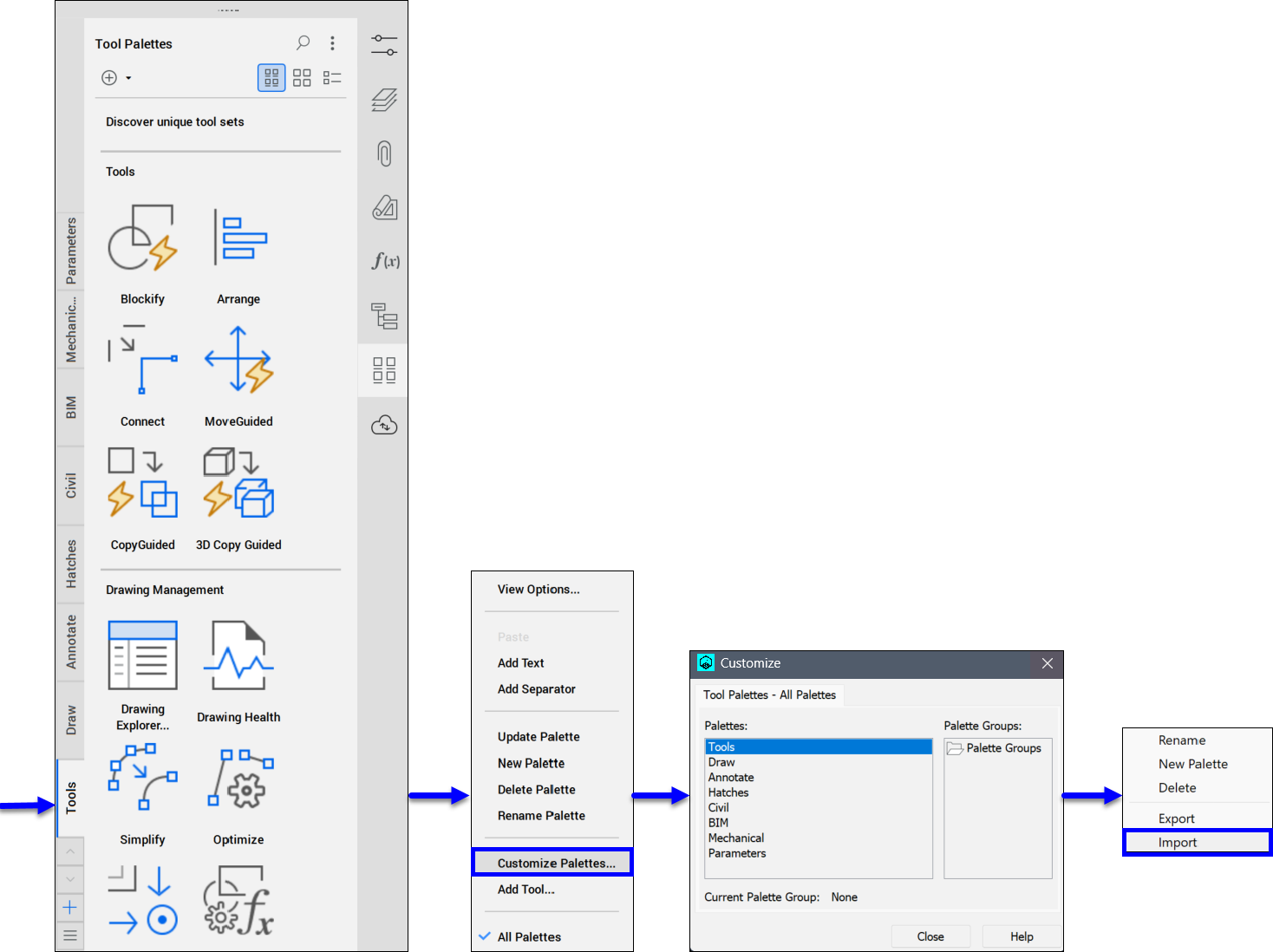
Go to AutoCAD® and launch the TOOLPALETTES command to open the Tool Palettes panel. Right-click the panel and choose Customize Palettes... to display the Customize dialog box. Then, right-click the custom palette or palette groups you want and select the Export... option to open the Export Palette or Export Group dialog box. Save the custom palette file as an XTP file or the custom palette group as an XPG file.
Then, go to BricsCAD and launch the TOOLPALETTES command to open the Tool Palettes panel. Right-click the panel and choose Customize Palettes... to display the Customize dialog box. Then, right-click any palette or palette group and select the Import option to open the Import Palette or Import Palette Group dialog box. Choose the XTP or XPG file you want to import.
2.7 Migrating custom command aliases
Command aliases are alternative names for commands, and they are saved in a PGP file.
To migrate custom command aliases, locate each file, copy the custom command aliases definitions, and save them in the corresponding BricsCAD file.
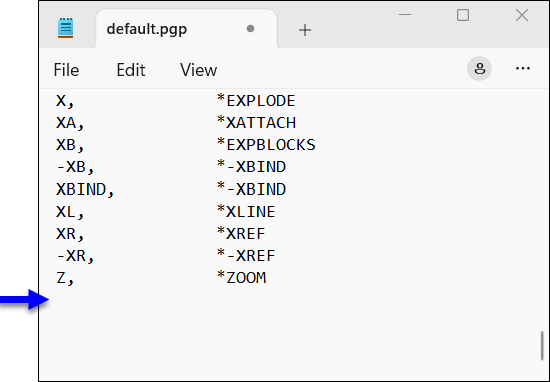
Go to AutoCAD® Support folder, open the acad.pgp file in a text editor and scroll down to the User Defined Command Aliases section. Select the definition of the custom command aliases and copy it.
Then, go to BricsCAD Support folder and open the default.pgp file in a text editor. Paste the definition of the custom command aliases at the end, save the file, and exit.
2.8 Migrating custom shape files
SHX files store the definition of the fonts and SHP files store the definition of the shapes. These files are usually stored in the Support folder.
To migrate custom command aliases, locate each file, and copy both the SHP and SHX files to the BricsCAD Support folder.
Go to AutoCAD® Support folder and copy both the SHP and SHX files.
Then, go to BricsCAD Support folder and paste the SHP and SHX files.
2.9 Migrating LISP files
LISP (procesamiento de listas) es un lenguaje de programación interpretado que se utiliza para automatizar tareas, crear comandos personalizados y ampliar BricsCAD la funcionalidad. Las rutinas LISP pueden interactuar con BricsCAD comandos, variables del sistema, cuadros de diálogo y entidades de dibujo.
BricsCAD es compatible con AutoCAD® AutoLISP, por lo que puede cargar y ejecutar archivos LSP. Sin embargo, los formatos de archivo VLX y FAS son AutoCAD® archivos LISP cifrados específicos y BricsCAD no pueden cargar dichos archivos.
Para migrar rutinas LISP, localiza los archivos LSP deseados y luego cópielos y guárdalos en el archivo correspondiente BricsCAD. Los archivos LISP suelen almacenarse en la carpeta de Support (desde la carpeta de instalación), pero también pueden almacenarse en una carpeta añadida a la ruta de búsqueda de soporte usando la variable de sistema SRCHPATH.
Dos archivos LISP se cargan automáticamente en AutoCAD® la carpeta Support: acad.lsp y acaddoc.lsp. Los equivalentes de estos dos archivos en BricsCAD son on_start.lsp y on_doc_load.lsp.
- Migración de ACAD.LSP a ON_START.LSP
- Ve a AutoCAD® la carpeta de Support y abre en un editor de texto el archivo acad.lsp. Selecciona el contenido personalizado y cópialo.
Luego, ve a BricsCAD la carpeta Support y crea un nuevo archivo editor de texto llamado on_start.lsp. Pega el contenido personalizado y guárdalo.
- Migración de ACADDOC.LSP a ON_DOC_LOAD.LSP
- Ve a AutoCAD® la carpeta Support y abre en un editor de texto el archivo acaddoc.lsp. Selecciona el contenido personalizado y cópialo.
Luego, ve a BricsCAD la carpeta Support y crea un nuevo archivo editor de texto llamado on_doc_load.lsp. Pega el contenido personalizado y guárdalo.
- Migración de archivos VLX cifrados, archivos FAS, proyectos VLX (PRV) y proyectos FAS (PRJ)
- Los archivos VLX y FAS compilados y cifrados no pueden cargarse en BricsCAD. La migración de aplicaciones basadas en VLX y FAS requiere acceso a los archivos fuente originales de LISP y a los archivos de proyecto PRV o PRJ.
BricsCAD soporta la creación de aplicaciones cifradas a través de DEScoder.exe. Usando DEScoder.exe, múltiples archivos LISP, DCL y otros recursos de aplicación pueden empaquetarse y cifrarse en un solo archivo de aplicación DES. Los archivos de proyecto PRV y PRJ se utilizan para definir el contenido de la aplicación y generar el archivo DES cifrado.
- Tras la migración, on_start.lsp se carga por sesión de forma predeterminada, pero también se puede cargar para cada dibujo si la variable de sistema ACADLSPASDOC se establece en 1. El archivo on_doc_load.lsp siempre se carga para cada dibujo.
- Otra forma de cargar sus rutinas LISP es mediante el comando APPLOAD. Después de ejecutar el comando, se muestra el cuadro de diálogo Cargar archivos de Aplicación para seleccionar los archivos de aplicación que desea ejecutar dentro de BricsCAD. La opción Carga automática especifica si un archivo se carga automáticamente o no en la siguiente sesión de BricsCAD (consulte el artículo del cuadro de diálogo Cargar archivos de aplicación para obtener más información).
La ruta del codificador DES es: C:\Archivos de programa\Bricsys\BricsCAD V26 en_US.
- Abra el codificador.
- Seleccione el archivo LISP en el campo Origen.
- Haga clic en el botón Convertir el archivo Lisp de origen seleccionado en un archivo DES cifrado, junto al campo Destino.
- Después de convertir el archivo DES, cópialo a BricsCAD la carpeta Support (desde la carpeta de instalación): %AppData%\Bricsys\BricsCAD\V26x64\en_US, o a una carpeta que hayas añadido a la ruta de soporte usando la variable de sistema SRCHPATH.