
Przeglądarka mechaniczna arkuszy blach
Informacje
The Mechanical Browser panel provides a centralized location for viewing and modifying properties of all sheet metal entities and features.
Aby otworzyć panel Przeglądarkę Mechaniczną:
- Uruchom polecenie OTWÓRZPRZEGMECHANICZNĄ.
- Kliknij prawym przyciskiem myszy panel wstążki lub pasek narzędzi i wybierz Przeglądarkę Mechaniczną z listy Panele.
Sheet metal context
If a drawing contains sheet metal features, the root node properties in the Mechanical Browser include the Sheet metal section, also referred to as Sheet metal context.
The Sheet metal context is created when the first sheet metal part appears in the document and is initialized from the settings listed in Initial parameters.
More information on typical workflows for creating sheet metal parts are listed in the Sheet Metal Design Methods article.
To assign a local Sheet metal context to sheet metal parts, select Context for solid in the Context type field. This allows you to define different design parameters and adjust part thickness.
Sheet metal properties are represented as grouped fields:
- Pole Grubość kontroluje grubość materiału brył arkusza blachy.
- The Modeling group plays 2 roles:
- It provides default settings for sheet metal Commands, such as SMFLANGEBASE, SMEXTRUDE, SMFLANGEEDGE, SMFLANGEBEND, SMLOFT, and SMCONVERT in a newly created model.
The initial parameters are saved in the drawing, allowing the creation of DWT file templates drawings for each type of sheet metal models created in a company.
- New features created by the commands usually derive their properties from the Sheet metal section.
For example, the default value of Radius Type property for the bend feature is Use global value. Thus, when you change the Bend radius in the Sheet metal context, all the bend features with the derived property change their radius. So the second application of Sheet metal context properties is that they allow globally changing properties of the sheet metal part.
- It provides default settings for sheet metal Commands, such as SMFLANGEBASE, SMEXTRUDE, SMFLANGEEDGE, SMFLANGEBEND, SMLOFT, and SMCONVERT in a newly created model.
- The Unfolding group of properties in Sheet metal context lists some properties of SMUNFOLD, SMEXPORT2D and SMASSEMBLYEXPORT commands.
The Sheet metal context is removed when all the features in the document are dissolved by the SMDISSOLVE command.
Switching the context from global to local
Wykonaj następujące czynności:
- Wybierz bryłę w panelu Przeglądarce Mechanicznej.
- In Sheet Metal section, switch the Context Type from Global context to Context for solid.
Praca z funkcjami
Wszystkie cechy części blaszanej są wymienione w Przeglądarce Mechanicznej. Po wybraniu elementu w Przeglądarce Mechanicznej jego powierzchnie są podświetlane w obszarze modelu:
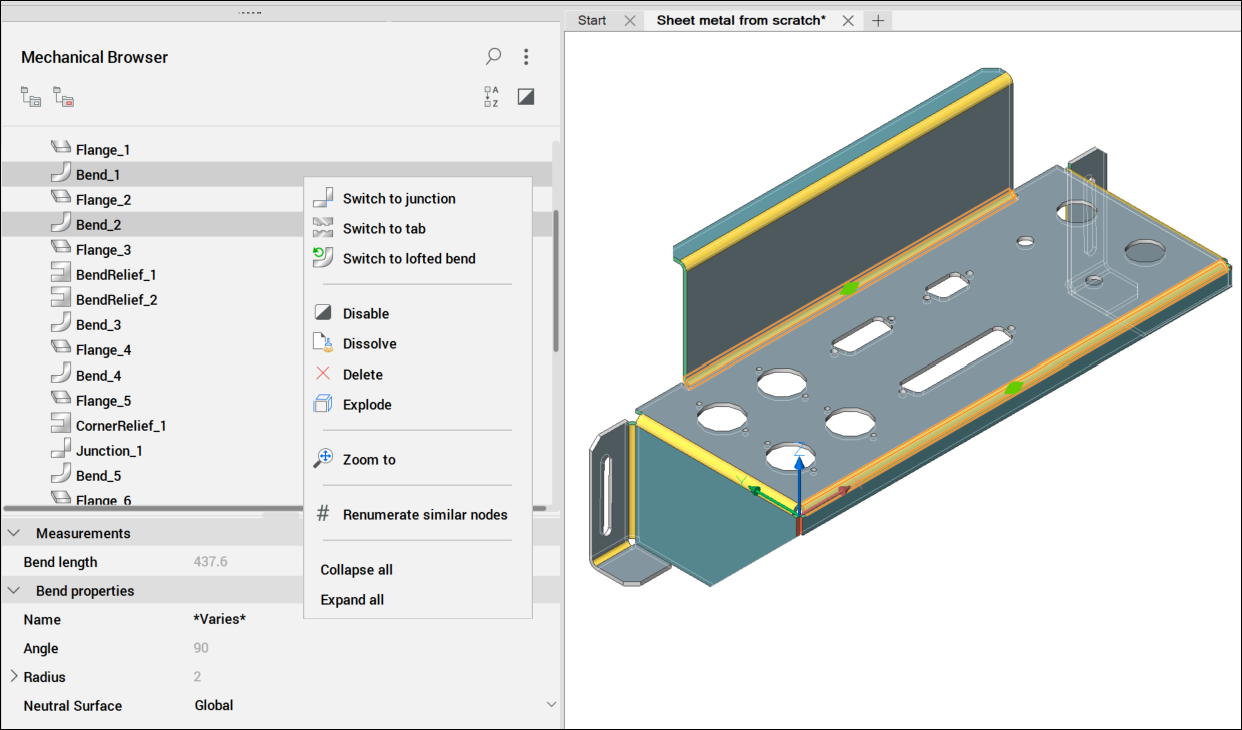
- Zlokalizuj element na części, podświetlając jego geometrię.
- See the properties of the given feature. For example, if you select a bend feature, the Bend properties section is displayed in the Mechanical Browser.
Sheet metal properties
The Mechanical Browser panel offers quick access to operations for sheet metal features. The available operations change based on the selected feature type. See the Sheet Metal Global and Feature Properties article for more information on the sheet metal properties.
Zrozumienie różnicy między wyłączaniem, rozwiązywaniem i usuwaniem
When you right-click a feature in the Mechanical Browser and select Dissolve, the feature is removed from the part, but its geometry remains. However, any design intent, including spatial and parametric relationships between the faces of the feature, is also removed.
If you want to temporarily ignore a feature, select the Disable option. The feature remains visible in the Mechanical Browser and the part acts as if the feature is dissolved. Unlike dissolving, the feature continues to update with geometry changes and can be re-enabled at any time, eliminating the need to recreate it or use the SMCONVERT command.
Certain sheet metal features support the Delete operation in the Mechanical Browser, which functions similarly to the SMDELETE command. When deleted, the feature is removed from the browser, and the geometry is updated based on the feature type.