
Complete guide for Network licensing
1. About Network licenses
2. Overview of licensing options
2.1. License levels
Dostępnych jest 5 poziomów licencji BricsCAD:
- BricsCAD Lite
- BricsCAD Pro
- BricsCAD BIM
- BricsCAD Mechanical
- BricsCAD Ultimate
Aby zobaczyć szczegółowe porównanie każdego poziomu licencji, przejdź do Porównaj poziomy produktów BricsCAD.
2.2. License types
Istnieją 2 typy licencji dla BricsCAD:
- Dożywotnia licencja.
- Licencja subskrypcyjna.
Dożywotnia licencja
Kupując licencję wieczystą, jesteś właścicielem oprogramowania. BricsCAD edycje działają w systemach Microsoft Windows, macOS i Linux.
Jeśli chcesz aktualizować swoje oprogramowanie, masz dwie możliwości:
- Opcja BricsCAD Maintenance obejmuje automatyczne aktualizacje i wsparcie.
- Zakup ulepszeń według własnego uznania.
Licencja subskrypcyjna
Wybierając opcję subskrypcji, masz dostęp do najnowszej wersji BricsCAD przez 1 rok. Obejmuje priorytetowe wsparcie i dostęp do wszystkich nowych wersji, które zostaną wydane w czasie, gdy subskrypcja jest aktywna.
3. Setting up a Network License Server
It is recommended that a network/system administrator be responsible for downloading, deploying and configuring the Sieciowy serwer licencji Bricsys. The server then distributes the license seats.
3.1. On Windows
Downloading Sieciowy serwer licencji Bricsys
The Sieciowy serwer licencji Bricsys contains a custom RLM server and the Menedżer Licencji Sieciowej Bricsys. See more information in the Bricsys Network License Server - Release Notes.
Download the Sieciowy serwer licencji Bricsys (Windows) from here.
Installing Sieciowy serwer licencji Bricsys
In the Bricsys Network License Server Setup dialog box, make sure to select all the checkboxes.
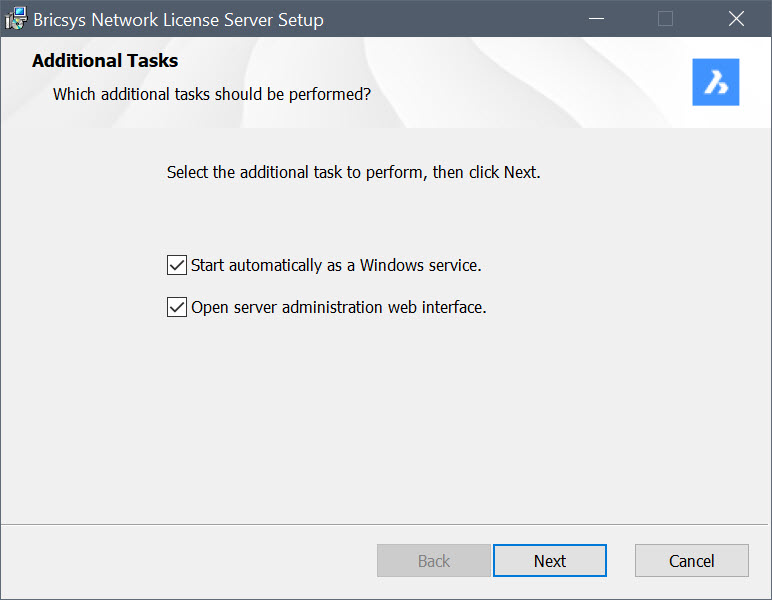
After the installation:
- The Bricsys Network License Manager dialog box opens and you can enter your network license to activate it. For more information, see the Online activation (Network license) article.
- The Reprise License Server Administration web interface opens.Important: You must change the default password after logging in using the default credentials (username: admin and password: admin), otherwise the license server will automatically shut down in 10 minutes.
To change the default password:
- Go to the RLM web UI (localhost:5054).
- Log in with the default credentials.
- Click the Change Password button in the left-side menu and create a new password.
- Restart the computer or restart the RLM service from OS Services.
Example: msiexec /qb /i "<FullPath>\Bricsys-NetworkLicenseServer-V1.1.0-1.msi" INSTALLSERVICE=1 OPENWEBINTERFACE=1
- Replace
<FullPath>with the path where Bricsys-NetworkLicenseServer-V1.1.0-1.msi was downloaded. INSTALLSERVICE=1sets the RLM automatically as a Windows service.OPENWEBINTERFACE=1opens the server administration web interface (localhost:5054).
The Sieciowy serwer licencji Bricsys is installed by default in C:\Program Files\Bricsys\Bricsys Network License Server.
3.2. On Linux
Downloading and installing Sieciowy serwer licencji Bricsys
- Download Sieciowy serwer licencji Bricsys (Linux) from here.
The Sieciowy serwer licencji Bricsys contains a custom RLM server and the Menedżer Licencji Sieciowej Bricsys. See more information in the Bricsys Network License Server - Release Notes.
Important: A default user with the username admin and password admin is created. You must change the default password, otherwise the license server will automatically shut down in 10 minutes. See also the Setup RLM login article. - Extract Bricsys-NetworkLicenseServer-V1.1.0-1.tgz to any folder (Terminal:
tar xvzf Bricsys-NetworkLicenseServer-V1.1.0-1.tgz -c <path>). - Go to that folder and start the Reprise License Manager (RLM) application (Terminal:
./rlm).Note: If the./rlmexecution fails due to permissions, try runningsudo chmod u+x rlmto give execution permissions to the RLM file. - Change the default password of the RLM login (username: admin and password: admin), otherwise the license server will automatically shut down in 10 minutes.
- Go to the RLM web UI (localhost:5054).
- Log in with the default credentials.
- Click the Change Password button in the left-side menu and create a new password.
- Create the RLM system service using the steps outlined in the Readme.txt file in the installation folder.
- Run the launcher (Terminal:
./NetworkLicenseManager.sh). The Menedżer Licencji Sieciowej Bricsys opens, and you can activate or update your network license key.Troubleshooting: If you encounter an error on Ubuntu 22.04 when starting the Menedżer Licencji Sieciowej Bricsys, install the extra package libxcb-cursor0 (Terminal:
sudo apt install libxcb-cursor0).
4. Working with Network licenses
4.1. Activate
4.2. Upgrading your license or extending your subscription
BricsCAD license upgrades no longer generate new license keys. Your current license key remains valid for future upgrades.
To upgrade the network license, you must have the Sieciowy serwer licencji Bricsys installed. For the installation procedure, see the Setting up a Network License Server article dedicated to your operating system.
- Open the Menedżer Licencji Sieciowej Bricsys (click the shortcut on the desktop or in the operating system Start menu).
- Check the UPDATE AVAILABLE section in the Bricsys Network License Manager dialog box.
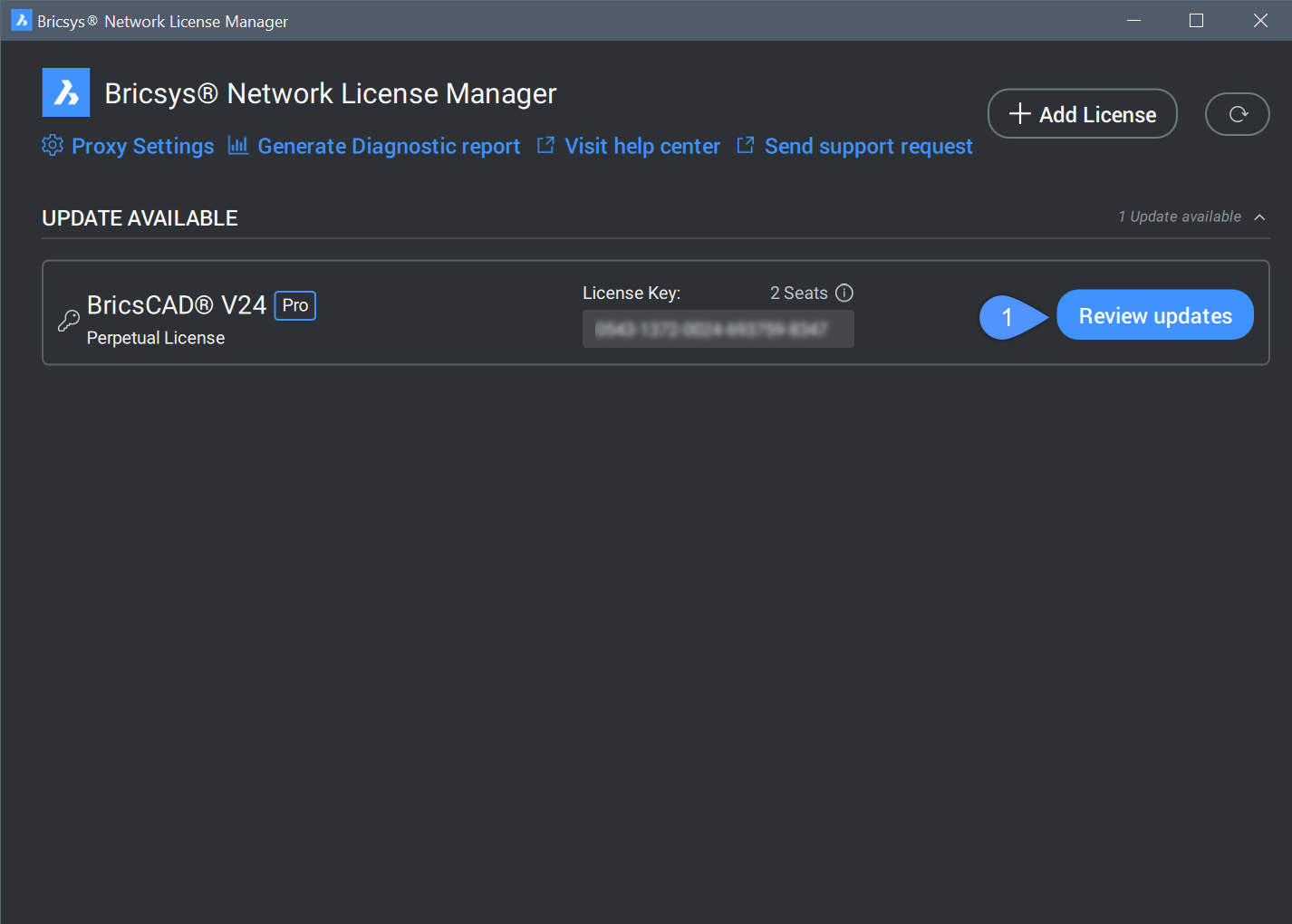
- Click the Review updates button. The Review Updates dialog box displays a preview of the license updates.
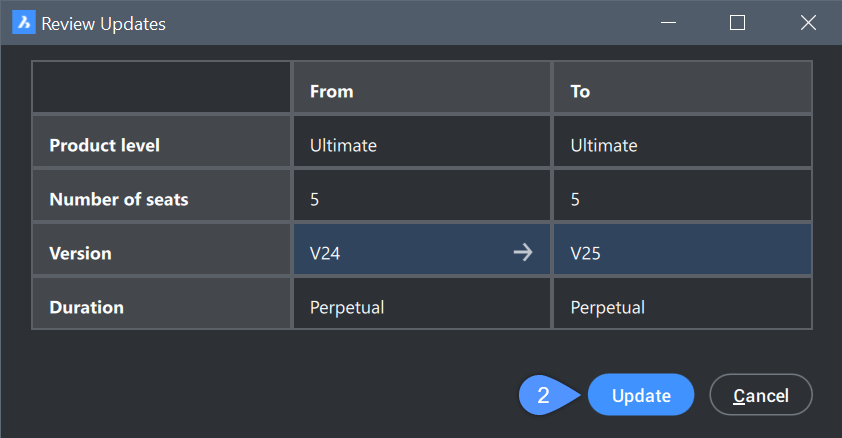
- Click the Update button to update the license on your Network License Server.
4.3. Using the Menedżer Licencji Sieciowej Bricsys in terminal mode
- Open a terminal with administrator rights.
- Navigate to the Sieciowy serwer licencji Bricsys installation directory.
- Input:
- On Windows:
NetworkLicenseManager.com <option> - On Linux:
./NetworkLicenseManager.sh <option>
- On Windows:
Available options and arguments:
-hdisplays the available options.-iddisplays the host ID of this machine.-llists the available network license keys.-a <licensekey>activates a specific network license key.-u <licensekey>updates a specific network license key.-r <licensekey>reviews the update options for a specific network license key.-p <hostname><portnumber><username><password>sets the proxy settings (use""for empty argument values).
5. Network license administration
5.1. Advanced configurations
5.2. License pooling
5.3. Network license usage report
Możliwości sprawdzenia wykorzystania licencji sieciowej:
- W interfejsie internetowym RLM
Przejdź do http://localhost:5054/ i przejdź do .
- W pliku bricsys.dlog (zawiera informacje o wejściu/wyjściu)
Plik ten znajduje się w folderze RLM: C:\Program Files\Bricsys\Bricsys Network License Server.
- Korzystanie z opcji REPORTLOG
Opcja ta opisana jest na stronach 66 i 90 w Administracja licencji RLM instrukcji i należy ją dodać do pliku bricsys.opt w następujący sposób:
REPORTLOG +D:\twoja_ścieżka\nazwa_raportu.logNote:- Po dodaniu opcji należy wykonać operację ponownego załadowania/ponownego uruchomienia serwerów.
- Znak
+oznacza, że nowe dane zostaną dołączone do pliku, w przeciwnym razie plik zostanie nadpisany.
- Korzystanie z oprogramowania innej firmy
- Pakiet administracyjny licencji RLM
Przeglądaj do https://support.reprisesoftware.com/support/admin/license-administration-bundle/
- Raport JTB Flex
Przeglądaj do https://jtbworld.com/jtb-flexreport
- Pakiet administracyjny licencji RLM
5.4. Migrating a Network license to another server
Wykonaj następujące czynności:
- Unieważnij licencję. Więcej informacji można znaleźć w artykule Cofnięcie licencji BricsCAD (ograniczone działanie).
- Aktywuj licencję na nowym serwerze. Więcej informacji można znaleźć w artykule Aktywacja online (licencja sieciowa).
- Zamknij menadżera licencji na starym serwerze i usuń plik licencji na starym serwerze.
6. Installing BricsCAD
Navigate to Download BricsCAD and download the installer.
6.1. Interactive installation
Kroki instalacji interaktywnej
- Kliknij dwukrotnie plik instalatora.
- Kliknij Dalej.
- Zaznacz pole wyboru, aby zaakceptować Umowa licencyjna.
- Kliknij Dalej.
- Wykonaj jedną z następujących czynności:
- Zaakceptuj domyślny folder instalacyjny.
- Kliknij przycisk Zmień... i wybierz folder instalacyjny.
- Kliknij Dalej.
- Kliknij Zainstaluj, aby rozpocząć instalację.
- Wybierz, czy chcesz dodać skrót na pulpicie i / lub wyświetlać informacje o wersji po zakończeniu procesu instalacji.
- Kliknij Dalej.
- KliknijZakończ, aby zakończyć proces instalacji.
6.2. Silent installation
7. Using a Network license in BricsCAD
7.1. Using a Network license on a client computer
- Po aktywowaniu licencji sieciowej na serwerze licencji wykonaj jedną z następujących czynności na komputerze klienckim:
- Jeśli zaczniesz BricsCAD po raz pierwszy kliknij Aktywuj licencję przycisk w BricsCAD okno dialogowe.
- Jeśli chcesz zastąpić istniejącą licencję, uruchom polecenie MENADŻERLICENCJI, kliknij Zarządzaj licencją i kliknij Modyfikować.
- Wybierz Licencja sieciowa opcja w okno dialogowe.
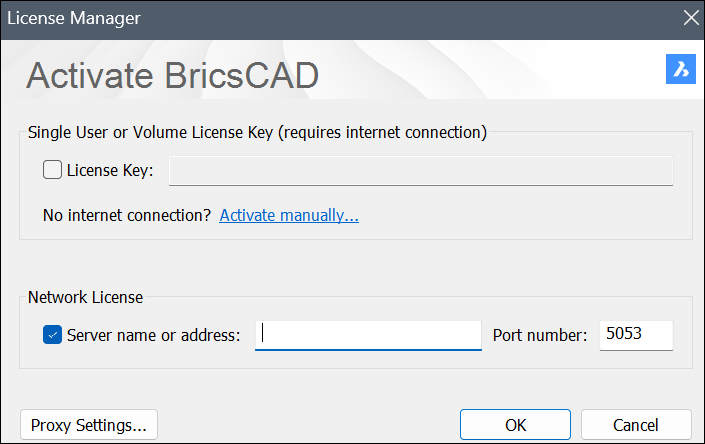
- Wpisz nazwę hosta lub adres IP serwera licencji w polu Nazwa lub adres serwera pole. W razie potrzeby zmień numer portu w Numer portu pole.Note: Jeśli komputer jest połączony z serwerem licencji przez serwer proxy, kliknij przycisk Ustawienia proxy, aby skonfigurować ustawienia proxy dla licencji sieciowej.
- Kliknij przycisk OK .
7.2. Roaming a Network license
A network license can be roamed on a client computer to use BricsCAD without a connection to the Network License Server (for example, to work outside the office or at home).
The license can be used in roaming for a specified number of days. After this period, the license is automatically checked back in to the Network License Server. If necessary, you can return the roaming license to the license server earlier.
Steps for roaming a network license and returning the roamed license to the server
- Launch BricsCAD.
- Launch the LICENSEMANAGER command to open the Bricsys License Manager dialog box.
- Click the Manage License button to open the dialog box.
- Click the Roaming... button to open the dialog box.
The Roaming status section displays whether your license is checked out for roaming or not, and allows you to change these settings.
- To roam a network license on a client computer you are prompted to enter the desired number of days to check out the roaming license, then click the Checkout button.Note: Select Store the number of days value if you want to automatically refresh the roaming period when your computer is connected to the server.
- To return a roamed network license on the server, you are prompted to click the Checkin button.
Important: Restart BricsCAD to apply the changes. - To roam a network license on a client computer you are prompted to enter the desired number of days to check out the roaming license, then click the Checkout button.
8. Troubleshooting
For troubleshooting errors, please see the Error codes section from our Help Center.
Common errors: