
Verwenden des Panels Bibliothek im BIM-Arbeitsbereich
Über
Das Panel Bibliothek ( ) bietet schnellen Zugriff auf Ihre BIM-Blöcke und vordefinierten Einträge. Sie können beliebige CAD-Modelle hinzufügen, deren Namen und Kategorie zur leichteren Suche anpassen und Blöcke per Drag & Drop in Ihre Zeichnung einfügen.
- Führen Sie den Befehl BIBLIOTHEKSPANELÖFFN aus.
- Klicken Sie mit der rechten Maustaste auf ein Panel oder einen Werkzeugkasten in der Multifunktionsleiste und wählen Sie Bibliothek aus der Liste Panels.
Inhalt des Panels Bibliothek
Sie können den Inhalt des Panels Bibliothek im Menü Optionen anpassen.
Durchsuchen der Block-Bibliotheken
Geben Sie einen Suchbegriff in das Suchfeld ein.
Nur passende Bibliothek-Blöcke in der aktuellen Kategorie werden angezeigt.
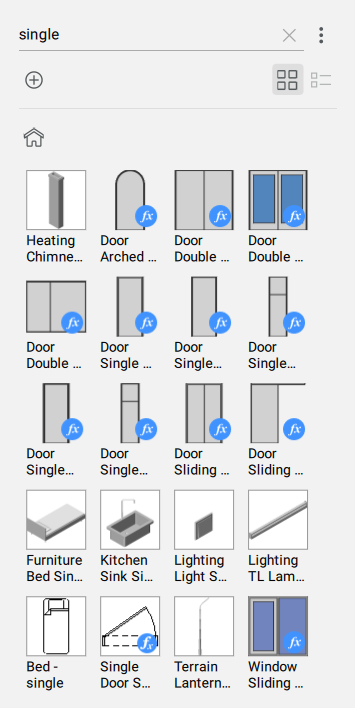
Einfügen eines BIM-Fensters in Ihr 3D-Modell
Diese Technik kann für die meisten Blöcke in der Bibliothek verwendet werden.
Alle Fenster und Türen in der Blockbibliothek sind parametrisch. Sie können ihre Bemaßung während oder nach dem Einfügevorgang bearbeiten (über das Panel Eigenschaften).
- Klicken Sie auf die Kategorie-Kachel Fenster im Panel Bibliothek.
- Klicken Sie auf eine Fensterminiatur im Panel.
- Bewegen Sie den Mauszeiger über die Wand im Modelbereich und klicken Sie, wenn Sie sich an der gewünschten Position befinden.
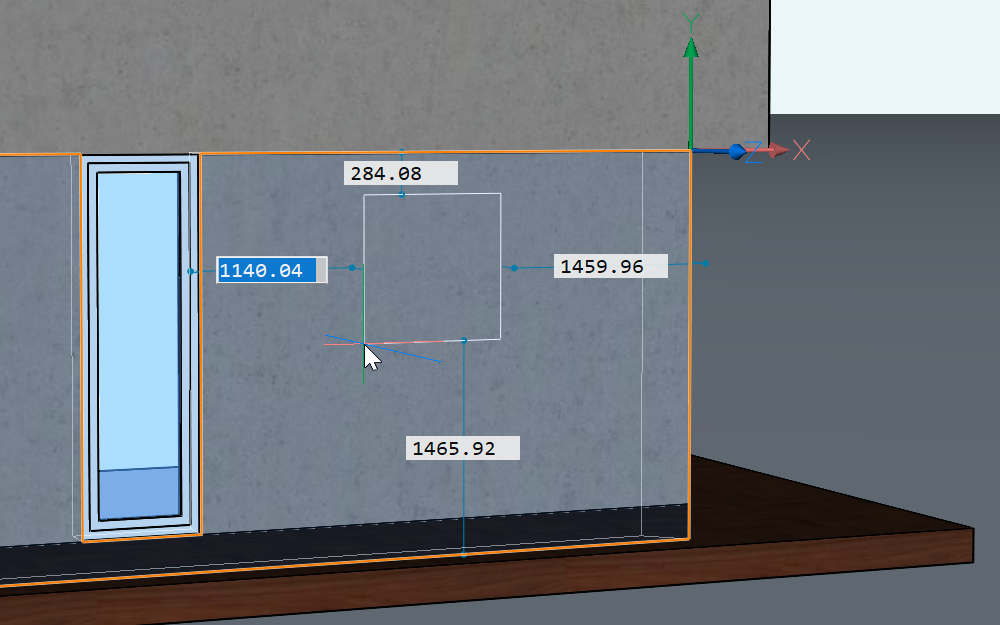 Anmerkung: Sie können Fenster und Türen auch einfügen, wenn Sie sich im Draufsichtmodus befinden. Weitere Informationen zum Draufsichtmodus finden Sie im Artikel Die Geschossleiste.
 - Wenn die Option Dynamische Bemaßungen (DYN) aktiviert ist, stellen Sie die Fensterposition ein, indem Sie die Bemeßungen in die DYN-Felder (1) eingeben. Drücken Sie die Tab-Taste, um zwischen den einzelnen DYN-Feldern zu wechseln. Ein DYN-Feld wird rot, um anzuzeigen, dass der Abstand gesperrt ist.
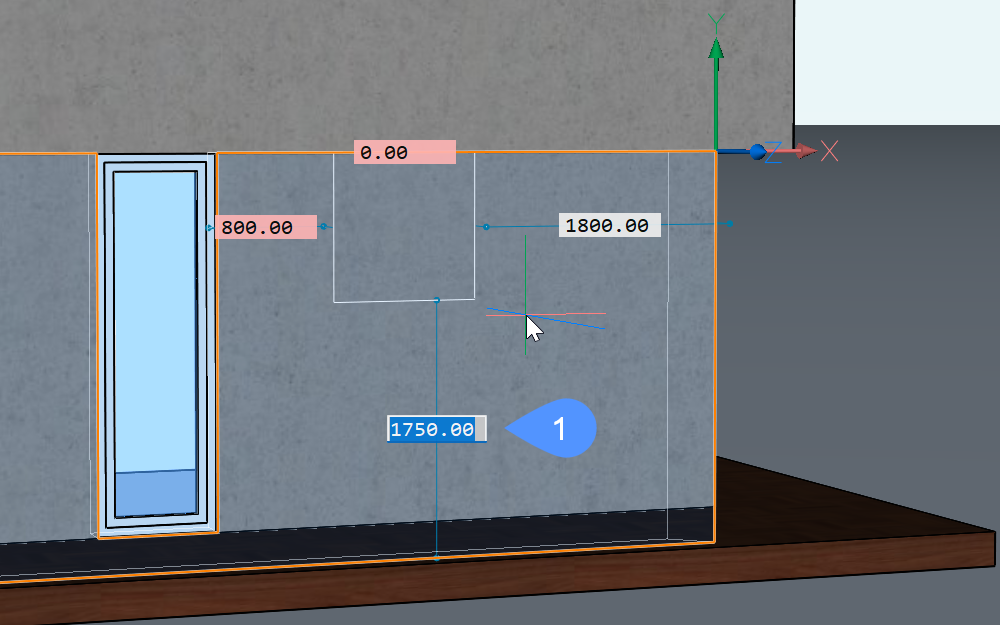
- Drücken Sie die Eingabetaste. Das Fenster wird eingefügt.
- (Optional) Um die Abmessungen des Fensters nach der Erstellung des Fensters anzupassen, gehen Sie zum Panel Eigenschaften. Blättern Sie nach unten zum Abschnitt Parameter und ändern Sie die Parameter wie gewünscht.
- (Optional) Sobald Sie ein Fenster erstellt haben, können Sie die Position anpassen, indem Sie das Fenster auswählen und dann auf die Bemaßungslinien klicken und die Bemaßungen bearbeiten (2).
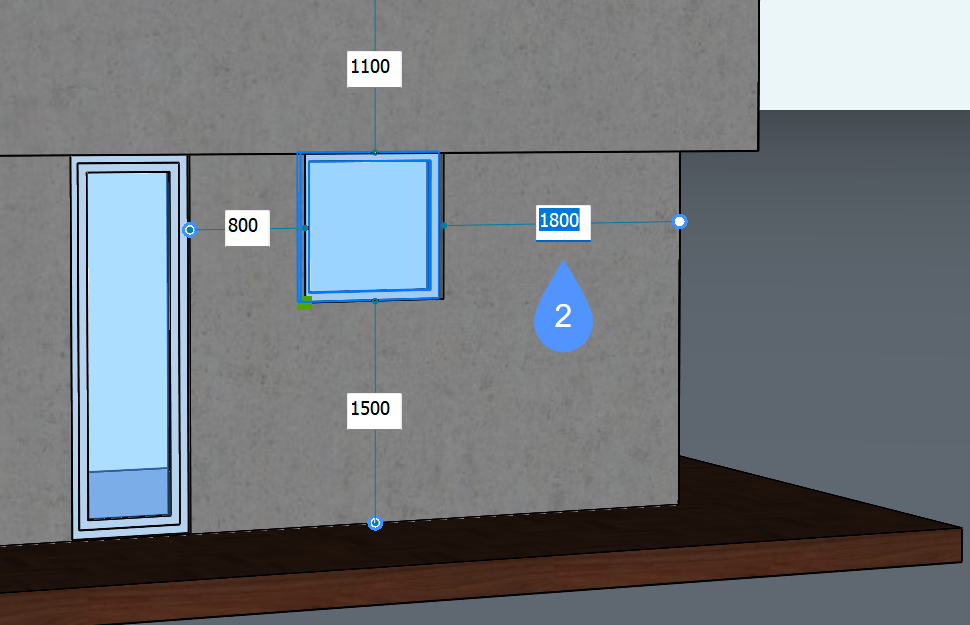
Anmerkung: Eine rote Vorschau wird angezeigt, während ein Volumenkörper mit einem Subtraktor, z. B. einem Fenster, kopiert, verschoben oder bearbeitet wird, um eine einfache Platzierung auf dem betroffenen Volumenkörper zu gewährleisten.
Arbeiten mit BIM-Blöcken
Der Wert der Eigenschaft Komponententyp für alle Blöcke in der Bibliothek Bricsys BIM library ist BIM-Block. Diese Blöcke verhalten sich ähnlich wie normale Blöcke.
Verwenden Sie den Befehl KONVERTKOMPONENTENZUBLÖCKEN, um Mechanical-Komponenten (veraltet) in BIM-Blöcke zu konvertieren.
Bearbeiten Sie BIM-Blöcke mit dem Befehl BBEARB und ersetzen Sie sie durch den Befehl BLOCKREPLACE.
Um einen BIM-Block zu erstellen, verwenden Sie den Befehl BIMKLASSIFIZIEREN mit der Option Zeichnung und dann den Befehl ERZBIBLIOTHEKSBLOCK, um ihn der Komponentenbibliothek hinzuzufügen.
Erstellen eines Bibliothek-Blockes
Um einen Bibliotheksblock zu erstellen, öffnen oder erstellen Sie die Zeichnung, die die Geometrie für den neuen Block enthält, und öffnen Sie dann das Panel Bibliothek.
- Wählen Sie im Panelmenü aus, welche Bibliotheken angezeigt werden.
- Drücken Sie die Schaltfläche Hinzufügen
 oder starten Sie den Befehl ERZBIBLIOTHEKSBLOCK.
Der Dialog Zur Bibliothek hinzufügen wird angezeigt.
- Wählen Sie die Objekte aus oder wählen Sie die Option Gesamte Zeichnung.
- Geben Sie einen Namen für den Block ein.
- (Optional) Geben Sie einen neuen Kategorienamen ein oder wählen Sie eine Kategorie aus der Liste.
- (Optional) Klicken Sie auf Optionen anzeigen und stellen Sie die Optionen für die Blockerstellung ein.
- Klicken Sie auf die Schaltfläche Erstellen.
Verwaltung von Blöcken aus der Benutzerbibliothek
- Führen Sie den Mauszeiger über die Miniaturansicht des Blocks.
- Klicken Sie auf das Menü-Symbol.
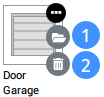
- (Optional) Klicken Sie auf das Symbol Datei öffnen (1), um die Blockdatei zu öffnen.
Bearbeiten Sie die Datei und speichern Sie dann die Änderungen.
- (Optional) Klicken Sie auf das Symbol Löschen (2), um die Blockdatei zu löschen.
Klicken Sie zur Bestätigung auf Ja.