
BricsCAD Analytics Programm
The BricsCAD Analytics Program process allows you to improve BricsCAD by sending pseudonymized diagnostics and usage data to Bricsys.
The Bricsys End User License Agreement (EULA) informs the user that sharing anonymous application data is ON by default during the trial period.
During the trial period, the BricsCAD Setup presents the user with additional data about BricsCAD Analytics and the sharing of anonymous application data with Bricsys. At any point during the Trial, the user can go to the Analytics Settings to change their preferences, or to stop sharing data with Bricsys.
After the free Trial ends, if a BricsCAD license is activated via a valid license key, the user will be re-informed of the program, and that their installation is sharing anonymous application data with Bricsys. Licensed users can explicitly choose to join the BricsCAD Analytics Program, or not share usage data with Bricsys. You can decide at any time to withdraw your consent and to have your data removed from our databases. If possible, Bricsys sends updated AI models to users.
When transferring data, a unique, anonymous ID is used. The following data and information are removed:
- Alle persönlichen Projektinformationen.
- Alle Texte und Führungen.
- Alle Informationen, die im Dialog Einstellungen gespeichert sind.
When you launch BricsCAD the second time or press Sign Up button from AI Predict ribbon tab, a dialog box displays asking you to participate in the BricsCAD Analytics program.
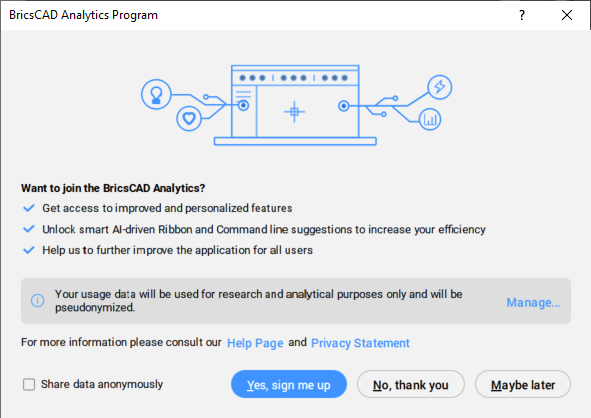
Klicken Sie auf die Schaltfläche Verwalte..., um die Datentypen auszuwählen, die Sie freigeben möchten.
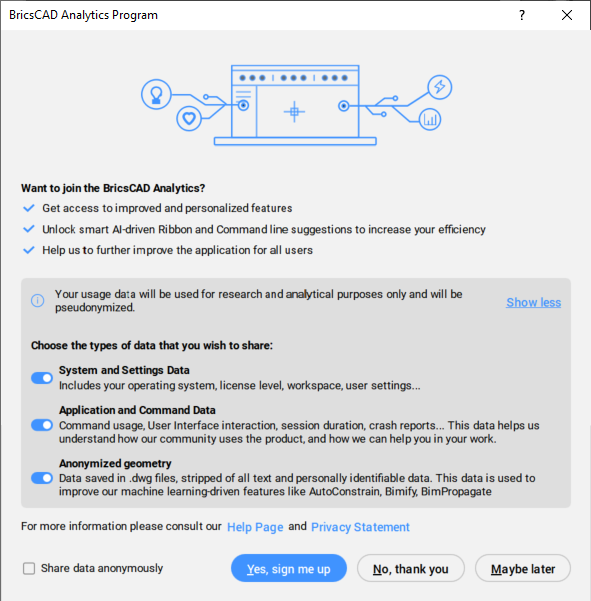
If you choose No, thank you, the BricsCAD Analytics Program is turned off.
Wenn Sie Vielleicht später wählen oder den Dialog schließen, wird der Dialog BricsCAD Analytics Programm beim nächsten Öffnen von BricsCAD erneut angezeigt.
If you choose Yes, sign me up, you sign up for the BricsCAD Analytics Program. The BricsCAD website opens, allowing you to log in to your BricsCAD account. For more information on how to log in, see the Log in with your account article.
Wenn Sie das Kontrollkästchen Daten anonym teilen markieren und auf Ja, melde mich an klicken, werden Sie als Gast angemeldet.
- Das Kontrollkästchen Daten anonym teilen ist nicht verfügbar, wenn Sie bereits in Ihrem Bricsys-Konto angemeldet sind.
- Sie können sich nicht für das BricsCAD Analytics Programm anmelden, wenn alle Optionen für die Datenfreigabe deaktiviert sind.
When you are logged in, you can use the Analytics Settings button, available in the AI Predict ribbon tab, to open the BricsCAD Analytics Program.
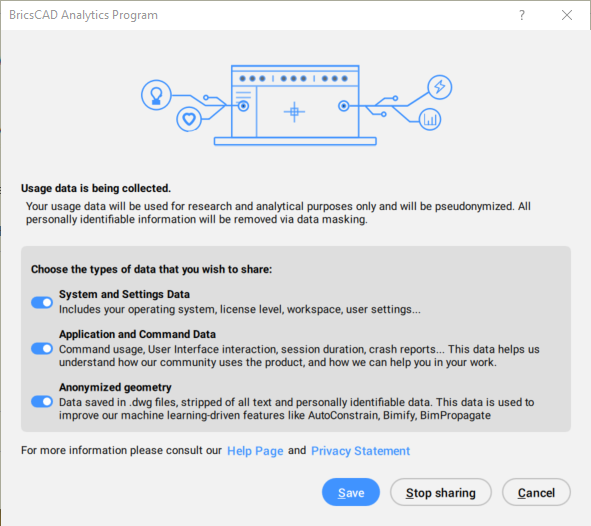
Wenn Sie Speichern wählen, sammelt das BricsCAD Analytics Programm die ausgewählten Daten.
Wenn Sie Stopp der gemeinsamen Nutzung wählen, wird das BricsCAD Analytics Programm ausgeschaltet.
Durch Auswahl von Abbrechen wird den Dialog BricsCAD Analytics-Programm geschlossen.
Der Status Ihrer Vereinbarung wird über die Systemvariable DATACOLLECTION gespeichert, wie in der folgenden Tabelle angegeben.
| Wert | Status | Ergebnis |
|---|---|---|
| -2 | Nicht gefragt | Wenn Sie BricsCAD schließen, wird der Wert auf [-1] Nicht festgelegt gesetzt. |
| -1 | Nicht festgelegt | When you restart BricsCAD, the BricsCAD Analytics Program dialog displays, asking you to participate. |
| 0 | Aus | The Diagnostics and usage data collection process is switched Off. |
| 1 | Ein |
The Diagnostics and usage data collection process is switched On. Daten werden nur übertragen, wenn Sie angemeldet sind. Um die Übertragung von Daten vorübergehend zu beenden, wählen Sie im Menü Datei die Option Abmelden... aus, oder starten Sie den Befehl -LOGOUT. Um die Übertragung der Daten erneut zu starten, wählen Sie Anmelden... im Menü Datei oder starten Sie den Befehl -LOGIN. |
Den Prozess beenden
- Stellen Sie im Dialog Einstellungen unter Benutzereinstellungen den Wert für DATACOLLECTION auf [0] Aus ein.
- Schließen Sie BricsCAD und starten Sie es neu.
Prozess neu starten
- Stellen Sie im Dialog Einstellungen unter Benutzereinstellungen den Wert für DATACOLLECTION auf [-1] Nicht festgelegt ein.
- Schließen Sie BricsCAD und starten Sie es neu.
- Click on Manage..., choose the types of data that you wish to share, press the Yes, sign me up button, then log in with your BricsCAD account.
Ihre Daten aus der Datenbank entfernen
To withdraw your consent and have your data removed from our databases, send in a support request and select the Data Collection category under BricsCAD.