
Oberfläche nach DEM exportieren Dialog
Wird über den Befehl TINEXPORTTODEM geöffnet
Der Dialog Oberfläche nach DEM exportieren ermöglicht es Ihnen, eine TIN-Oberfläche in ein DEM-Dateiformat zu exportieren.
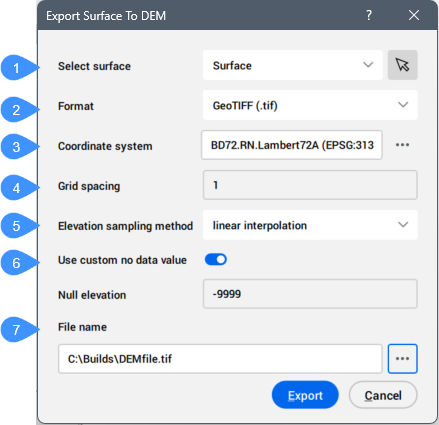
- Oberfläche wählen
- Format
- Koordinatensystem
- Rasterabstand
- Probenahmeverfahren für die Höhenlage
- Benutzerdefinierten Wert für keine Daten verwenden
- Dateiname
Oberfläche wählen
Ermöglicht Ihnen eine verfügbare Oberfläche aus der Dropdown-Liste auszuwählen oder auf die Schaltfläche ( ) zu klicken, um sie aus dem Zeichnungsbereich auszuwählen.
Format
Ermöglicht die Auswahl des Formats der exportierten DEM-Datei. Es stehen mehrere Formate zur Verfügung:
- TIF: GeoTiff
- DEM: USGS Digital Elevation Model
Koordinatensystem
Zeigt das der exportierten Oberfläche zugewiesene Koordinatensystem an. Klicken Sie auf die drei Punkte auf der rechten Seite, um den Dialog GIS-Koordinatensystem auswählen zu öffnen, und wählen Sie ein bestimmtes Koordinatensystem aus der Liste aus.
Rasterabstand
Ermöglicht Ihnen, den horizontalen Abstand für DEM-Profilpunkte in den vom Exportkoordinatensystem definierten Einheiten anzugeben.
Probenahmeverfahren für die Höhenlage
Ermöglicht es Ihnen, festzulegen, wie jeder Höhenpunkt entlang eines DEM-Profils durch die ausgewählte Oberfläche bestimmt wird.
- Lineare Interpolation
- Die Höhenwerte für jeden Punkt entlang eines DEM-Profils werden von der ausgewählten Oberfläche abgetastet.
- Rasterung
- Die Höhe jedes Punktes entlang eines DEM-Profils entspricht der durchschnittlichen Höhe in einem Bereich der Größe einer Gitterzelle, mit diesem Punkt als Zentrum.
Benutzerdefinierten Wert für keine Daten verwenden
Schaltet die Verwendung eines benutzerdefinierten Werts für die Null-Höhe um.
Wenn diese Option aktiviert ist, können Sie den Wert für Null-Höhe festlegen.
- Null-Höhe
- Ermöglicht die Angabe eines benutzerdefinierten Werts für die Null-Höhe.
Dateiname
Ermöglicht die Auswahl eines Dateinamens.
Klicken Sie auf die Durchsuchen-Schaltfläche ( ), um den Dialog Export als zu öffnen, in dem Sie einen Dateinamen angeben können.