
IFC import and export in BricsCAD
About IFC
The Industry Foundation Classes (IFC) data model is designed to describe building and construction industry information. IFC is a platform-neutral, open-format file type. IFC provides interoperability between different BIM software platforms.
BricsCAD BIM supports IFC2x3 and IFC4 for Import and Export. The IFC2x3 and IFC4 property namespaces are merged into IFC namespace. Differences between the IFC schemas is dealt with in the background during IFC Import or Export. The IFC standard includes both parametric and non-parametric shapes, material definitions, metadata in the BIM file, and property sets (PSets).
When you export an IFC file from BricsCAD, the properties are exported as IfcPropertySet. These property sets contain common IFC properties. User-defined property sets can also be exported.
- The import and export of Alignments and TIN Surfaces with IFC4X1 is supported.
- A color resembling the material by layer color is applied for entities with Redway materials.
- To export properties with date values to IfcDate for IFC4, use the YYYY-MM-DD format. Different formats are exported as IfcLabel.
Mechanical system layouts, structural models, and architectural models that are exported from different IFC compliant software applications can be imported into BricsCAD BIM.

- IFC2x3 vs IFC4
- IFC4 is an advanced schema of IFC2x3. It is extended and overcomes certain limitations of IFC2x3. There are geometric and data improvements as well as new and changed Model View Definitions. Geometric improvements include more parametric support, more efficient handling of meshes and an improved way to add textures, lighting settings, etc. An increased number of property sets make the IFC data model more complete and more granular. For IFC4, the coordination view has been replaced by two official Model View Definitions: the IFC4 Reference View and the IFC4 Design Transfer View. Differences between the IFC schemas are dealt with in the background during IFC Import or export and the IFC2x3 and IFC4 property namespaces are merged into IFC namespace.
IFC import and export settings
The IFC Import and Export settings are saved in the configuration file specified by the IFCSETTINGSCONFIG system variable. This and three other export related system variables are available in the Settings dialog box.
| Variable | Description |
|---|---|
| IfcSettingsConfig |
Specifies the name of the IFC settings configuration file. |
| IfcExportAuthor | Activates or deactivates the export of the author name in the IFC file header. |
| IfcExportOrganization | Activates or deactivates the export of the organization name in the IFC file header. |
| IfcExportAuthorization | Activates or deactivates the export of the authorization information in the IFC file header. |
You can manage the IFC import settings through the IFC Import Settings dialog box.
You can manage the IFC export settings through the Export To IFC dialog box.
Import an IFC file in BricsCAD
- Type IMPORT in the Command line. The Import file dialog box displays.
- Select the IFC file (*.ifc;*.ifczip) format from the Files of type drop-down list and choose the IFC model you want to import.
- Click Open.
The IFC Import Settings dialog box displays.
Note: All IFC2x3, IFC4, IFC4x1 and, IFC4x3 (IFC 4.3.2.0) files can be imported, but all are merged into a single IFC namespace. Differences between these schemas are dealt with in the background during IFC Import. When the IFC file is imported the data from the imported file integrates with the BricsCAD data structure which means you can work with them right away. If the imported data contains custom properties, these property sets are made available.Important: IFC4x1 is not an official version. While we support importing IFC4x1 files, the code is not actively maintained, and we advise using other IFC versions.You can create custom property sets and properties directly in BricsCAD BIM and associate them with imported entities.
- (Optional) Change the settings in the IFC Import Settings dialog box (see the IFC Import Settings dialog box article).
- Click Import to import the IFC model.
Export an IFC file from BricsCAD
- Type IFCEXPORT in the Command line. Select the Entire model option.Note: To export only the selected entities to an IFC file, launch the command, select the entities in your model space, and press Enter.
The IFC file name dialog box displays.
- Select the IFC file format in the Save as type list and specify the name of the exported drawing.
- Click Save.
The Export to IFC dialog box displays.
- (Optional) Change the IFC export settings in the Export To IFC dialog box (see the Export To IFC dialog box article).
- Click Export to export the IFC model.
The exported BIM model is saved and is now ready to use in any IFC certified application.
Import an IFC Project as Xrefs
- Type IMPORT in the Command line.
The Import file dialog box displays.
- Select the IFC file (*.ifc;*.ifczip) format from the Files of type drop-down list, and choose the IFC model you want to import.
The IFC Import Settings dialog box displays.
- In the Profile settings section, check the Explode spatial structure to XRefs option and click Import.
The drawing opens with Xrefs made for each floor in each building. This allows you to easily split large files into smaller BricsCAD files.
Export a BricsCAD BIM Project with Xrefs
- Use the BIMCLASSIFY command's Xref option to classify the Xrefs as BIM XReference.Important: If you don't go through this step, your Xrefs are exported as blocks, instead of separate entities that are part of the Xref.
- Launch the IFCEXPORT command and press Enter.
The IFC file name dialog box displays.
- Select the IFC file format in the Save as type list, specify the name of the exported drawing, and click Save.
The Export to IFC dialog box displays.
- Check the Merge Spatial Location Structure for XRefs option.
- Click Export to export the IFC model.
The exported drawing now has all Xref elements merged onto one Site and one Building.
Work with IFC properties
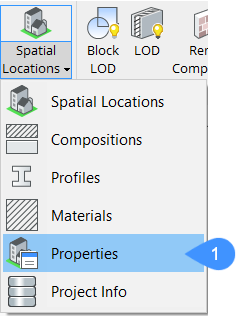
- Open the BIM Properties dialog box using one of these methods:
- In the ribbon go to (1). The BIM Properties displays.
- In the Command line, type BIMPROPERTIES.
- In the ribbon go to (1). The BIM Properties displays.
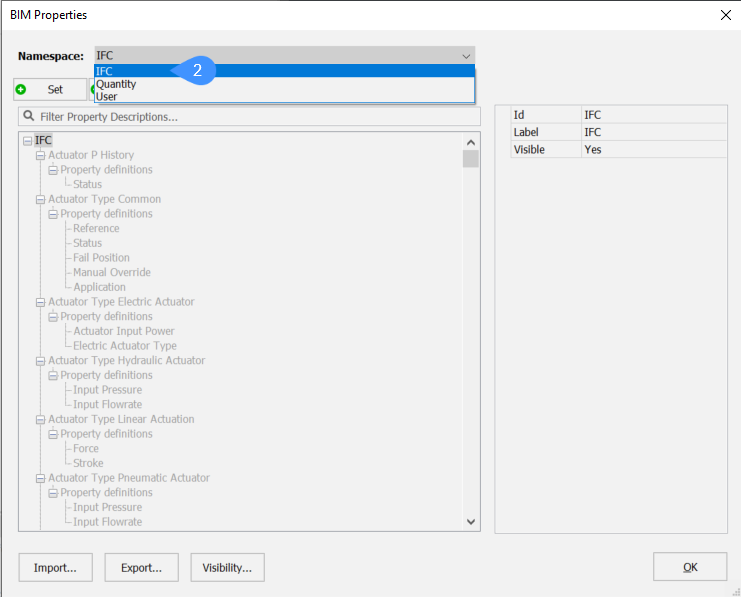
- Select IFC in the Namespace drop-down menu (2).
- Search for the desired property in the properties list (3).
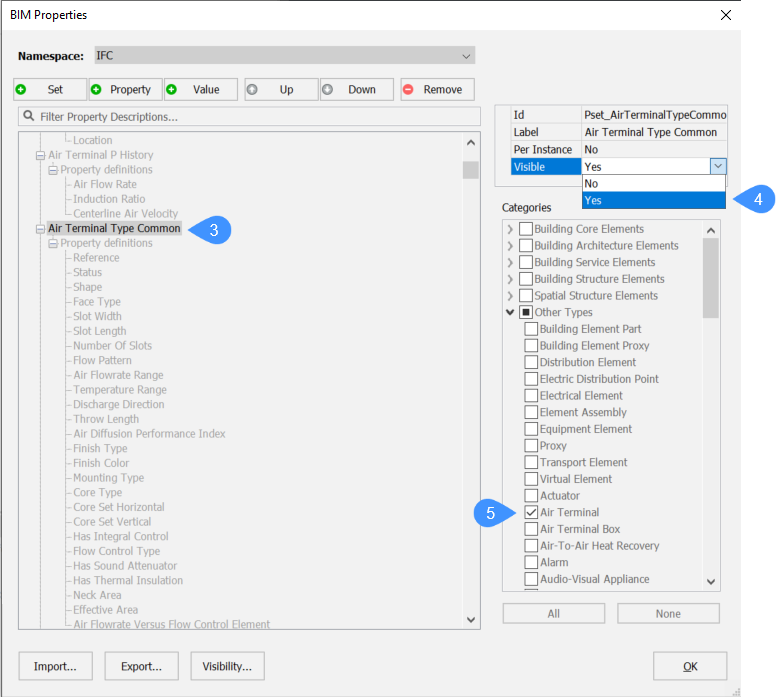
- Set Visible (4) to Yes for the section to be visible in the Properties panel. Set to No to hide the section.
- In Categories select the IFC Classes you wish to display (5).
- Once all properties have been set, click OK.
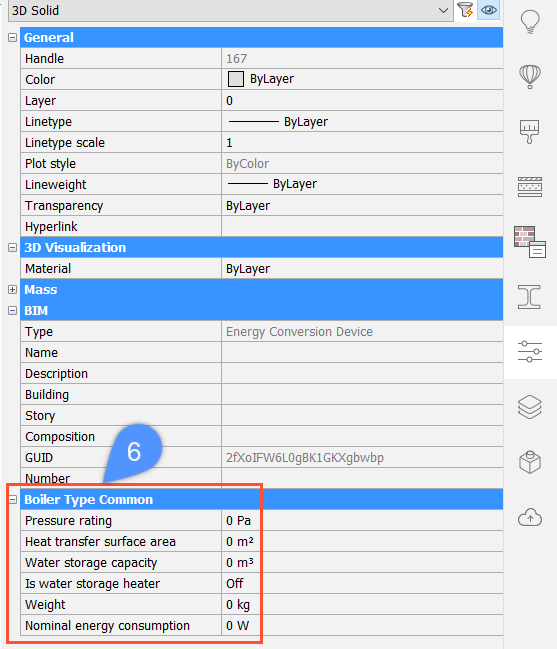
- Select an object of the type or category that you just enabled the Property Set for (in this example an Energy Conversion Device). Go to the Properties panel. Scroll down to the section of properties you just enabled.
- Fill in the data as required (6).
Profiles in IFC import
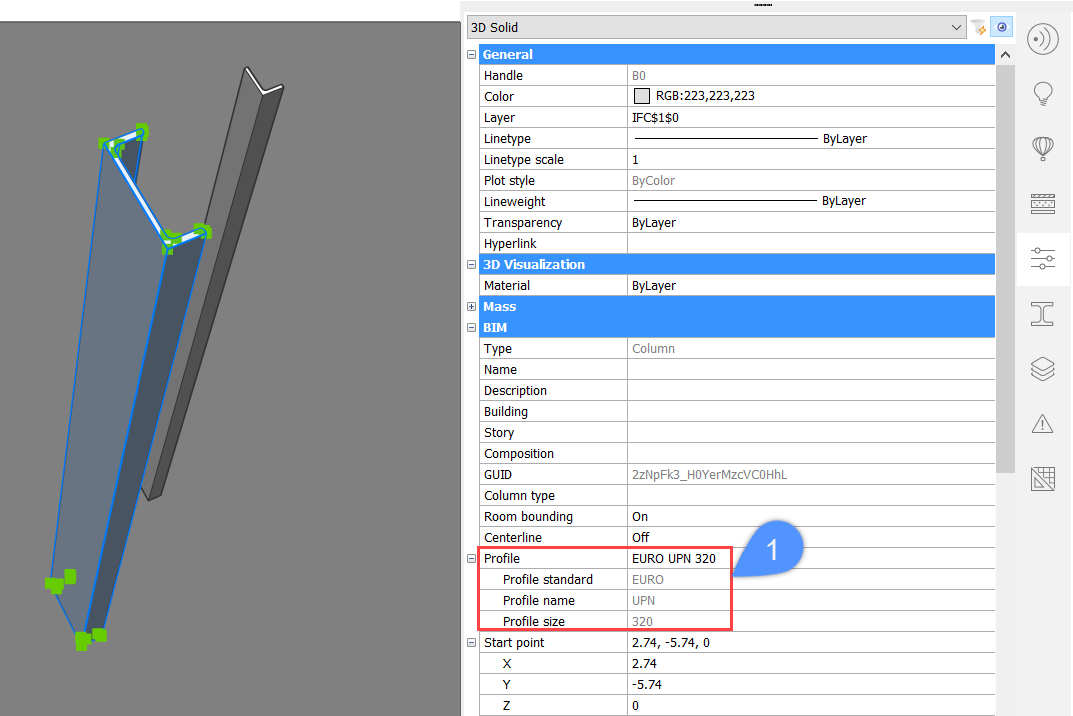
When importing profiles from an IFC file to BricsCAD, you can either import the profile properties in the IFC file, or let BricsCAD look for corresponding profiles in the Project and Central Database, based on the geometry. The profiles are then assigned with proper Profile Standard, Profile Name and Profile Size in the Properties panel (1).
Supported IFC Classes
Following IFC Classes are supported by BricsCAD BIM. These are the same categories as the classify options in the BIMCLASSIFY command.
IFC Classes that are backward compatible with older BricsCAD versions:
- IfcWall
- IfcBeam
- IfcSlab
- IfcStair
- IfcStairFlight
- IfcRamp
- IfcRampFlight
- IfcRailing
- IfcCurtainWall
- IfcRoof
- IfcBuildingElement
- IfcSite
- IfcBIMXreference
- IfcGridAxis
- IfcGrid
- IfcAnnotation
- IfcWindow
- IfcDoor
- IfcCovering
- IfcFurnishingElement
- IfcOpening
- IfcDistributionControlElement
- IfcDistributionPort
- IfcDistributionFlowElement
- IfcDistributionChamberElement
- IfcEnergyConversionDevice
- IfcFlowFitting
- IfcFlowController
- IfcFlowMovingDevice
- IfcFlowSegment
- IfcFlowStorageDevice
- IfcFlowTerminal
- IfcFlowTreatmentDevice
- IfcFlowConnectionPoint
- IfcMember
- IfcFooting
- IfcPile
- IfcReinforcingBar
- IfcReinforcingMesh
- IfcTendon
- IfcTendonAnchor
- IfcPlate
- IfcDiscreteAccessory
- IfcFastener
- IfcMechanicalFastener
- IfcSpace
- IfcBuilding
- IfcBuildingStorey
- IfcDate
IFC Classes that are not backward compatible with older BricsCAD versions:
- IfcBuildingElementPart
- IfcBuildingElementProxy
- IfcDistributionElement
- IfcElectricDistributionPoint
- IfcElectricalElement
- IfcElementAssembly
- IfcEquipmentElement
- IfcProxy
- IfcTransportElement
- IfcVirtualElement
- IfcActuator
- IfcAirTerminal
- IfcAir TerminalBox
- IfcAir-To-AirHeatRecovery
- IfcAlarm
- IfcAudio-VisualAppliance
- IfcBoiler
- IfcBurner
- IfcCableCarrierFitting
- IfcCableCarrierSegment
- IfcCableFitting
- IfcCableSegment
- IfcChiller
- IfcChimney
- IfcCivil Element
- IfcCoil
- IfcCommunicationsAppliance
- IfcCompressor
- IfcCondenser
- IfcController
- IfcCooledBeam
- IfcCoolingTower
- IfcDamper
- IfcDuctFitting
- IfcDuctSegment
- IfcDuctSilencer
- IfcElectricAppliance
- IfcElectricDistributionBoard
- IfcElectricFlowStorageDevice
- IfcElectricGenerator
- IfcElectricMotor
- IfcElectricTimeControl
- IfcEngine
- IfcEvaporativeCooler
- IfcEvaporator
- IfcFan
- IfcFilter
- IfcFireSuppressionTerminal
- IfcFlowInstrument
- IfcFlowMeter
- IfcFurniture
- IfcGeographicElement
- IfcHeatExchanger
- IfcHumidifier
- IfcInterceptor
- IfcJunctionBox
- IfcLamp
- IfcLightFixture
- IfcMedicalDevice
- IfcMotorConnection
- IfcOutlet
- IfcPipeFitting
- IfcPipeSegment
- IfcProtectiveDevice
- IfcProtectiveDeviceTripping Unit
- IfcPump
- IfcSanitaryerminal
- IfcSensor
- IfcShadingDevice
- IfcSlabElemented Case
- IfcSolarDevice
- IfcSpaceHeater
- IfcStackTerminal
- IfcSwitchingDevice
- IfcSystemFurnitureElement
- IfcTank
- IfcTransformer
- IfcTubeBundle
- IfcUnitaryControlElement
- IfcUnitaryEquipment
- IfcValve
- IfcVibrationIsolator
- IfcWallElementedCase
- IfcWasteTerminal
- IfcAlignment
- IfcReferent
Export a structural analysis model
It is possible to export a line model of a structure using the BIMANALYTICALMODEL command. It can either be exported to CIS/2 or to IFC. Choose the Export and exit Command line option to open the Choose a filename and format for export dialog box, which allows you to choose the file type to export.
For more information and examples, visit the procedure article Analytical Model.
Import or Export Mapping of IFC files
When you Import or Export an IFC file in BricsCAD, all entities are imported or exported according to the default mapping. It is possible to import or export elements by special mapping and to exclude entities from import or export.
There are different txt configurations possible.
- No text mappingAll entities are imported or exported according to the default mapping.
- Import or Export an entity by special mappingIn case of import, you first write the IFC class, followed by the BricsCAD class in which the entities should be imported. For example:
IfcWall BimDbColumn
In case of Export, you first write the BricsCAD class, followed by the IFC class in which the entities should be exported. For example:BimDbWall IfcColumn
Note: When an IFC or BimDB entity isn't listed in the Import or Export mapping file, the default mapping is used. - Exclude an entity from the Import or Export
Write the IFC or BimDb entity followed by 'skip'.
For example for Import:IfcWall skip
For example for Export:BimDbWall skip
-
Import or Export only the listed entities
List the entities that should be imported or exported followed by '* skip' on the next line. The asterisk refers to all not listed entities.* skip
- Import or Export all not listed entities by the same special mapping
Write the asterisk followed by the name of the class in which the entities should be imported.
For example for Import:* BimDbWall
For example for Export:* IfcWall
- Import or Export entities by default mapping when using the asterisk
If you used one of the two previous options to skip all entities except the listed ones or to Import or Export by special mapping, you can still Import or Export entities by default mapping. Use the same text as you use to Import or Export an entity by special mapping. Instead of writing a special mapping next to the entity, write the default class or write 'default'.
For example for Import:IfcWall BimDbWall or IfcWall default
For example for Export:BimDbBeam IfcBeam or BimDbBeam default
Export Mapping of IFC Files
- Start from a similar model in BricsCAD with all the building elements classified.
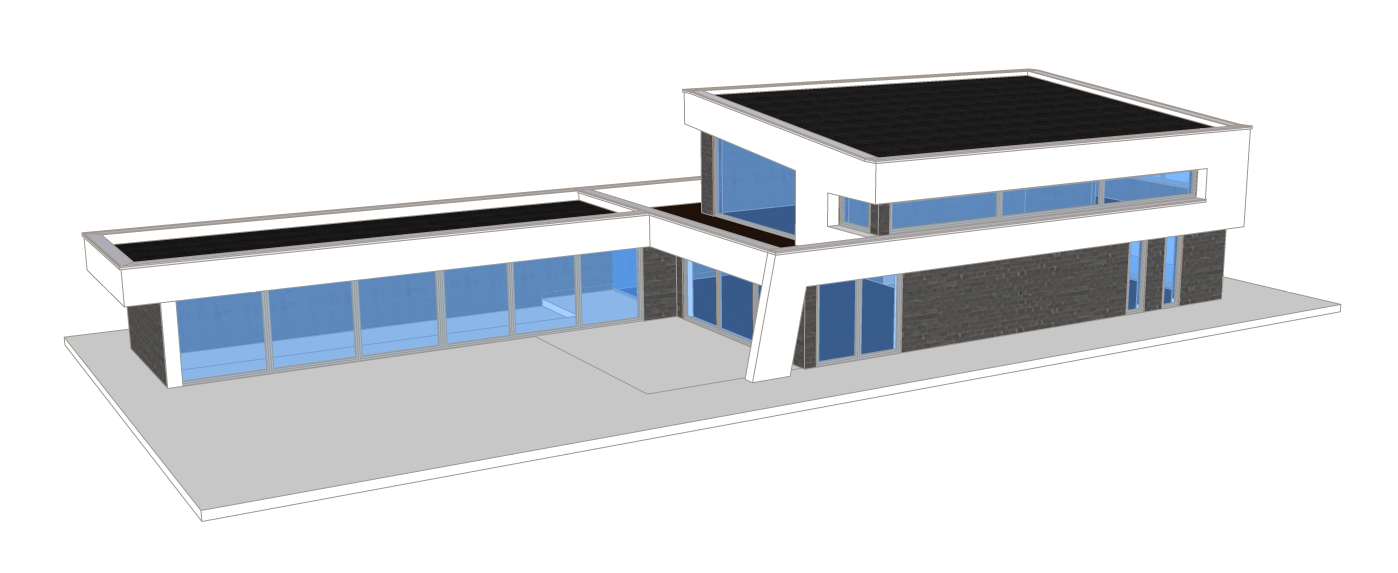 Note: If the elements are not classified, run the BIMIFY command to classify the model.
 - The building consists of several building elements: walls, slabs, doors, windows etc.
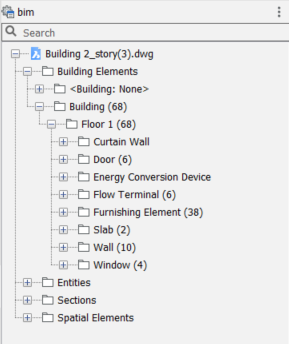
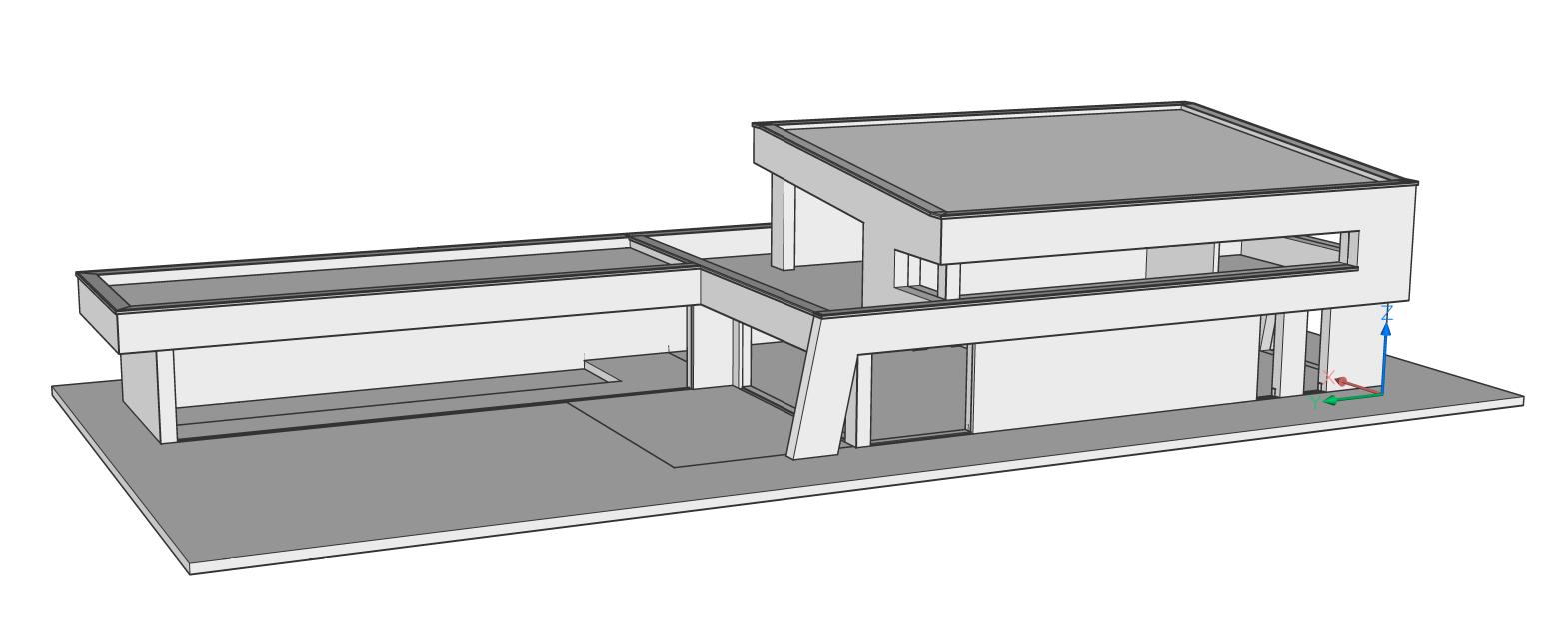
A custom Export Mapping file is created to only export the geometry of the building without windows, doors or spaces.
Note: If you export the file without a mapping file, all the elements are exported in the default IFC class. - Open a new TXT file to create the export mapping file. Use an ASCII text editor, for example Notepad.
- Follow these rules to add the text in the TXT file according to Import or Export Mapping of IFC files:
- For export mapping, write the BimDb entity followed by the IFC entity. Separate the two words by a single Tab. Do not use a space or multiple Tabs to align the IFC classes. The lines with a space or multiple Tabs are not used for Export Mapping.
- Only write one command per line.
- If a composition is attached to a wall in a BricsCAD file, the wall is exported as IfcWallStandardCase instead of IfcWall.
Note: When a building entity is imported or exported by special mapping, the properties of the element change according to the default properties of the new category. - Two categories need to be added in the TXT file to create the Export Mapping File for this model.
- Exclude windows, doors and spaces.The BricsCAD file contains normal windows and curtain walls, exclude both.
BimDbWindow skip BimDbCurtainWall skip BimDbDoor skip BimDbSpace skip
- Export beams by special mapping.Some walls are classified as beams in the current BricsCAD file. These have to be exported as walls.
BimDbBeam IfcWall
- The resulting file looks like this:
BimDbWindow skip BimDbCurtainWall skip BimDbDoor skip BimDbSpace skip BimDbBeam IfcWall
Note: You can also create a file where you include the entities you want to export, followed by '* skip'. This gives the same result. - Exclude windows, doors and spaces.
- Save the file to your computer.
- Go to the BricsCAD file you want to Export.
- Go through one of the following steps.
- Type SETTINGS in the Command line and press Enter. Go to . Click the three dots and select the mapping file on your computer.
- Type IFCEXPORTMAPPINGPATH in the Command line.
You are prompted: New value for IFCEXPORTMAPPINGPATH <"">:
Copy the path of the destination file in the Command line and press Enter.
- Type Export in the Command line and press Enter or click the BricsCAD icon in the ribbon and select Export to export the file.
- Select the desired IFC file format in the Save as type list and save the IFC model to your computer.
- To check if the IFC file is correct you can open the file in an IFC viewer or you can import the file in BricsCAD without an Import Mapping file. Type IMPORT in the Command line, press Enter, select the file on your computer and click Open.
Export Geographic Location to IFC
When geographic location data exist in a BIM model, proper export of said data is supported in the IFC export.
For IFC2x3:
In the Spatial Locations Manager dialog box (BIMSPATIALLOCATIONS command), with the Use Geographic Location from GEO dialog setting (under ), you can choose whether the geographic location information from the Geographic Location dialog box (GEOGRAPHICLOCATION command) should be used, or the information provided in the Spatial Locations Manager dialog box.
- If this setting is False: Longitude, Latitude, and Elevation from the Spatial Locations Manager dialog box is exported (as IfcSite). No CRS (Coordinate Reference System) is exported.
- If this setting is True: Longitude, Latitude, and Elevation from the Geographic Location dialog box + CRS (Coordinate Reference System) is exported (as IfcSite and IfcProjectedCRS).
For IFC4:
- If CRS is defined in the Geographic Location dialog box, the settings in the Spatial Locations Manager dialog box are ignored.
Longitude, Latitude, Elevation, and True North direction + CRS (Coordinate Reference System) is exported from the Geographic Location dialog box (as IfcMapConversion and IfcProjectedCRS).
- If no CRS is defined in the Geographic Location dialog box, no IfcMapConversion and IfcProjectedCRS information is exported.
Longitude, Latitude, and Elevation is exported (as IfcSite) according to the Use Geographic Location from GEO dialog setting in the Spatial Locations Manager dialog box.
Guidelines for exporting colors and transparency
During IFC export, BricsCAD BIM includes colors and transparency settings in such a way that the model’s appearance in IFC viewers should resemble the appearance in BricsCAD BIM as much as possible. Due to limitations of the IFC format, in some specific cases, colors and/or transparency settings might not be exported correctly. Try avoiding the following scenario: within one block, set the color to By Block for some solids, and assign a specific color to some other solids. In the IFC export, the By Block solids will not have the block reference color assigned.