
Offline/manual activation (Network license)
Note: We recommend the online activation (requires an internet connection). If your computer is not connected to the internet, you can activate the license manually via another computer connected to the internet.
Steps for Offline/manual activation
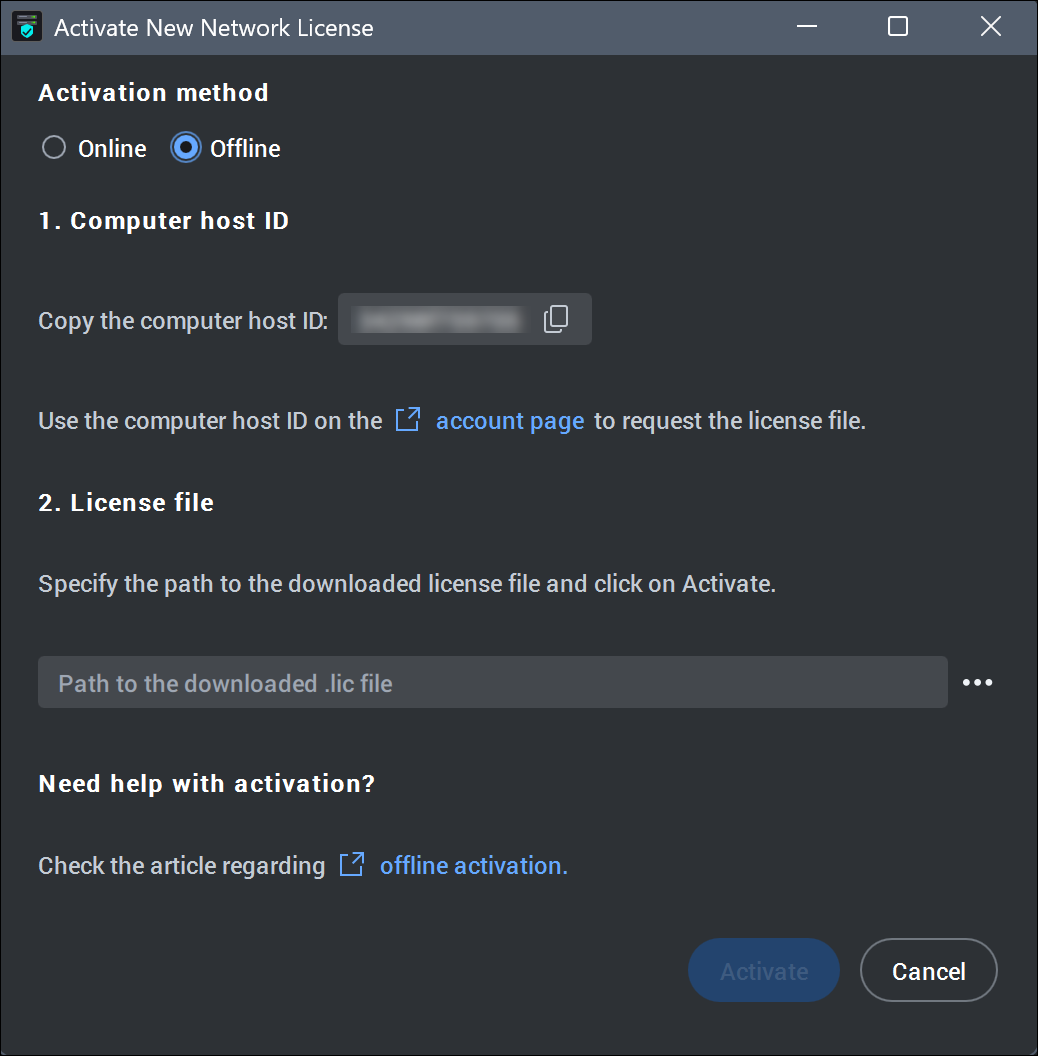
- Open the BricsCAD Network License Manager (click the shortcut on the desktop or in the operating system Start menu).
The Activate New Network License dialog box opens.
- Select the Offline option.
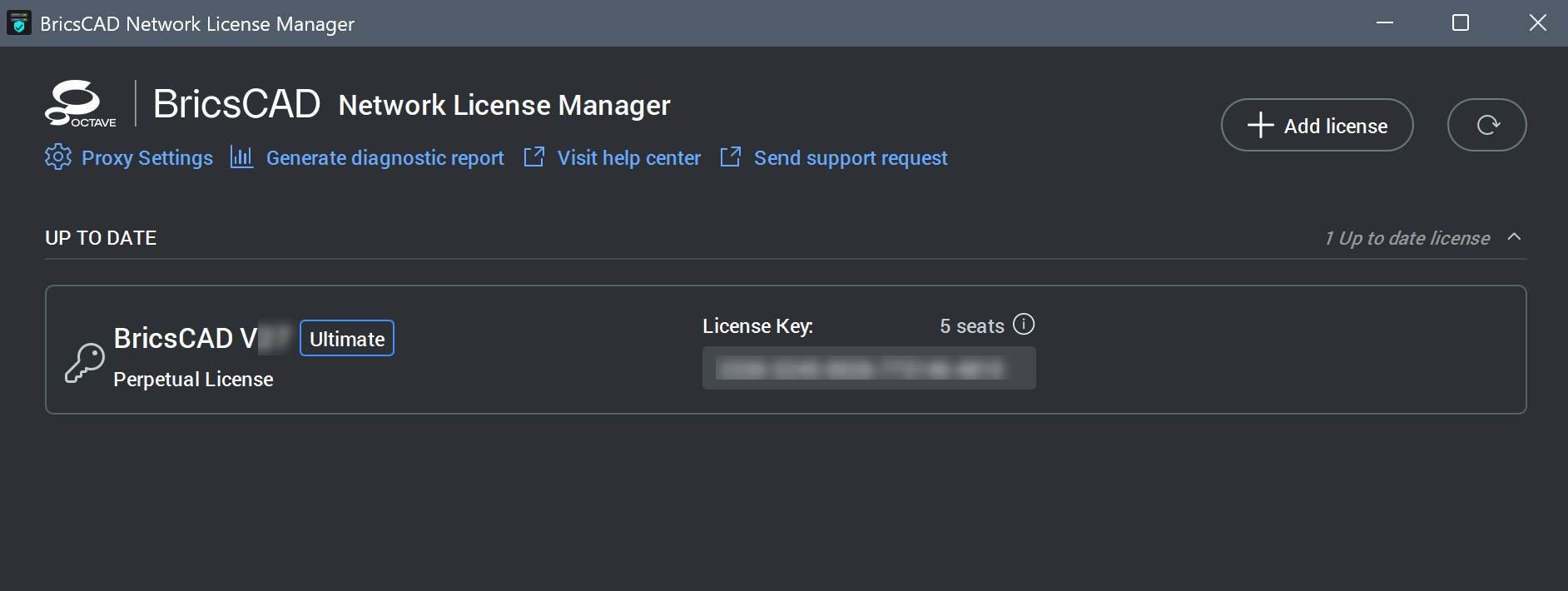
 Note: If an active license is detected on your system, the BricsCAD Network License Manager dialog box opens.
Click the Add License button to open the Activate New Network License dialog box.
- Copy the full content of the Computer Hostid field and use it to generate the license file.Note: To generate the license file:
- Log in to the BricsCAD website using the BricsCAD account of your company that is associated with the network license. Contact your account manager if needed.
- Click your name in the upper right corner and select Manage licenses from the menu.
- Click the pencil icon (
 ). The License details page displays.
 - Click Manual activation.
- In the Host ID field, paste the host ID of the computer you installed the BricsCAD Network License Server on.
- Click the Activate button.
A license file is generated and available for download.
- Click the Download License File button.
The license file BricsCAD.lic is downloaded to your default download folder.
- In the Activate New Network License dialog box, specify the downloaded license file path. Click the browse button to open the Select BricsCAD license dialog box, select the LIC file and click Open.
- Click the Activate button to activate the license offline.