
Roaming a Network license on a client computer
A network license can be roamed to use BricsCAD without connection to the license server (work outside of the office, at home, etc.).
When a network license is used on a client computer, the Roaming... button is displayed in the dialog box.
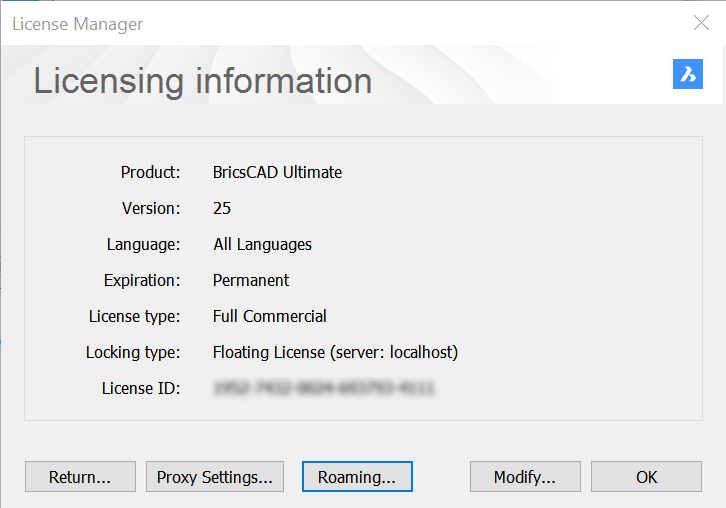
- If your computer is connected to the license server through a proxy server, click the Proxy Settings button to configure the proxy settings for a network license.
- Click the Roaming... button.
The dialog box opens.
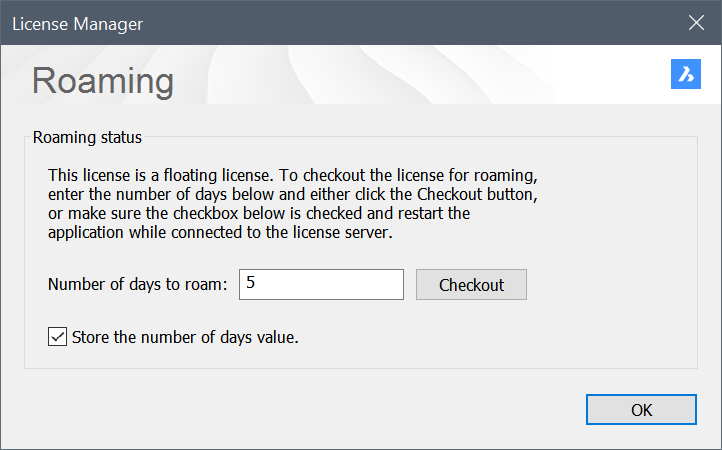
- Enter the number of days you want to check out the license for roaming and click the Checkout button.
- (Optional) Tick the checkbox if you want to automatically refresh the roaming period when your computer is connected to the server.
- Restart BricsCAD to apply the changes.