
Offline/manual activation (Single-user license)
If your computer cannot be connected to the internet, you can activate the license manually via another computer that is connected to the internet.
Important:
- We strongly recommend activating BricsCAD online. For online activated licenses, deactivation and reactivation are unlimited.
- When activating offline:
- The license locks on the computer and Operating System, and the deactivation is not possible.
- BricsCAD cannot automatically update the license.
Steps for Offline/manual activation
- Launch BricsCAD.
- Do one of the following:
- If you start BricsCAD for the first time, click Activate license in the BricsCAD dialog box.
- If you replace or upgrade an existing license, launch the LICENSEMANAGER command, click Manage License and click Modify....
- Click Activate manually... in the dialog box.
The dialog box opens.
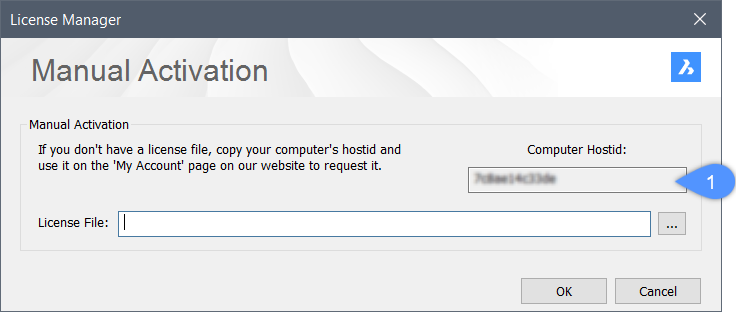
- Copy the full content of the Computer Hostid(1) field and use it to generate the license file.Note: To generate the license file:
- Log in to the Bricsys website with a computer connected to internet.
- Click your name in the upper right corner and select Manage licenses from the menu.
Make sure you log in with the Bricsys account of your company which contains the license. Contact your Bricsys account manager if needed.
- Click the pencil icon (
 ). The License details page displays.
 - Click Manual activation.
- In the Host ID field, paste the host ID of the computer you installed BricsCAD on.
- Click the Activate button.
A license file is generated and available for download.
- Click the Download License File button.
The license file BricsCADVxx.lic is downloaded to your default download folder.
- In the dialog box specify the downloaded license file path. Click the browse button to open the Select BricsCAD license dialog box, select the LIC file and click Open.
- Click the Activate button to activate the license offline.