
Offline/manual activation (Single-user license)
If your computer cannot be connected to the internet, you can activate the license manually via another computer that is connected to the internet.
Important:
- We strongly recommend activating BricsCAD online. For online activated licenses, deactivation and reactivation are unlimited.
- When activating offline:
- The license locks on the computer and Operating System, and the deactivation is not possible.
- BricsCAD cannot automatically update the license.
Steps for Offline/manual activation
- Launch BricsCAD.
- Do one of the following:
- If you start BricsCAD for the first time, click Activate license in the BricsCAD dialog box.
- If you replace or upgrade an existing license, launch the LICENSEMANAGER command, click Manage License and click Modify....
- Click Activate manually... in the dialog box.
The dialog box opens.
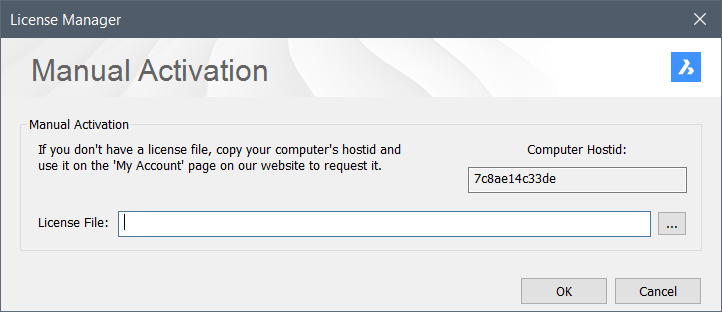
- Copy the full content of the Computer Hostid(1) field and use it to generate the license file.Note: To generate the license file:
- Log in to the BricsCAD website using the BricsCAD account of your company that contains the license. Contact your account manager if needed.
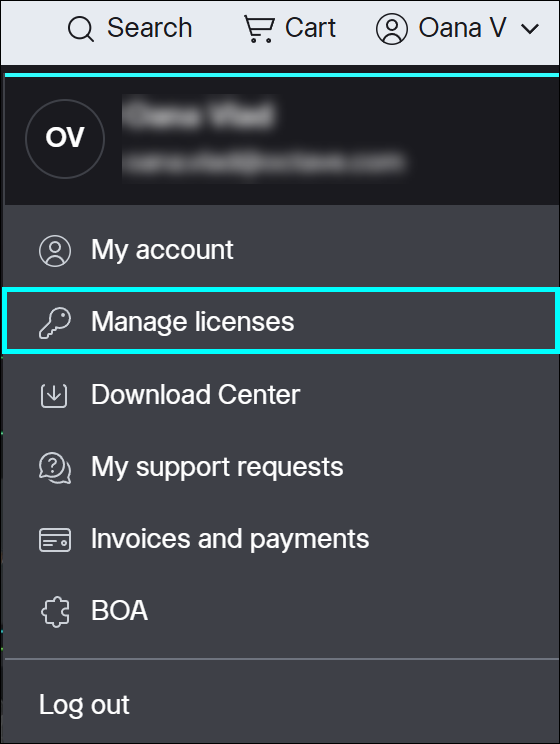
- Click your name in the upper right corner and select Manage licenses from the menu.
- Click the pencil icon (
 ). The License details page displays.
 - Click Manual activation.
- In the Host ID field, paste the host ID of the computer you installed BricsCAD on.
- Click the Activate button.
A license file is generated and available for download.
- Click the Download License File button.
The license file BricsCADVxx.lic is downloaded to your default download folder.
- In the dialog box specify the downloaded license file path. Click the browse button to open the Select BricsCAD license dialog box, select the LIC file and click Open.
- Click the Activate button to activate the license offline.