
Online activation (Single-user license)
The BricsCAD license activation requires an internet connection.
Important: For online activated licenses, deactivation and reactivation are unlimited.
Steps for Online activation
- Launch BricsCAD.Note: When your trial period has expired, click the Activate license button in the BricsCAD Launcher dialog box and proceed to step 5.
- Launch the LICENSEMANAGER command to open the Bricsys License Manager dialog box.
- Click the Manage License button to open the dialog box.
- Click the Modify button to open the dialog box.
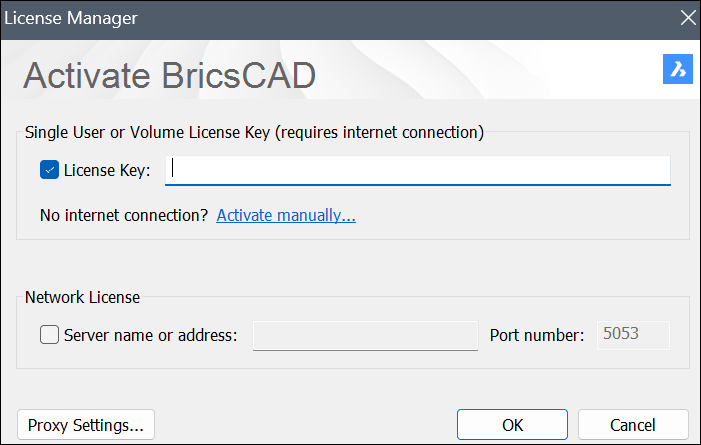
- Retrieve your key from the My Licenses section in your account (see also the Where can I find my licenses? article).
- Paste your license key in the License Key field.
- Click the OK button to activate the license.