
Opening and saving drawings
The way BricsCAD opens and saves drawings is controlled through a series of system variables.
- AUTOSAVECHECKSONLYFIRSTBITDBMOD system variable
- CLOSECHECKSONLYFIRSTBITDBMOD system variable
- COMACADCOMPATIBILITY system variable
- DRAWINGPATH system variable
- INDEXCTL system variable
- ISAVEBAK system variable
- ISAVEPERCENT system variable
- MTFLAGS system variable
- PLACESBARFOLDER1 system variable
- PROXYGRAPHICS system variable
- PROXYNOTICE system variable
- PROXYSHOW system variable
- PROXYWEBSEARCH system variable
- RECENTFILES system variable
- SAVEFILEPATH system variable
- SAVEFORMAT system variable
- SAVETIME system variable
- SHOWFULLPATHINTITLE system variable
- THUMBSIZE system variable
- VBAMACROS system variable
- XLOADCTL system variable
Using drag-and-drop to open a drawing
You can open a drawing by dragging it onto the BricsCAD application window.
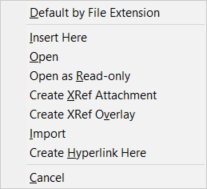
Select the file, then hold down the left mouse button and move the cursor to the BricsCAD application window, and release the left mouse button to load the drawing. When you drag a file holding down the right mouse button, a context menu displays:
When a drawing file is selected:
When another file type is selected:
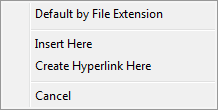
Choose Default by File Extension to:
- Open a drawing file.
- Attach a PDF.
- Attach a raster image file.
- Insert a file as an OLE object (e.g. an Excel spreadsheet).
Choose Insert Here to:
- Insert a drawing file as a block in the current drawing.
- Attach a PDF.
- Attach a raster image file.
- Insert the file as an OLE object.
Choose Open to open a drawing file.
Choose Open as Read-only to open a drawing file and preserve the original from being overwritten. You can only save such drawing under a different name.
Choose Create Xref or Create Xref Overlay to attach a drawing file as an external reference to the current drawing.
- Attachment: if the current drawing is attached as an xref to another drawing, an attachment becomes a nested xref.
- Overlay: an overlay is ignored when the drawing to which it is attached is then attached as an xref to another drawing.
Choose Import to import the geometry in the current drawing.
Choose Create Hyperlink Here to create an hyperlink to the selected file.
- Drawing file extensions are: DWG, DXF or DWT
- When multiple files are selected, the files are processed one after the other.
Opening drawings embedded as OLE objects in other applications
You can open a drawing file embedded as OLE object in other applications by double-clicking on that object from within the application. The drawing will open in BricsCAD in a tab with the name of the original file. You can modify the drawing and save it.
Opening drawings from older versions of BricsCAD which are embedded as OLE objects in other applications will automatically open in the latest installed version of BricsCAD.
When the COMACADCOMPATIBILITY system variable is set to On, AutoCAD® drawing files that are embedded as OLE objects in other applications will open in BricsCAD.
Replacing unknown fonts
When you open a drawing with unknown fonts, a notifying balloon, Missed font(s), displays in the right bottom corner. Click Specify font replacement to open the Font Substitution dialog box where the missing fonts appears. This dialog box helps you to choose the fonts for the ones that are not found in the default.fmp file.