
Lights
Lighting is the key to make viewers believe they are looking at a realistic scene.
Lighting glossary
- Point light is a light that shines in all directions from a central point.
- Spot light is a focusable light that is aimed at one area.
- Web light approximates real-world light distribution using a 3D representation of the light intensity. Web lights can be created only if the LIGHTINGUNITS system variable is set to 1 (American lighting units) or 2 (International lighting units).
- Distant light is a light from an infinitely far source. This causes the complete scene to be lit from the same direction.
System variables
- LIGHTINGUNITS system variable (Lighting units)
-
- 0: Generic lighting - this obsolete option can no longer be set but may exist in older drawings.
- 1: Enables Photometric lighting using American units: foot-candles.
- 2: Enables Photometric lighting using International units: lux.
- DEFAULTLIGHTING system variable (Default lighting)
- A distant light that follows the view direction. This setting can be different per viewport.
- 0: Default lighting is used if no other lights are switched ON.
- 1: Default lighting is used instead of the light sources defined in the drawing.
- LINEARCONTRAST system variable (Linear contrast)
- Specifies the ambient light intensity. Values between -10 and 10 are accepted. A value of -10 results in maximum ambient light. A value of 10 results in no ambient light.
- LINEARBRIGHTNESS system variable (Linear brightness)
- Specifies a scaling factor for light intensity. Values from -10 to 10 are accepted. The default is 0 (no scaling). Negative values decrease light intensity, positive values increase it. This setting can vary per viewport.
- LIGHTGLYPHDISPLAY system variable (Light glyph display)
- Controls the display of light glyphs.
- FBXEXPORTLIGHTS system variable (Fbx Export Lights)
- Specifies whether to export lights from model space.
General properties
The general properties are common to all lights.
- Name
- Specifies a name for the light.
- Type
- Specifies the type of light: spot, point, web or distant.
- Status
- Specifies whether the light is turned on or off.
- Shadows
- Specifies whether the light casts shadows or not. Turning shadows off increases performance.
- Intensity factor
- Multiplies the Lamp Intensity property, the result is the Resulting Intensity.
- Filter color
- Specifies the color of the light.
- Plot glyph
- Plots the light glyph, if on. See it in the Properties panel of the selected light.
- Glyph display
- Controls the display of the light glyph. See it in the Properties panel of the selected light.
Photometric light properties
LIGHTINGUNITS = 1 (American units) or 2 (International units).
- Intensity
- Defines the brightness of the light. The intensity is expressed in candela (cd), which is the SI base unit of luminous intensity: the power emitted by a light source in a particular direction, weighted by the luminosity function (a standardized model of the sensitivity of the human eye to different wavelengths, also known as the luminous efficiency function).
- Resulting intensity
- The product of the lamp intensity and intensity factor.
- Color
- Defines the inherent color of the light or color temperature in Kelvin or standards.
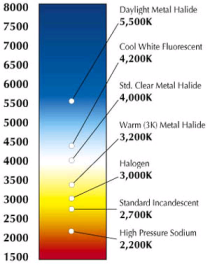
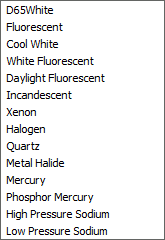
color temperatures lamp color list
- Resulting color
- This is the final color of the light, a combination of the lamp color and the filter color.
- Photometric web
- If the light type is Web, Photometry and Web options are available. The web is defined by an IES file, with an X, Y and Z rotation (see the WEBLIGHT command).
Geometry properties
- Position
- Controls the location of the light.
- Target
- Defines the target point for spot lights and web lights.
Attenuation properties
In the real world, an object appears darker if it is farther away from the light source. The attenuation properties define how the light diminishes over distance. Attenuation does not apply to photometric lights.
An alternative method to control the distance a light shines is the use of limits, which define the points from where a light starts to shine and where it stops. Using limits decreases the time needed to calculate the illumination of a scene.
Attenuation properties apply to spot lights and point lights.
- Attenuation Type
-
- None
- No attenuation. The distance to the light source has no influence.
- Inverse Linear
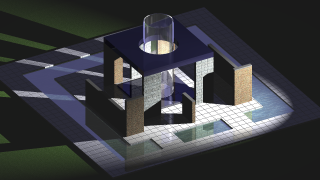
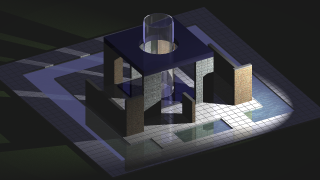
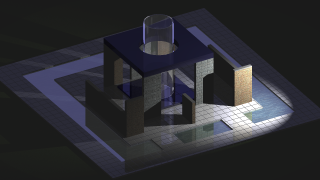
- Attenuation is inversely proportional to distance. At a distance of 2 units from the light source, the light is half as strong; at a distance of 4 units, the light is one quarter as strong.
- Inverse Square
- Attenuation is inversely proportional to the square of the distance. At a distance of 2 units, the light is one quarter as strong; at a distance of 4 units, the light is one sixteenth as strong.
- Use Limits
- Turns the use of limit offsets on or off.
- Attenuation start limit
- Defines the point at which the light starts to shine, measured from the center of the light.
- Attenuation end limit
- Defines the point at which the light stops shining, measured from the center of the light.
| No attenuation | Inverse linear attenuation | Inverse square attenuation |
|---|---|---|
|
|
|
- The Attenuation option (attenuation type, use limits, attenuation start limit, attenuation end limit) is also offered by the POINTLIGHT command when LIGHTINGUNITS = 2.
- Inverse square attenuation is applied automatically for photometric lights (LIGHTINGUNITS = 1 or 2).
Rendered shadow details
- Type
- Sets the shadow type.
- Sharp (raytraced)
- Generates sharp edged shadows.
- Soft mapped (unsupported, using sharp)
- Not supported.
- Map size
- Specifies the amount of memory for shadow calculation. Click the field, then select a value in the drop-down list (64/128/256/512/1024/2048/4096).
- Softness
- Sets the softness of the shadow map. Enter a value between 1 and 10.
- Soft sampled
- Generates realistic shadows with soft edges.
- Shape
- Sets the shadow shape (linear, rectangle, disk, cylinder, sphere).
- Samples
- Sets the sampling size of the shadow.
- Visible in render
- Turns on or off the visibility in rendering.
Spot light hotspot and falloff properties
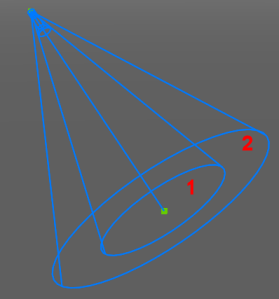
When a surface is illuminated by a spot light, there is an area of maximum illumination (hotspot = 1) that is surrounded by an area of lesser intensity (falloff = 2).
- Hotspot
- Sets the angle of the central light cone (defines the hotspot).
- Falloff
- Sets the angle of the full light cone.
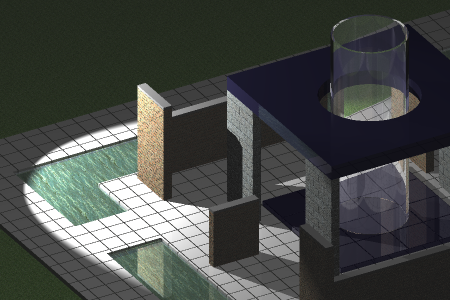
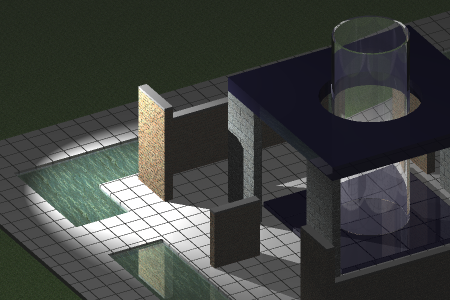
| Hotspot angle = 55, Falloff angle = 60 | Hotspot angle = 30, Falloff angle = 60 |
|---|---|
|
|
The difference between the hotspot angle and the falloff angle defines the area of lesser light intensity.
If the falloff angle and the hotspot angle are almost equal, the edge of the light cone is rather sharp (left).
The greater the difference between both angles, the softer the edge of the light cone (right).
Managing lights
The LIGHTLIST command opens the dialog box.
Here you can:
- Create new lights.
- Delete lights.
- Select lights in the drawing.
- Switch lights on or off.
Defining a light
- Do one of the following:
- Launch the LIGHT command.
- Or, launch the LIGHTLIST command and click the New (
 ) button on the dialog box.
You are prompted: Enter light type [Point/Spot/Web/Distant] <Spot>:
Specify the light type.
- Or, click a toolbutton on the Lights toolbar:
-
 for spot light.
 -
 for point light.
 -
 for distant light.
 -
 for web light.
-
You are prompted: Specify source position <0,0,0>:
- Specify a point in the drawing.
You are prompted: Specify target position <0,0,-10>:
Note: Point lights have no target. Distant lights prompt for a light direction instead. Specify light direction or [Vector] <0,0,0>. - Specify a point in the drawing.
You are prompted: Enter an option to change [Name/Intensity factor/Status/Photometry/Hotspot/Falloff/shadoW/Attenuation/filterColor/eXit] <eXit>:
Note: Hotspot and falloff are available for spot lights only. - Specify the properties of the light. The Photometry option offers Intensity/Color/eXit.
- Choose eXit to conclude the command and create the light.
A light glyph is displayed in the model, if LIGHTGLYPHDISPLAY = On.
Editing lights
Lights can be edited in the Properties panel.
- Do one of the following to select the light in the drawing:
- Click the glyph of the light(s).
- Select the light(s) in the , then right-click and choose Select lights in the drawing in the context menu.
The properties of the selected light(s) appear in the Properties panel.
- Edit the properties.
- Press the Esc key to stop.
Defining the sun properties
- Launch the SUNPROPERTIES command.
The dialog box appears, showing the sun properties in the Editor panel.
- Edit the properties.
Defining the geographic location
- Launch the GEOGRAPHICLOCATION command. For more information, see the GEOGRAPHICLOCATION command article.
The Geographic Location dialog box opens.
- Click the browse button (
 ) to select a different GIS Coordinate System in the Choose GIS Coordinate System dialog box.
 - (Optional) Clear the Inherit geographic location from GIS coordinate system checkbox.
- (Optional) Clear the Inherit position from geographic location checkbox.
- Do one of the following:
- Next to the Location field, click the Choose location... button () to open the Choose Geographic Location dialog box and specify the geographic location.
- Enter the latitude and longitude in their respective fields, and select the correct hemisphere for each.
- Next to the Location field, click the Choose location... button (
- (Optional) Specify the position in drawing space or enter the X, Y, and Z coordinates.
- Set the direction of north.
- Click OK to confirm your selections.