
IMPORTSTYLESANDSETTINGS command
Imports civil label styles and civil drawing settings from other drawings.

Icon: 
Method
Select a DWG or DWT source drawing in the Open file dialog box from which to import civil label styles and civil drawing settings.
Note: A warning message displays when the source drawing uses units different from those of the current drawing (metric, imperial).
The Import Styles And Settings dialog box opens.
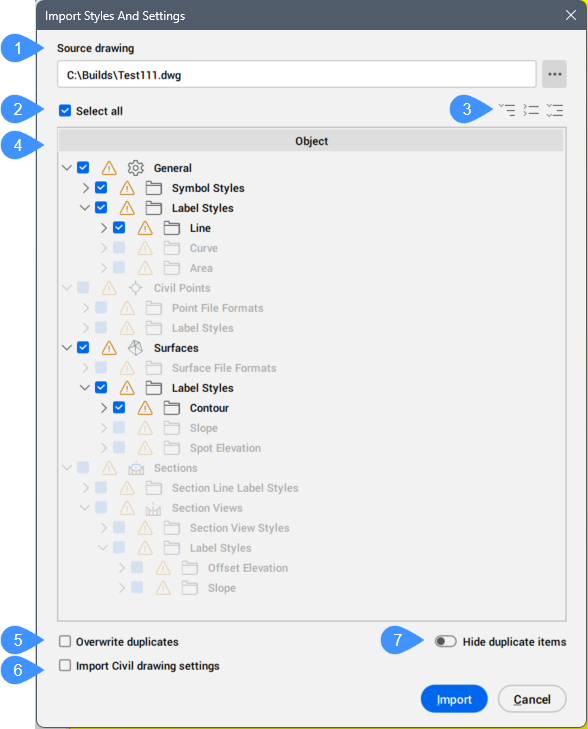
- Source drawing
- Select all
- Expand buttons
- Object list
- Overwrite duplicates
- Import Civil drawing settings
- Hide duplicate items
Source drawing
Displays the source drawing file path. Click the Browse button ( ) to select a DWG or DWT source drawing from which to import the civil label styles and settings.
Select all
Selects all available categories.
Expand buttons
Controls the display of the categories in the object list.
- Expand all...
- Displays all categories in the object list.
- Collapse all...
- Hides all categories in the object list.
- Expand default...
- Displays only checked categories in the object list.
Object list
Displays the civil label styles objects.
Note: A warning icon indicates that civil label styles already exist in the current drawing.
Overwrite duplicates
Allows you to overwrite duplicate civil label style objects found in the current drawing.
Import Civil drawing settings
If checked, also import civil drawing settings.
Hide duplicate items
Hides duplicate civil label styles from the object list.