
POINTCLOUDFITPLANAR command
Creates a planar surface or a solid from a point cloud point.

Icon: 
Method
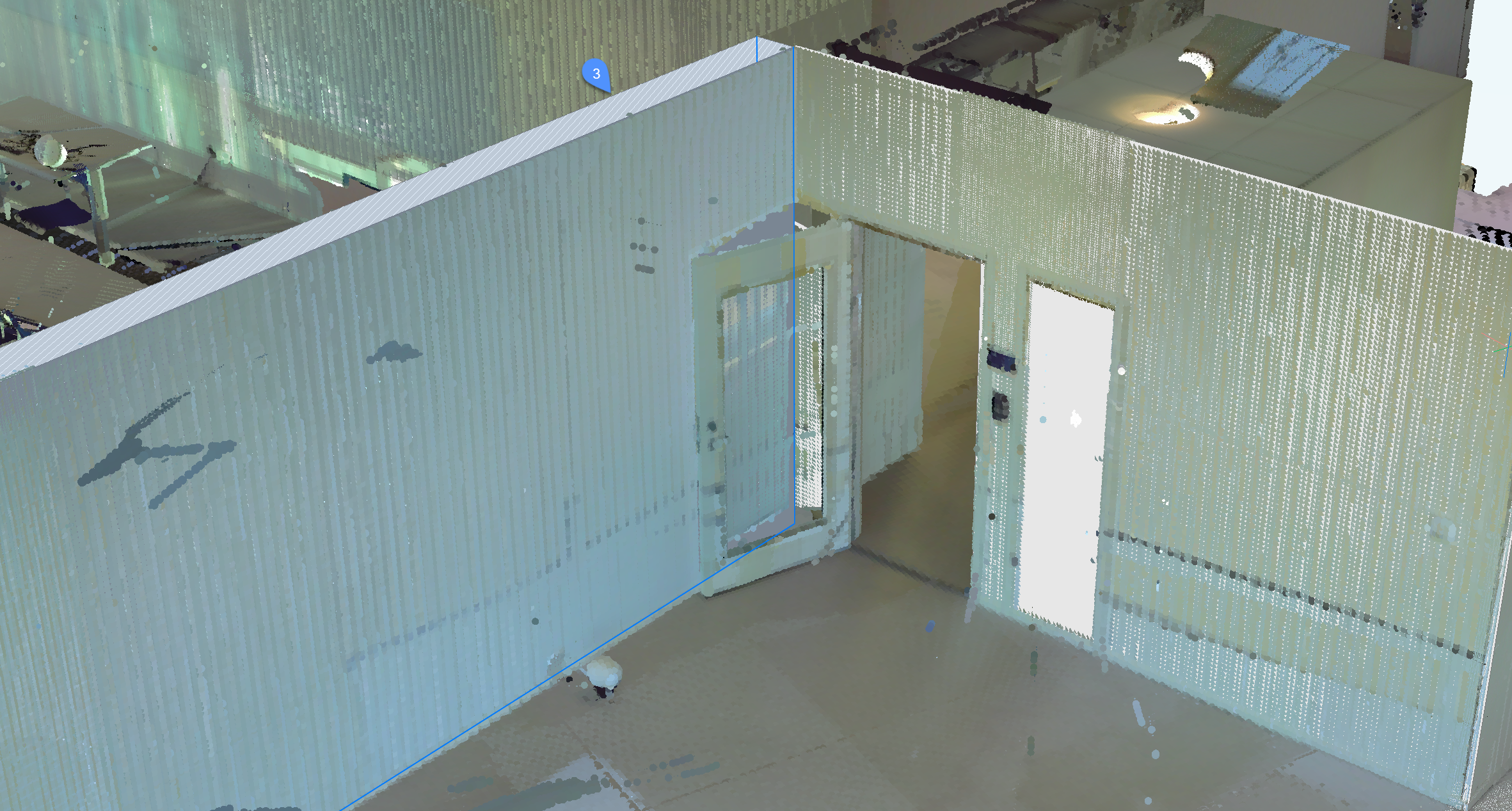
The command searches a point cloud for a dense set of planar points around selected seed point(s) and creates a planar surface or a solid if possible.
You can create multiple surfaces or solids until you cancel the command.
Note: For structured point clouds, you can execute the command in model view as well as in a bubble view. Double click the bubble in which you want to start the command before launching the command. The Bubble viewer opens.
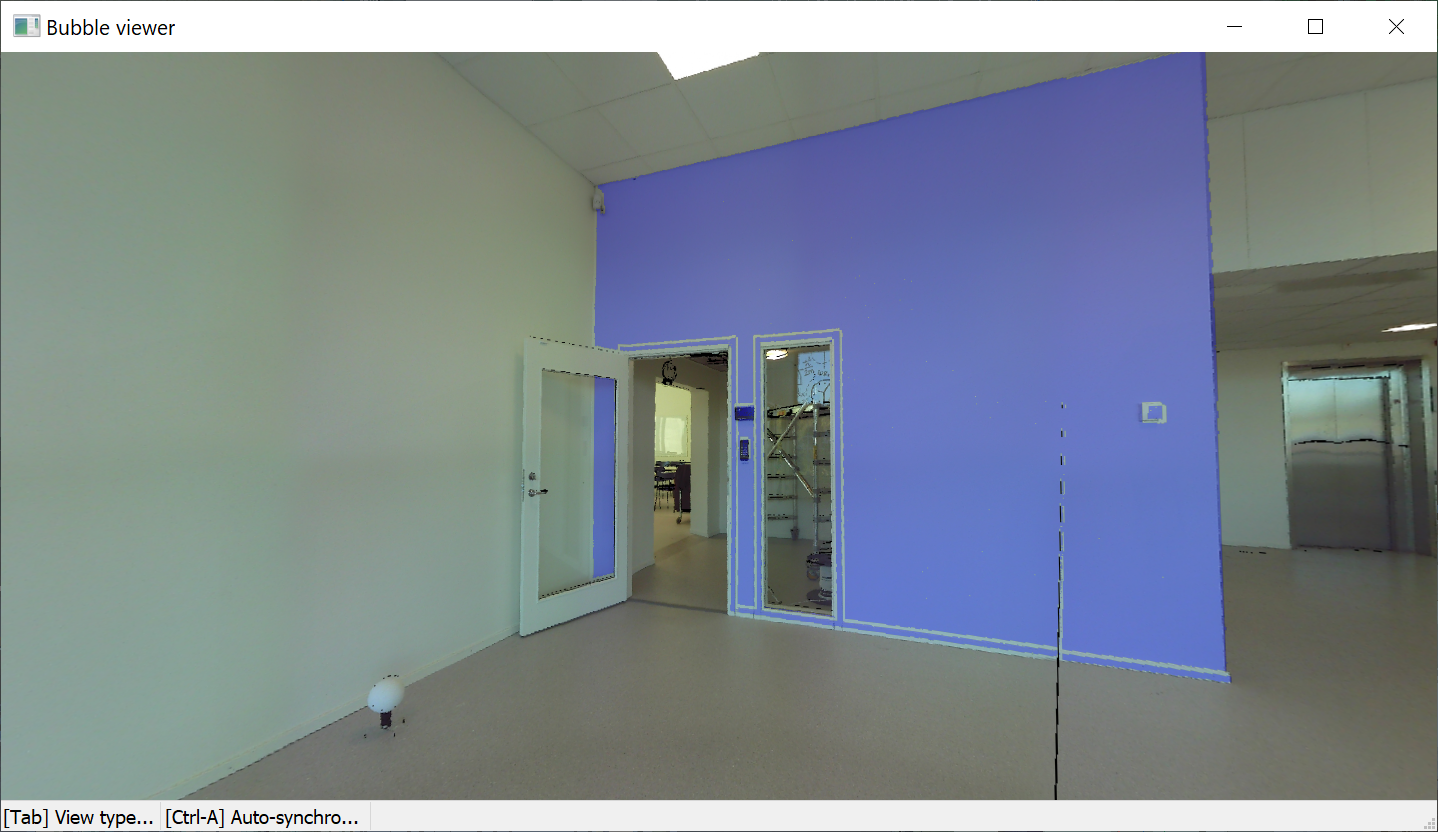
Note: Use the Shift + click key for rapid selection of adjacent surfaces. Use the command line option Stitch surfaces to stitch together the surfaces.
The command opens the Point Cloud Fit Planar command context panel.
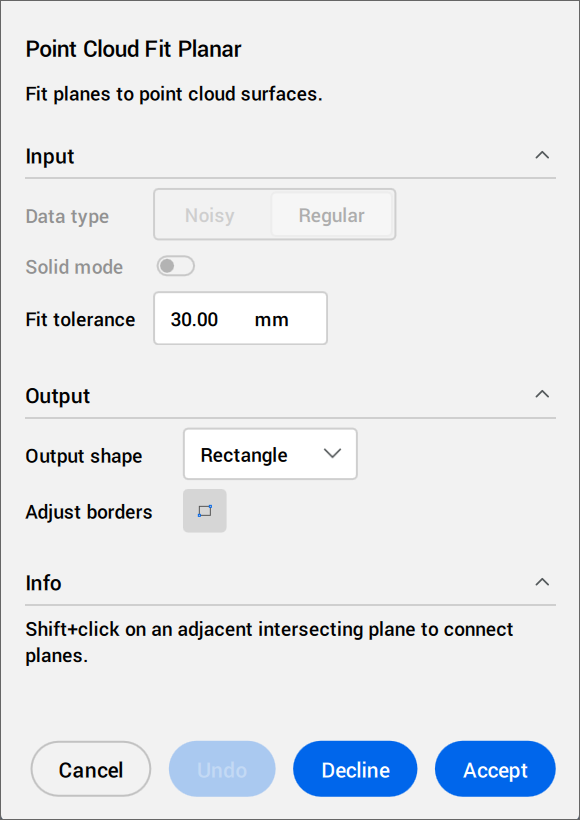
Follow the instructions displayed in the Info section. Adjust the Input and Output settings.
Options within the command context panel
- Input
- Specifies the input settings.
- Data type
- Only available in model view.
- Noisy
- Performs a robust detection for coarse or noisy data. Requires selecting three seed points.
- Regular
- Performs a normal data detection. Requires selecting one seed point.
- Solid mode
- Only available in model view.
Searches for a parallel plane in the point cloud (for example, a wall or a slab) to create a solid.
- Off: Disables the computation of solid mode data in order to save time.
- On: Enables the computation of solid mode data.
Note: Solid mode is available in Model view only, if a dense area is detected in a plane that is parallel to the detected surface.
- Fit tolerance
- Sets a tolerance value for the plane fit.
- Switch Bubbles
- Only available in bubble mode.
Switches between bubble viewers. Select in the model view the bubble to switch to.
- Output
- Specifies the output settings.
- Output shape
- Lists the output shape options.
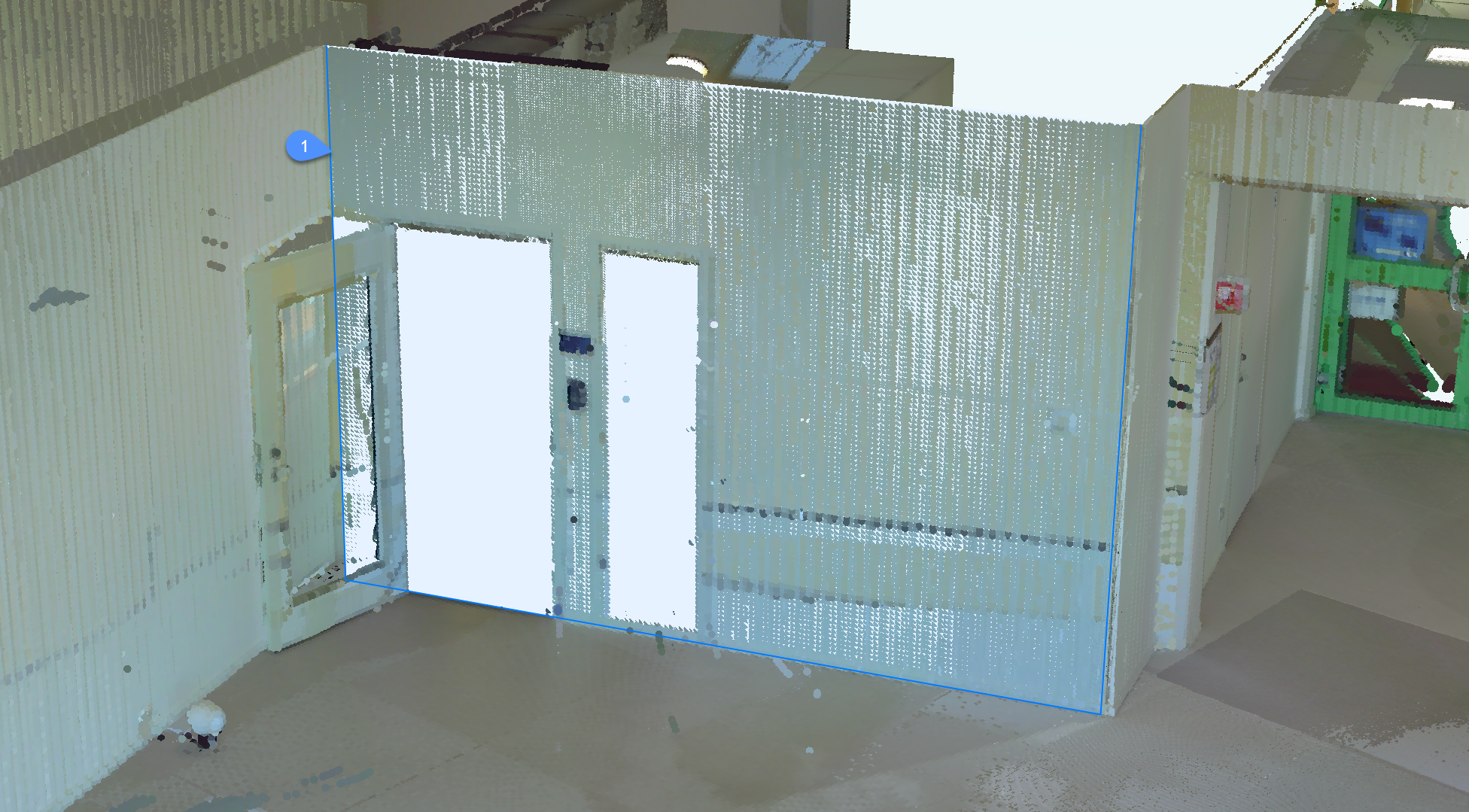
- Rectangle
- Creates a single plane around the chosen point, rectangle outer border.
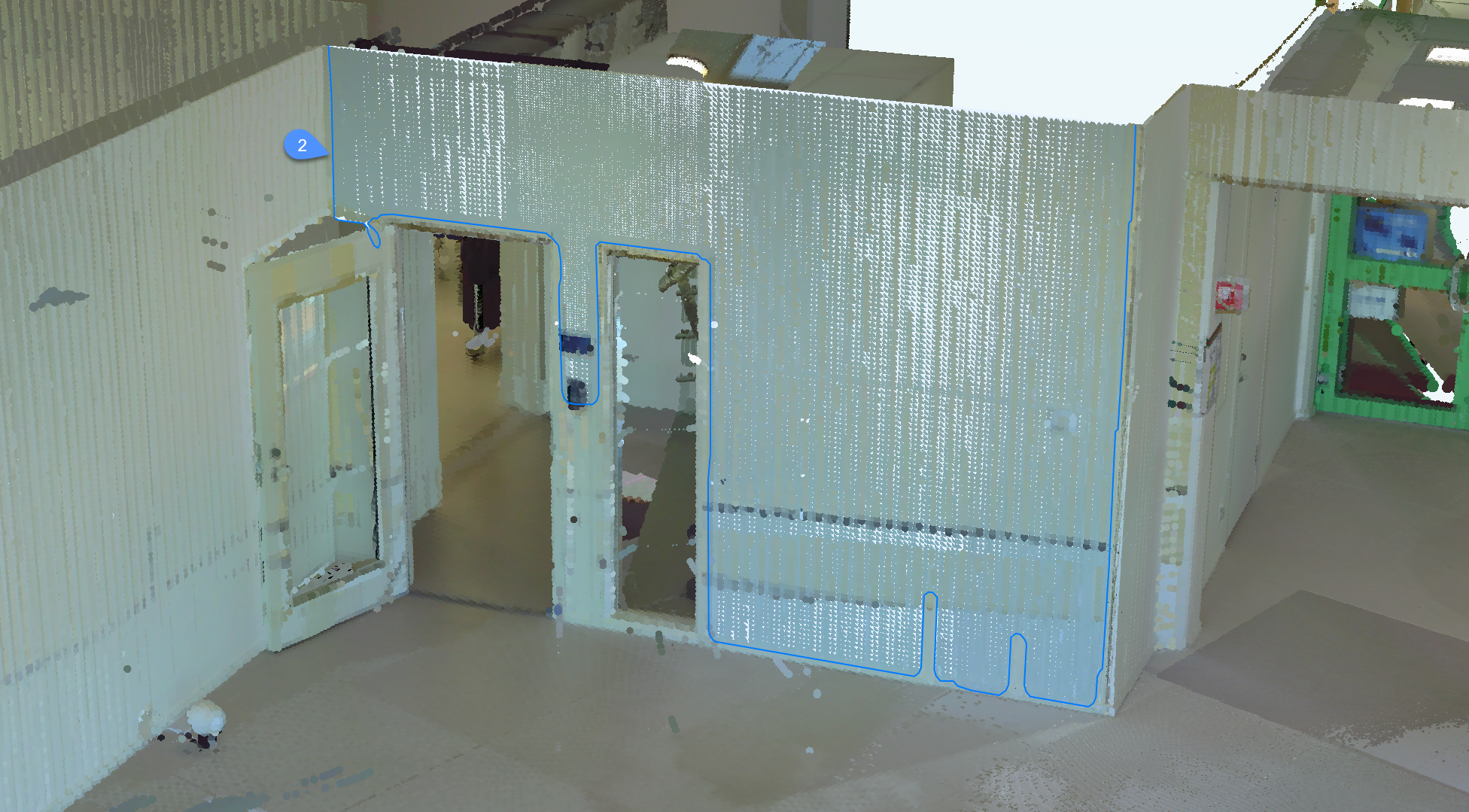
- Contour
- Creates a single plane around the chosen point, contoured outer border.
- Solid
- Creates a cuboid solid with a face that contains the specified seed point and an automatically detected second plane nearby.
Note: Press Ctrl to switch between the available modes.
- Adjust borders
- Defines a new border for the selected plane by specifying the vertices. Select vertices on border.
- Select Opening
- Only available in bubble mode.
Creates an opening by selecting a point on a opening in a surface.
- Cancel
- Ends the command.
- Undo
- Removes the most recently added surface from the current selection set. Use the Decline option to remove the complete set.
- Decline
- Declines the current planar surface or solid.
- Accept
- Accepts the current planar surface or solid.
Options within the command line
- Stitch surfaces
- Stitches adjacent surfaces selected in the rapid selection mode. Note: Rapid selection is activated by holding down the Shift key.
Note: The other options within the Command line reflect the options within the command context panel.