
SHEETSET command
Opens the Sheet Sets panel.

Icon: 
Alias: SSM
Description
Opens the Sheet Sets panel to display it in the current workspace. The Sheet Sets panel appears at the same size and location as it did before it was closed or collapsed. Like any other dockable panel, the Sheet Sets panel can be either floating, docked or stacked.
The Sheet Sets panel offers a central location to create and manage sheet sets.
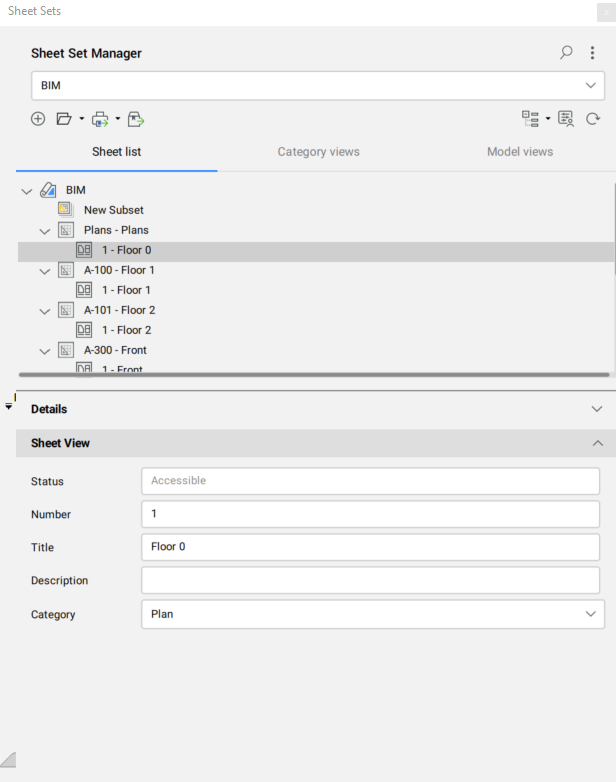
Current sheet set name
Displays the name of the current sheet set. From the drop-down list you can change the current sheet set.
Search
Opens a search field to locate a specific sheet set, subset, or sheet name.
Menu
Opens a menu with a number of options depending on the sheet set panel state.
- Import from XML...
- Imports an XML file that was created in BricsCAD with Export to XML.... Opens the Import Sheet Set dialog box.
- Export to XML...
- Exports a sheet set in XML format. Opens the Export Sheet Set As dialog box.
- Sheet Set Options...
- Opens the Sheet Controls options in the Settings dialog box.
- Custom Properties...
- Adds custom properties for sheet sets and sheets. Opens the Custom Properties dialog box.
Create sheet set
Opens the Create New Sheet Set dialog box.
Open sheet set
Opens the Select a Sheet Set file dialog box to select the DST file to be loaded. Click the right-side arrow to open a drop-down menu which contains a list with the recently opened DST files. Click one of these files to load the sheet set into the panel.
- Open...
- Opens the selected DST file from the Select a Sheet Set file dialog box.
Publish
Publishes the currently selected sheet set(s), subset(s) or sheet(s) using the Publish dialog box. Click the right-side arrow to open a drop-down menu:
- Publish...
- Publishes the currently selected sheet set(s), subset(s) or sheet(s) using the Publish dialog box.
- Publish to PDF
- Publishes the currently selected sheet set(s), subset(s) or sheet(s) to PDF using the last used presets.
- Publish to Plotter
- Publishes the currently selected sheet set(s), subset(s) or sheet(s) using a plotter based on the last used presets.
eTransmit
Launches the ETRANSMIT command. The currently selected sheet set(s), subset(s) or sheet(s) are included in the eTransmit procedure. Opens the eTransmit dialog box.
Sheet selection sets
Opens the Manage Sheet Selections dialog box. Click the right-side arrow to open a drop-down menu.
- Manage...
- Opens the Manage Sheet Selections dialog box where you can rename or delete sheet selections.
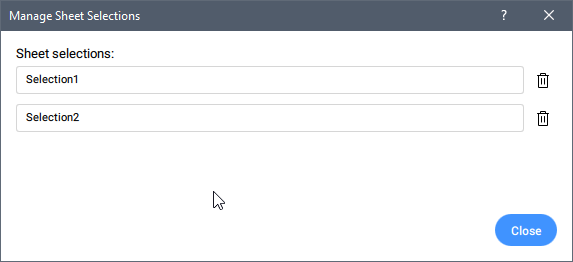
- Create
- Saves the sheet selection with a specified name.
- List of existing sheet selection sets
- Lists the existing sheet selection sets of the active (selected) sheet set in the panel. Click one of these items to activate the selection set.
Custom properties
Opens the Custom Properties dialog box to add custom properties for sheet sets and sheets.
Refresh
Updates all information stored in the sheet set data (DST) file, checks all folders in every resource location for new or removed drawing files and all expanded drawing files for new or removed model space views.
Sheet list
Displays the sheet sets in the Sheet list mode.
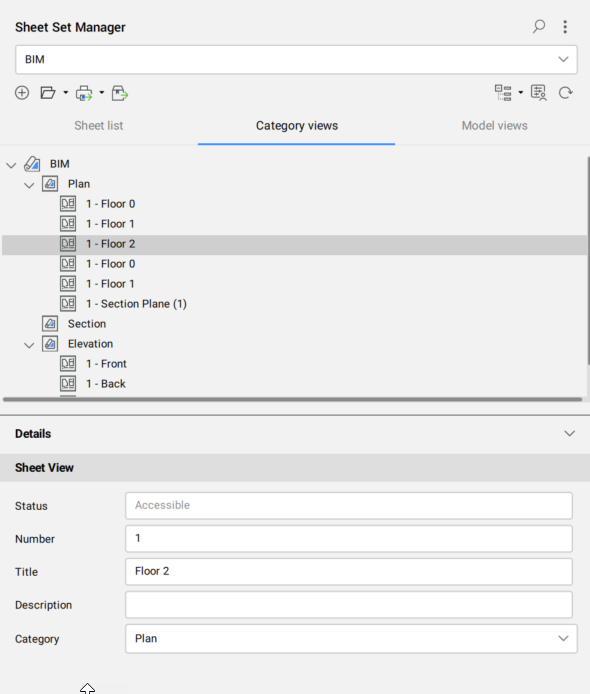
Category view
Displays the sheet sets grouped by category.
Model views
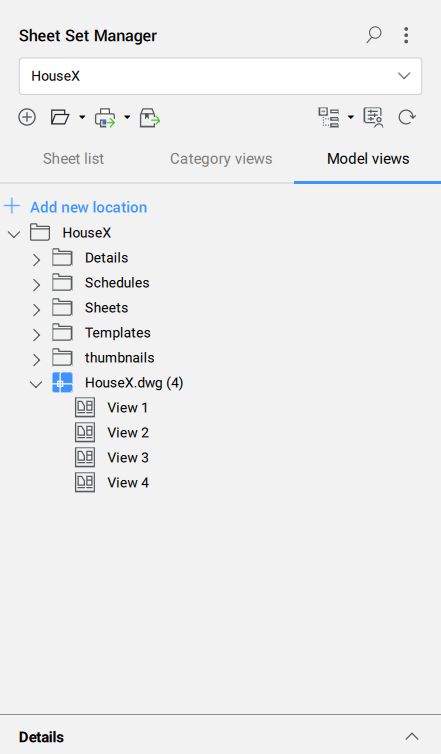
- Add new location
- Opens the Browse for Folder dialog box to choose a folder to be added. Only unique folders can be added.
- Folders
- Lists all added folders that contain the drawings and their model views. The Model Views functionality allows you to browse and select model views (created with the VIEW command) from external drawings and insert them into the Paper Space layout of the current drawing, without opening the original file.Note: The context menu opened by right-clicking a folder offers the option to Remove it from the Model views tab.
- Model views
- Model views (created with the VIEW command) from external drawings can be dragged and dropped into a Paper Space layout of the current drawing.Note: Double-click a drawing or drawing Model view in the Model views tab to open it in the Model Space. Access the Open or Open Read-Only options from the right-click context menus.
Sheet Sets list
Displays the current sheet set.
When you change the project name in the BIM Project Browser panel, the sheet set name is updated correspondingly.
A sheet set can contain sheets, subsets and sheet views.
Right-click menus offer additional tools:
- Sheet Set
-
- Close Sheet Set
- Closes the currently open sheet set and restores the previously opened sheet set. You can also close the current sheet set using the CLOSESHEETSET command.
- Export to XML...
- Opens the Export Sheet Set As dialog box.
- Resave All Sheets
- Saves all sheets.
- New Sheet(s)...
- Opens the New Sheet(s) dialog box to add new sheets to the current sheet set. See the New Sheet(s) dialog box article for more information.
- New Subset
- Adds a new subset to the current sheet set.
- Import Layout as Sheet...
- Opens the New Sheet(s) dialog box to create a new sheet by importing layouts from existing drawings. See the New Sheet(s) dialog box article for more information.
- Selection Sets...
- Opens the Manage Sheet Selections dialog box.
- Custom Properties...
- Opens the Custom Properties dialog box.
- Renumber...
- Opens the Renumber Sheet Set dialog box to renumber all sheets in the sheet set.
- Page Setup
- Opens the Page Setup dialog box. See the Page Setup dialog box article for more information.
- Plot
- Plots the currently selected sheet set(s), subset(s) or sheet(s).
- Publish...
- Opens the Publish dialog box. See the Publish dialog box article for more information.
- eTransmit...
- Opens the eTransmit dialog box. See the eTransmit dialog box article for more information.
- Insert Sheet List Table
- Inserts the sheet list table into the current drawing.
- Sheet
-
- Open
- Opens the drawing with the layout of the selected sheet.
- Open read-only
- Opens the drawing with the layout of the selected sheet in read-only mode to protect it.
- Remove Sheet
- Removes the selected sheet.
- Insert Sheet List Table
- Inserts a Sheet List Table in the drawing area.
- Subset
-
- Rename Subset
- Allows you to rename the selected subset.
- Remove Subset
- Removes the selected subset.
- Sheet View
-
- Display View
- Opens the drawing file related to the selected sheet view.
- Place Callout Block > Number Bubble
- Places a callout block of the corresponding sheet view.
- Place View Label Block
- Places a view label block of the corresponding sheet view.
- Double-click a sheet set or a subset to expand or collapse. Double-click a sheet or a sheet view to open it.
- Sheet set tree nodes can be reordered using drag and drop.
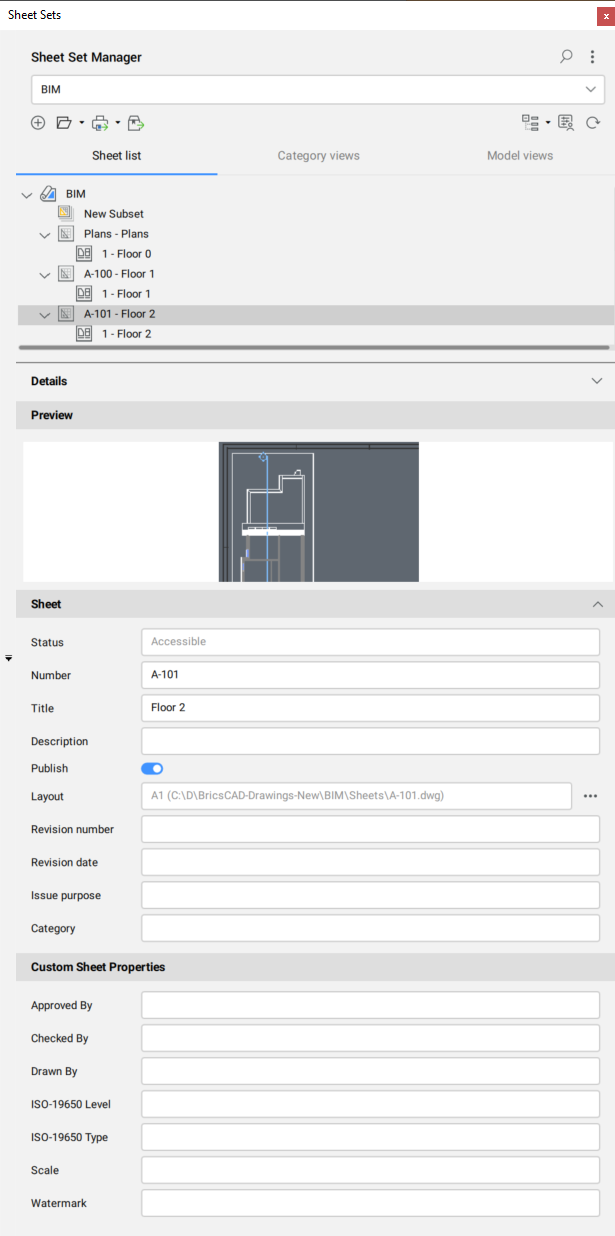
- The properties and variables of a selected sheet set, subset, sheet or sheet view are displayed in the Details section.
Details
Displays the details of the selected sheet set, subset, sheet or sheet view. A preview of the selected sheets or subset can be shown or hidden.
In , the File path, View label block, Callout blocks and Total sheets options are read only, but selectable.
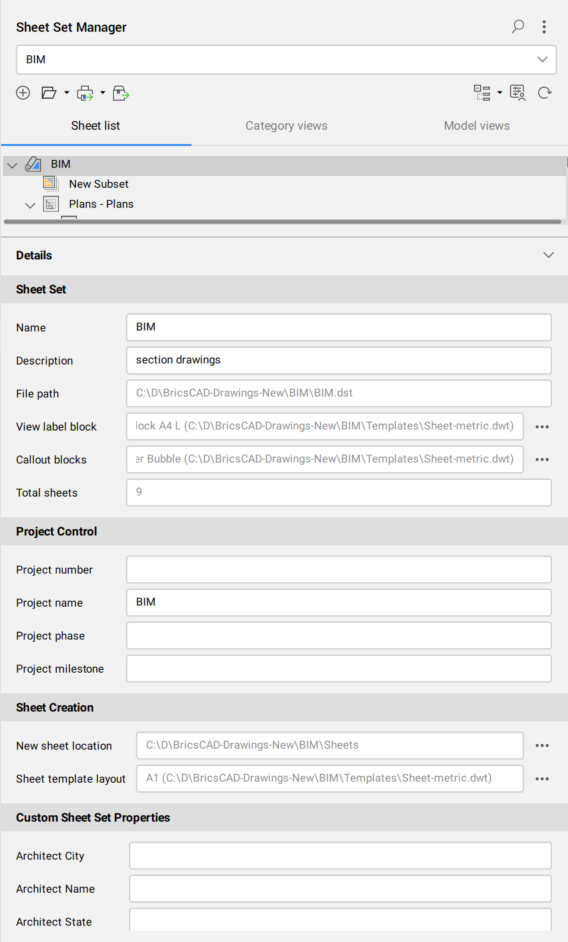
- Click the Browse button (
 ) next to View label block option to open the Select Block dialog box.
 - Click the Browse button () next to Callout blocks option to open the Blocks List dialog box.
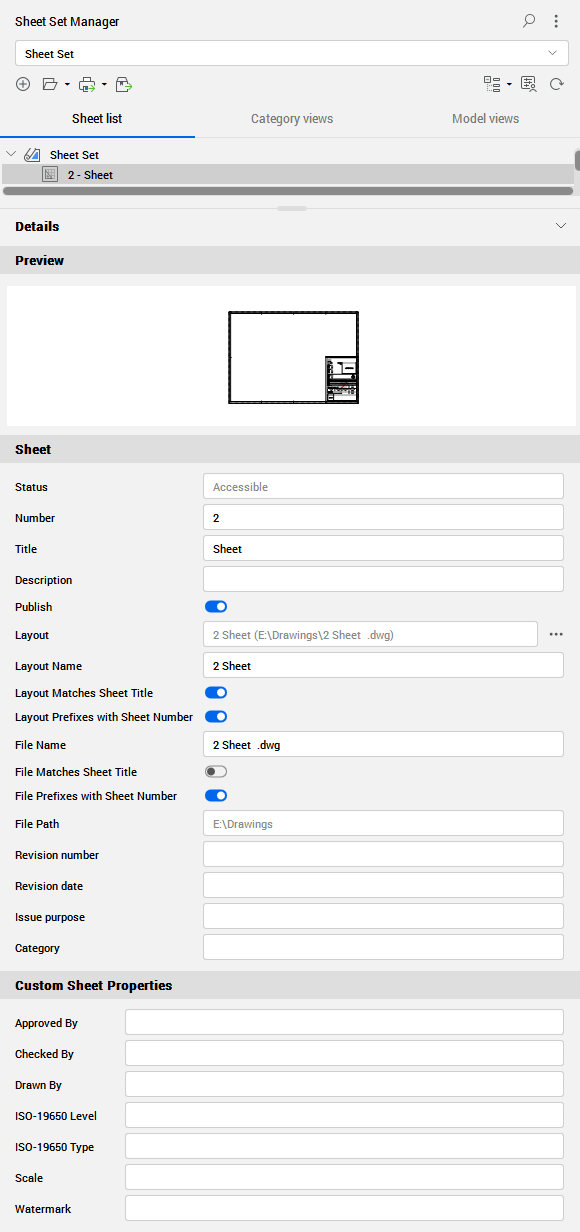
- Changing the layout name in also updates it in the source drawing.
- Changing the file name in also updates it in the source path.
- Click the Browse button () next to the Layout option to open the Select Layout dialog box.
- The Status and File Path options are read only, but selectable.