
Add block to library dialog box
Opens via:
- CREATELIBRARYBLOCK command
- Library panel
The Add block to library dialog box creates a block definition and adds it to the block library.
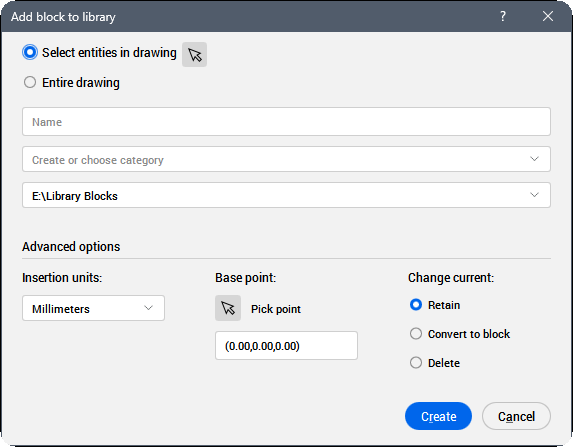
Selection set
Specifies which entities are included in the block definition. You can select entities in the drawing or use the entire drawing.
Name
Specifies the name of the block.
Category
Allows you to choose the category from the list or enter a new category name.
Location
Specifies the location where the DWG block file is saved.
Available locations are controlled by the Library directory path setting (COMPONENTSPATH system variable).
Insertion units
Specifies the units for the block insertion. You can choose from the following list of standard units:
- Inches
- Feet
- Miles
- Millimeters
- Centimeters
- Meters
- Kilometers
- Microinches
- Mils
- Yards
- Ångströms
- Nanometers
- Microns
- Decimeters
- Dekameters
- Hectometers
- Gigameters
- Astronomical Units
- Light-years
- Parsecs
- US Survey Feet
- US Survey Inch
- US Survey Yard
- US Survey Mile
Base point
Specifies the base point for defining the block. You can pick a point in the drawing or enter (X,Y,Z) coordinates.
Change current
Allows you to choose between retaining the individual entities, converting them to an inserted block using the new definition or deleting them after the block is created.
Create
Creates a DWG file for the block definition in the specified location, adds the block to the Library panel under the specified category and closes the dialog box.
Cancel
Closes the dialog box without creating the block definition.