
Background dialog box
Opens via: BACKGROUND command
The Background dialog box enables you to apply a background to the current viewport.
You can choose from four types: None, Solid, Gradient, and Image.
Note: To apply the changes made in the Background dialog box, make sure Backgrounds = On for the current visual style in the Visual Styles category of the Drawing Explorer dialog box. When Backgrounds = Off, the BKGCOLOR system variable value applies. This option is available for all visual styles, except 2dWireframe.
None
With the None type selected, the background color is determined by the PERSPECTIVE system variable:
- If Off, the background color is set by the BKGCOLOR system variable, most often black or white.
- If On and the HORIZONBKG_ENABLE system variable is On, the background displays two areas that simulate the ground and the sky. The colors of these areas are controlled by the HORIZONBKG_GROUNDHORIZON, HORIZONBKG_GROUNDORIGIN, HORIZONBKG_SKYHIGH, HORIZONBKG_SKYHORIZON, and HORIZONBKG_SKYLOW system variables.
- If On and the HORIZONBKG_ENABLE system variable is Off, the background the color is set by the BKGCOLOR system variable.
Solid
The Solid type applies a single color to the current viewport.
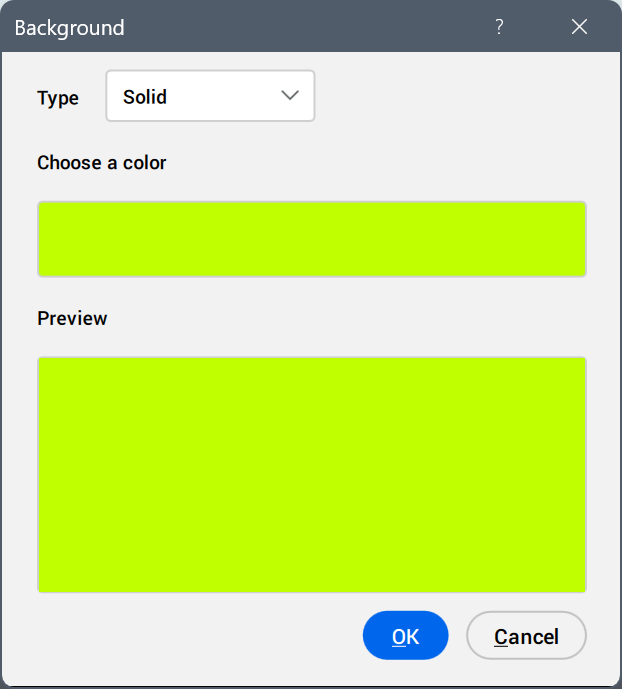
- Choose a color
- Specifies the current color for the solid background. Click on the color swatch to display the Select Color dialog box and specify a different color.
- Preview
- Displays a preview of the background using the selected color.
Gradient
The Gradient type applies a gradient between two or three colors to the current viewport.
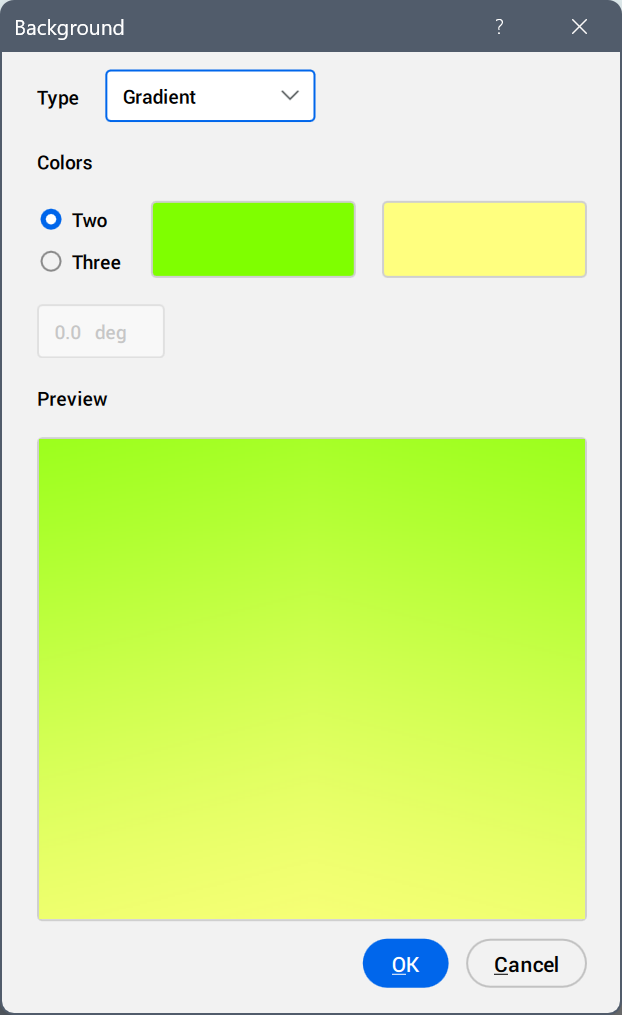
- Rotate field
- Specifies the rotation angle of the gradient background. Type an angle or use the arrows to increase or decrease the angle.
- Colors
- Specifies the colors for the gradient background.
- Two
- Applies a two-color gradient to the background. When you select this option, the dialog box displays two color swatches. One is for the top color and one is for the bottom color. Click on the color swatch to display the Select Color dialog box and specify a different color.
- Three
- Applies a three-color gradient to the background. When you select this option, the dialog box displays three color swatches. One is for the top color, one is for the middle color, and one is for the bottom color. Click on the color swatch to display the Select Color dialog box and specify a different color.
- Preview
- Displays a preview of the background using the selected colors.
Note:
- You can also apply a gradient background by running the GRADIENTBKGON command. The GRADIENTMODE system variable controls how the gradient is applied in the background, and the GRADIENTCOLORTOP, GRADIENTCOLORMIDDLE, and GRADIENTCOLORBOTTOM system variables set the colors used for the gradient.
- Run the GRADIENTBKGOFF command to return to default background color defined by the BKGCOLOR system variable.
Image
The Image type applies a raster image to the current viewport.
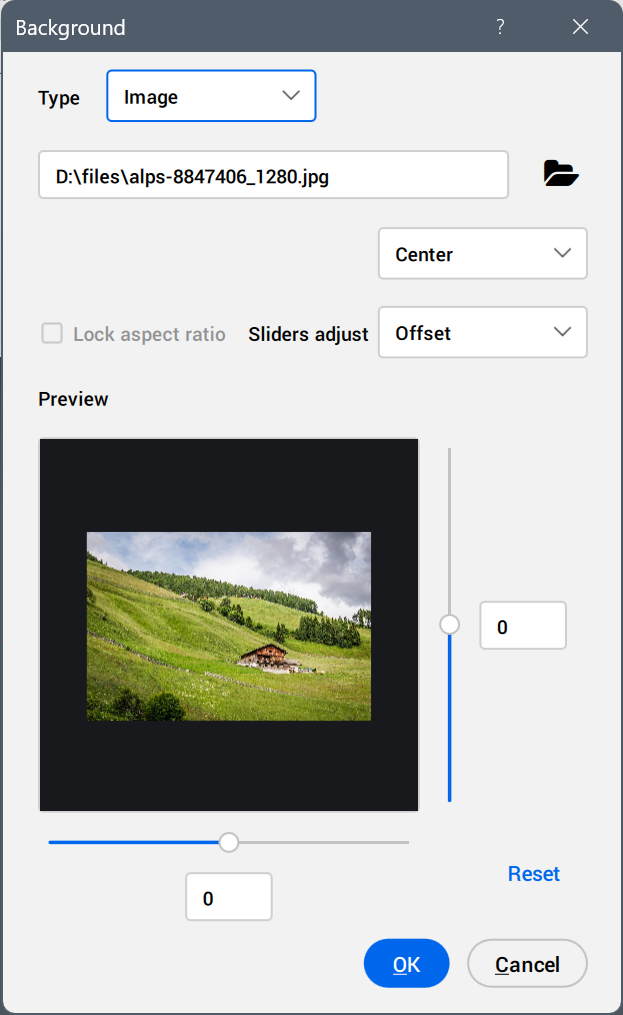
- Path field
- Specifies the name and location of the image file. Type in the path or click the browse button to open the Select Image File dialog box.
- Position
- Specifies the position of the image within the current viewport.
- Center
-
Centers the image in the viewport.
- Stretch
-
Stretches small images to fit the size of the viewport.
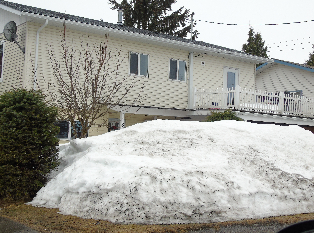
- Tile
-
Tiles the image as needed to fill the viewport.
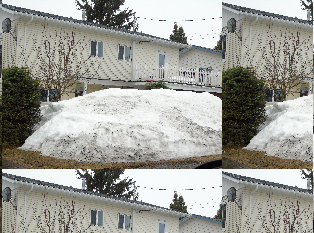
- Sliders adjust
- Specifies the function of the two sliders that display in the Preview pane.
- Offset
- Moves the image in the viewport.
- Scale
- Resizes the image. Allows you to make the image the same size as the viewport.
- Lock aspect ratio
-
Specifies whether the aspect ratio of the image is maintained when the image is scaled. This option is only available when the Sliders adjust option is set to Scale.
- When on, maintains the image's aspect ratio; the X and Y sliders move together.
- When off, allows the image to be distorted; the X and Y sliders move independently of each other.
- Preview
- Displays a preview of the background using the specified image file and options.
- X and Y sliders
- Adjusts the offset and/or the scale of the image in the viewport. Move the sliders or type a value in the fields.
- Reset
- Resets the offset to a default value of 0 or resets the scale to a default value of 1.