Edit Dimensioning dialog box
Opens via: AMPOWEREDIT command
The Edit Dimensioning dialog box manages the properties of a dimension.
General
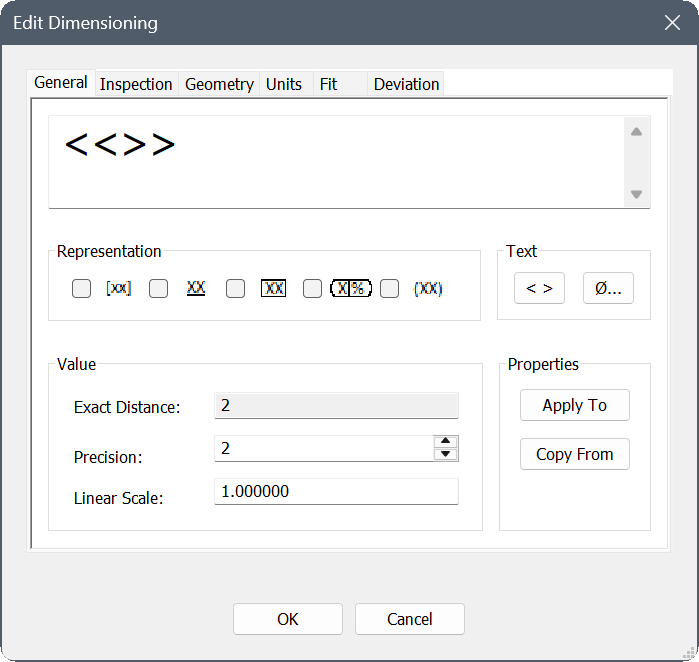
- Dimension text box
- Defines the dimension text string, including dimension value placeholders and special characters.
- Representation
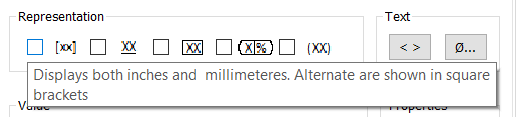
- Defines the format of the dimension text and its appearance in the drawing.Note: A tooltip explaining each representation appears when you hover over the option checkboxes.
- Text
- Adds text elements to the displayed dimension text.
- Dimension value placeholders
- Displays the placeholders for the dimension value in the Dimension text box. Click the icon to hide the placeholders from the text string and to hide the dimension value from the drawing.
- Special Characters
- Opens the Special Characters dialog box to add special characters in the dimension text string.
- Value
- Specifies the settings of the selected value.
- Exact Distance
- Displays the exact value of the selected dimension.
- Precision
- Specifies the number of decimal digits displayed.
- Linear Scale
- Specifies the linear scale of the dimension value. By default this is set to 1.
- Properties
- Copies dimension properties to or from the selected dimension.
- Apply to
- Applies
- Copy From
- Copies
- Apply to: allows you to apply the specified properties to other entities. Click the Apply to button, then select the entities you want to apply the dimension settings to. The Properties dialog box opens, where you can select the properties that you want to apply to the selected entities.
- Copy From: allows you to copy properties from a selected entity to the Edit Dimensioning dialog box. click the Copy From button and select an entity you want to copy properties from. This opens the Properties dialog box, where you can select the properties that you want to copy to the Edit Dimensioning dialog box.
Inspection
- Shape
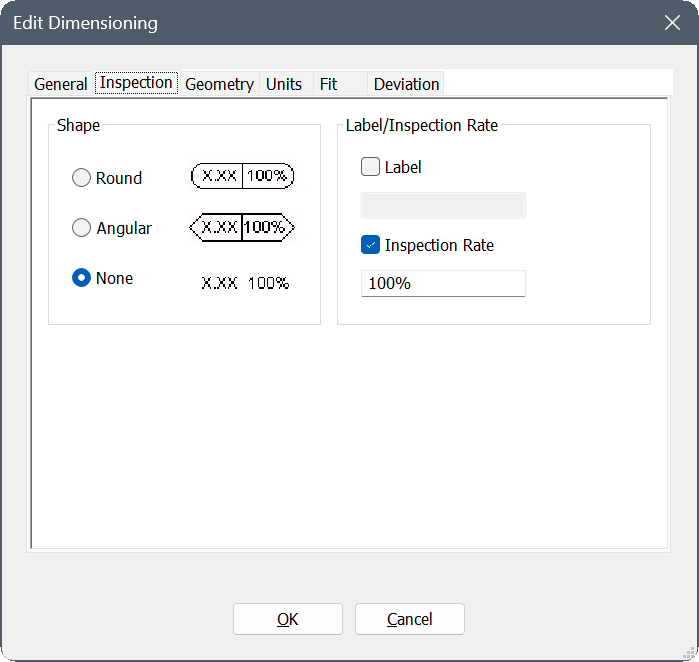
- Defines the shape of the frame around the dimension text.
- Round
- Surrounds the text in a round shape.
- Angular
- Surrounds the text in an angular shape
- None
- Removes any shape surrounding the text.
- Label/Inspection Rate
- Specifies the settings for the inspection dimension.
- Label
- Defines the label of the dimension. Check the box to display the label.
- Inspection rate
- Defines rate of the inspection. Check the box to display the rate.Note: The inspection rate is expressed as a percentage.
Geometry
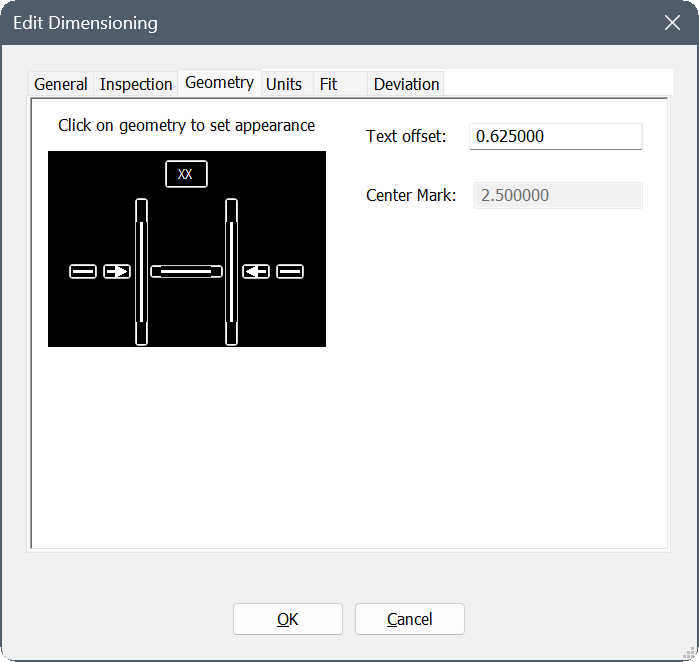
- Geometry
- Displays a preview of the dimension. You can click any elements on the preview to turn them on or off.
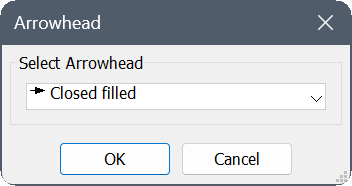
Click the arrowheads to open the Arrowhead dialog box to select the type of arrowhead displayed from the drop-down list.
- Text offset
- Specifies the text offset from the dimension line.
- Center Mark
- Specifies the size of the center mark.Note: This option is available only for radius or diameter dimensions.
Units
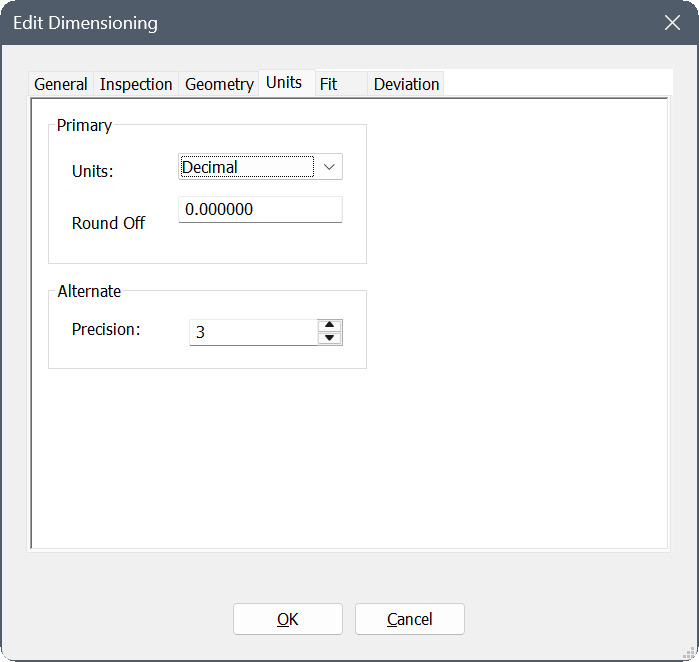
- Primary
- Specifies the properties for the primary units.
- Units
- Sets the unit type from the drop-down list.
- Round off
- Sets the number of decimals to round off the dimension values.
- Alternate
- Specifies the properties for alternate units.
- Precision
- Sets the numbers of decimals for the alternate units.
Fit
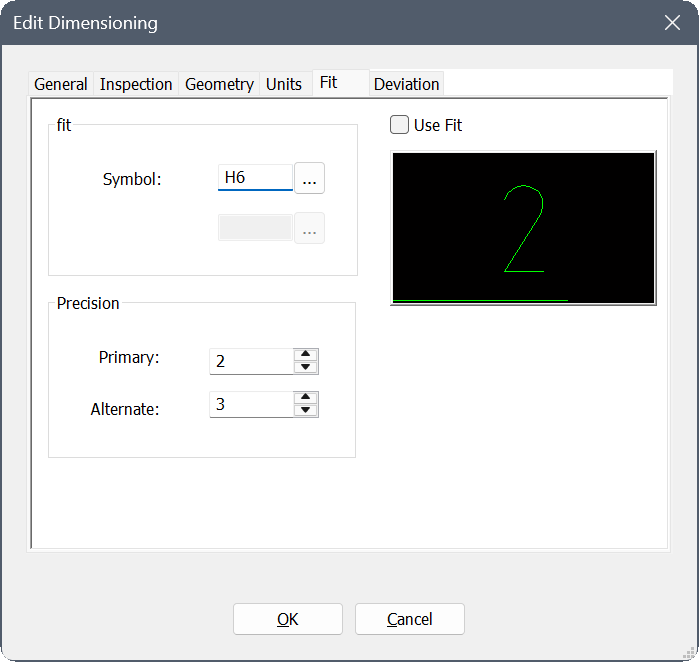
- Fit
- Sets the symbol to display the fit. Click the browse button (
 ) to open the Fits dialog box to select a symbol.
- Precision
- Specifies the number of decimals used to display the units.
- Primary
- Sets the number of decimals for the primary units.
- Alternate
- Sets the number of decimals for the alternate units.
- Use Fit
- Displays the fit values next to the dimension text when checked.
- Preview
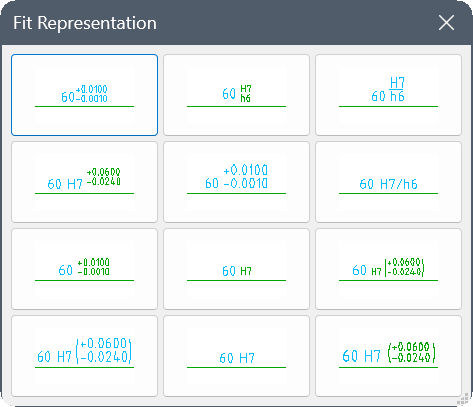
- Displays a preview of the fit. Click to open the Fit Representation dialog box to change the representation of the fit.
Deviation
- Deviation
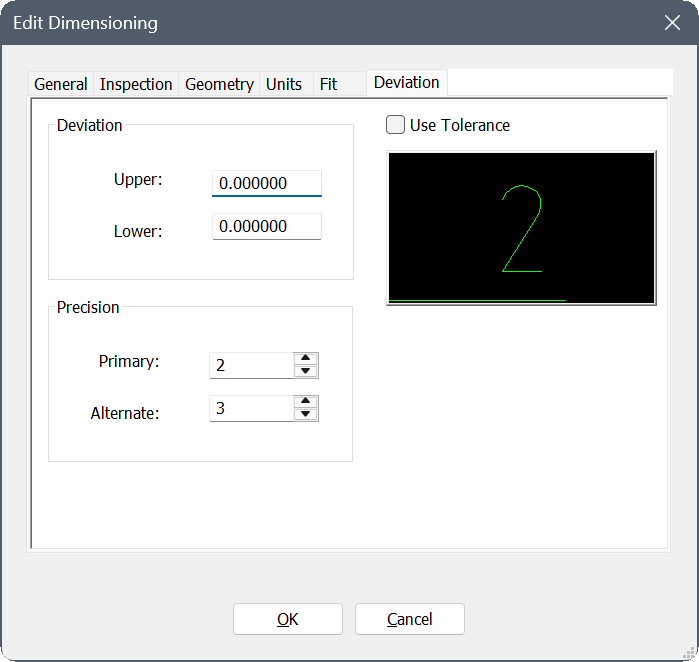
- Specifies the deviation limits between the nominal values and the tolerance values.
- Upper
- Sets the upper deviation limit.
- Lower
- Sets the lower deviation limit.
- Precision
- Specifies the number of decimals used to display the units.
- Primary
- Sets the number of decimals for the primary units.
- Alternate
- Sets the number of decimals for the alternate units.
- Use Tolerance
- Displays the tolerance values next to the dimension text when checked.
- Preview
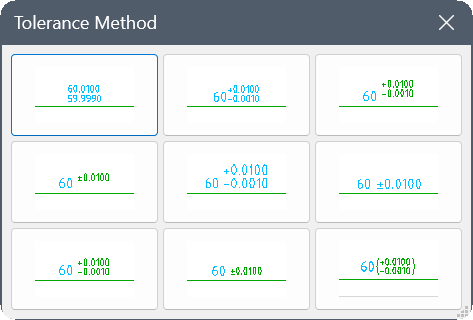
- Displays a preview of the fit. Click to open the Tolerance Method dialog box to change the method of the tolerance.