
Export To GIS dialog box
Opens via: GISEXPORT command
The Export To GIS dialog box allows you to select the GIS entities to export and the export file format.
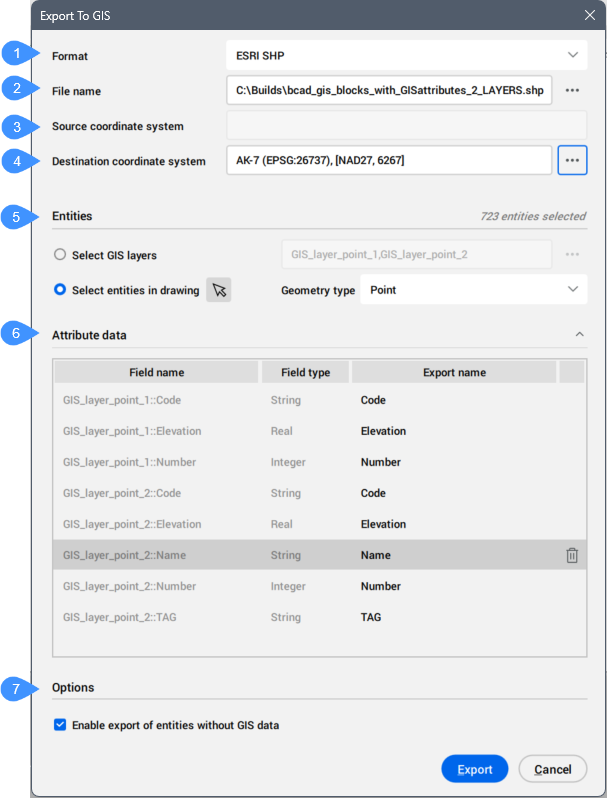
- Format
- File name
- Source coordinate system
- Destination coordinate system
- Entities
- Attribute data
- Options
Format
Allows you to choose from the drop-down list the export file format for the GIS entities: ESRI SHP, GML, and KML.
File name
Click the browse button ( ) to open the Export As dialog box and select the file name.
Source coordinate system
Displays the coordinate system used in the current drawing.
Destination coordinate system
Allows you to select the target coordinate system for export. Click the browse button () to open the Choose GIS Coordinate System dialog box.
Entities
Allows you to select the entities to export.
- Select GIS layer
- Allows you to select the GIS layers to export.
-
Click the browse button (
) to open the Select GIS layers dialog box.
- Select entities in drawing
- Allows you to select entities in the drawing.
Attribute data
Allows you to select the GIS attributes to include in the export. Click the trash button ( ) to remove the selected attribute.
Click the Export name field to edit the default name of the attribute.
Options
Sets the GIS export options.
- Enable export of entities without GIS data
- Allows you to choose to export the entities without GIS data.