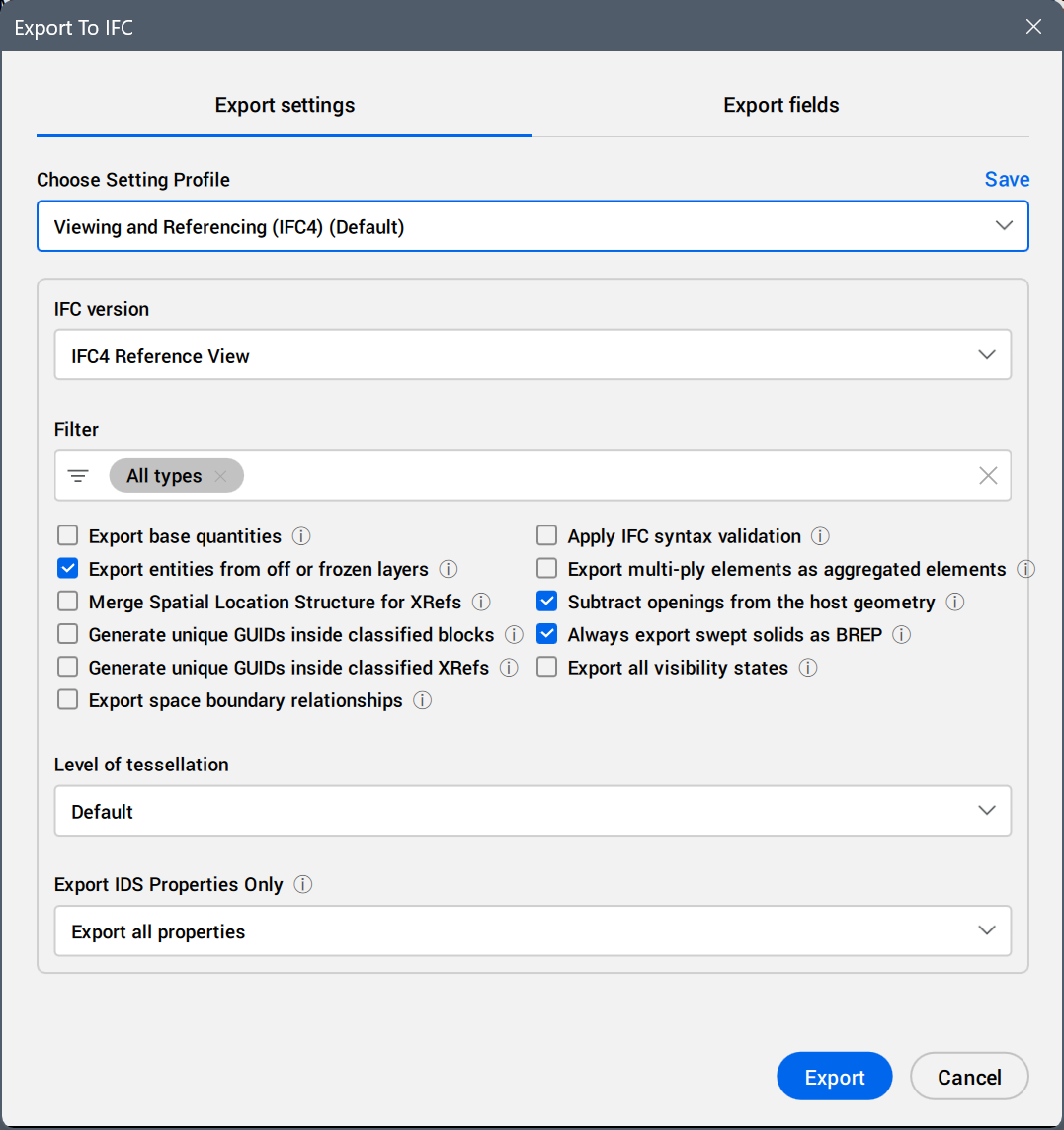
Choose Setting Profile
Defines the setting profile to be used when exporting the model.
Select a profile from the drop-down list.
- Viewing and Referencing (IFC4) (Default)
- This is the default profile for most cases, ensuring reliable geometry and property exchange. Files might be larger, and editing in the target software might be more difficult.
- Design Transfer (IFC4) (Unofficial)
- Use this to allow editing in the target software. However, Design Transfer is an unofficial version, and not well supported by many software.
- Full Export (IFC4)
- Use this to support everything from your BIM model (including base quantities, entities hidden by visibility states, etc.). This may increase the file size significantly.
- Minimal File Size (IFC4)
- Use this to minimize the file size. Since this profile relies on Design Transfer, not all software might be capable of opening this file correctly.
- Viewing and Referencing (IFC2x3)
- Use this in case the older IFC2x3 is needed. Note that IFC2x3 doesn't support many BIM types.
- IFC4x3
- Use this for exchanging Civil or Infrastructure data.
- IFC-SG
- Use this to comply with the IFC-SG in Singapore.
You can edit the settings and click Save to update the current profile or to create a new one. To create a new profile, enter a new profile name in the Save Profile dialog box and click OK.
Profile settings
Note: When modifying the settings of the selected profile, the changes are saved in a temporary profile with the same name as the original profile, followed by (Modified). The Export To IFC dialog box loads this temporary profile for the following IFC export operation. Use the Save option to permanently save the changes to the settings configuration file specified by the IFCSETTINGSCONFIG system variable.
- IFC version
- Defines the version of the exported IFC file format. Select a format from the drop-down list.
- IFC2X3
- IFC4 Reference View
- IFC4 Design Transfer View
- IFC4X3 (IFC 4.3.2.0)
Note: BricsCAD BIM is officially certified for IFC4 Reference View (Architecture) and IFC2x3 Coordination View.
- Filter
- Defines the entities to export based on the selected entity types. By default, All entities are exported.
Click the field to display the BIM entity type tree and adjust the selection. Select or deselect entire BIM type categories or individual BIM types.
After deselecting a category of element types in the tree list, the All entities tag in the field is replaced by the remaining categories tags.
After deselecting an element type under a category in the tree list, the category tag in the field is replaced by the remaining entity type tags.
Click the  button next to a tag's name to remove the corresponding entity type or category from the selection.
- Other settings
-
Note: Depending on the selected IFC version, some options are not available.
-
- Export base quantities
- Export IFC base quantities for entities. If Export multi-ply elements as aggregated elements is selected as well, ply quantities are also exported.
For IFC4 Reference View file, next to the quantities of the wall as a whole, the ply quantities are exported as a sub set for each ply (as IfcPhysicalComplexQuantity).
Important: This increases IFC file size.
- Export entities from off or frozen layers
- Export entities hidden by frozen or off layers.
- Merge Spatial Location Structure for XRefs
- Merge spatial location structure from different XRefs into one hierarchy.
- Generate unique GUIDs inside classified blocks
- Generate unique GUIDs (Globally Unique Identifiers) for nested BIM-classified entities within BIM-classified blocks.
- Generate unique GUIDs inside classified XRefs
- Generate unique GUIDs (Globally Unique Identifiers) for nested BIM-classified entities within BIM-classified XRefs.
- Export space boundary relationship
- Export the relationships between spaces and their surrounding building entities (IfcRelSpaceBoundary). Only the first level boundary will be exported, not taking into account the spaces on the other side of the building entities.
- Apply IFC syntax validation
- Checks the model against official IFC schema rules during export. Reports problems in an export log next to the IFC file.
Important: May increase export time for large files.
- Export multi-ply elements as aggregated elements
- The plies of entities with multi-ply compositions will be exported as separate, aggregated entities. If Export base quantities is enabled as well, quantities for the individual plies will be exported.
Important: This improves the reliability when importing in other software products. However, it increases IFC file size and complicates model editing in the target software.
- Subtract openings from the host geometry
- Subtract the opening from the host geometry before exporting.
Important: This improves the reliability when importing in other software products, because it avoids relying on the boolean operations of the target software. However, this increases IFC file size, and makes it harder to edit the model in the target software.
- Always export swept solids as BREP
- Export extrusions, revolutions and swept 3D solids with clippings and subtractions using a Boundary REPresentation.
Important: This improves the reliability when importing in other software products. However, this increases the IFC file size, and makes it harder to edit the model in the target software.
- Export all visibility states
- Export entities hidden by visibility states.
- Export profile center of gravity
- Exports the profile center of gravity for linear solids. Applies only to IFC2x3.
Warning: This may cause linear solids to appear in the wrong position when importing in certain software products.
- Tessellate complex curves and surfaces
- Tessellate BSpline curves and surfaces. Applies to IFC4 and later.
Note: BSpline curves are not supported by some software products. In those cases, tessellation improves the reliability of an IFC import in other software products. However, it increases the IFC file size, and complicates model editing in the target software.
- Level of tessellation
- Select a value from the drop-down list.
The options Default, Low, Medium, and High are available.
- Export IDS Properties Only
- When an IDSXML has been imported, this allows you to export only the properties required by the IDS.
Select a value from the drop-down list.
The options Export all properties and Export only the properties required by the IDS are available.
Note: When Export only the properties required by the IDS is selected, only the IFC and custom properties specified in the imported IDS file are exported.
Export fields tab
Note: These fields are system variables, and not stored in the IFC export setting profiles.
- Export author name
- Type in the author name to be exported as part of the header of the IFC file.
- Export organization name
- Type in the organization name to be exported as part of the header of the IFC file.
- Export authorization
- Type in the authorization (person who authorized the sending of the file) to be exported as part of the header of the IFC file.