
IFC Import Settings dialog box
Opens via: IMPORT command
The IFC Import Settings dialog box lets you control how the IFC models are imported (see the IMPORT command article).
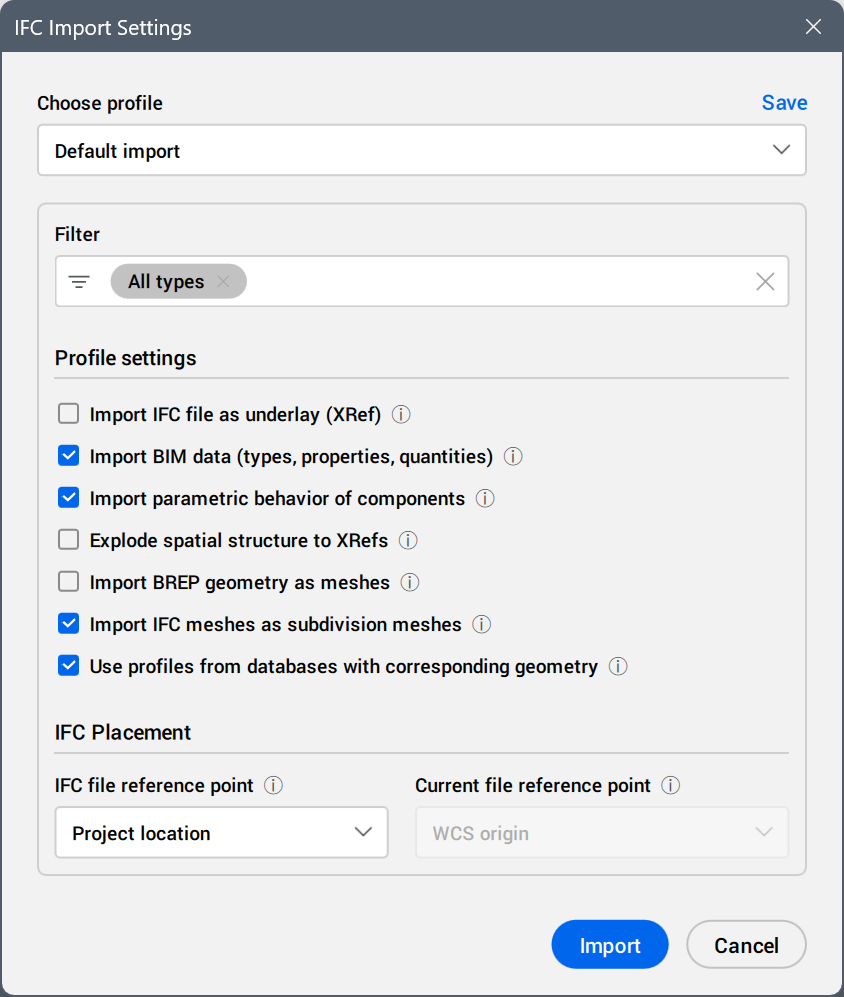
Choose profile
Sets a profile for importing the IFC model.
The following predefined profiles are available in the drop-down list:
- Default import.
- Optimized for referencing (favor meshes and exclude furniture) imports BREP geometry as meshes during IFC import.
- Import all.
- Geometry only.
- Architectural Elements only.
- Structural Elements only.
- MEP Elements only.
You can edit the settings and click Save to update the current profile or to create a new one. To create a new profile, enter a new profile name in the Save Profile dialog box and click OK.
Note: For IFC files where Columns, Beams, or other building entities are defined as Mapped Items, these will be imported as Block References. We provide the Block2Solid.lsp routine that explodes these Block References while copying BIM properties to the exploded entities.
The Block2Solid.lsp file is located in the C:\Users\%username%\AppData\Roaming\Bricsys\BricsCAD\V26x64\en_US\Support\Bim\Scripts folder. You can also add it using the BIM Project Browser panel, Files tab, Add button, Import Script option. Then, run it for selected entities.
Settings
Note: When modifying the settings of the selected profile, the changes are saved in a temporary profile with the same name as the original profile, followed by (Modified). The IFC Import Settings dialog box loads this temporary profile for the following IFC import operation. Use the Save option to permanently save the changes to the settings configuration file specified by the IFCSETTINGSCONFIG system variable.
- Filter
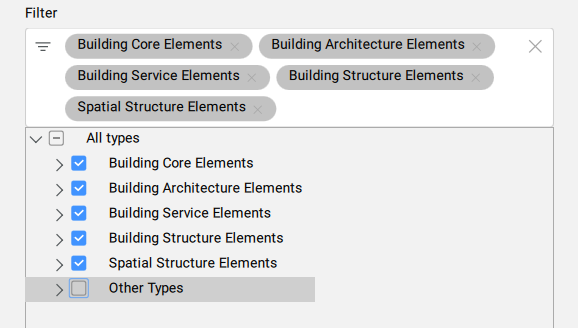
- Defines the entities to import based on the selected entity types. By default, entities of All types are imported.
- After deselecting a category of element types in the tree list, the All types tag is replaced by the remaining categories tags.
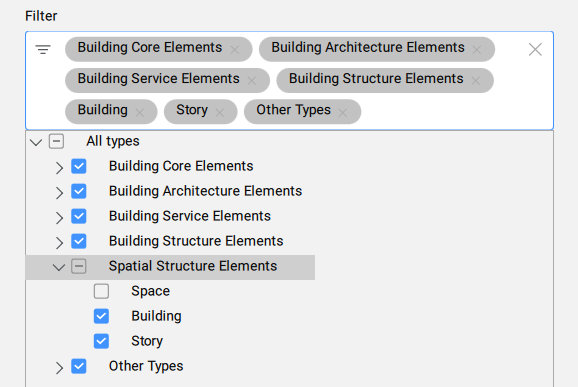
- After deselecting an element type under a category in the tree list, the category tag is replaced by the remaining entity type tags.
- Click the
 button next to a tag's name to remove the corresponding entity type or category from the selection.
- Profile settings
- Defines the profile settings.
- Import IFC file as underlay (XRef)
- The IFC model is imported into a new DWG file with the same name. The DWG file is then added as an external reference to your current drawing and classified as Underlay.Note:
- The current drawing must be saved to use this option.
- If ticked, the Current file reference point drop-down list becomes available in the dialog box.
- The new DWG file is stored in the same folder as the current drawing.
- You can only unclassify an entity that is classified as Underlay.
- When importing an IFC file as an underlay to a BIM Project, the spatial locations in the existing project are updated with the metadata from the spatial locations in the imported IFC that have the same GUIDs.
- Import BIM data (types, properties, quantities)
- Imports BIM data during IFC import (types, properties, quantities).
- Import parametric behavior of components
- Imports parametric windows and doors from the IFC file as parametric components in BricsCAD.
- Explode spatial structure to XRefs
- Imports each building and storey as a separate XRef.Note: Use this option together with the Import IFC file as underlay (XRef) option to add the stories of the IFC file as separate files in the BIM Project folder.
- Import BREP geometry as meshes
- Imports BREP (Boundary Representation) geometry as meshes during IFC import. For certain complex BREP geometry, this can give more accurate results.
- Import IFC meshes as subdivision meshes
- Imports IFC meshes as subdivision meshes. When off, it uses Polyface meshes to import meshes from the IFC file.Note:
- A polyface mesh has a limitation of 32767 faces or vertices.
- A subdivision has no limitation.
- Use profiles from databases with corresponding geometry
- Compares profiles with the project and central database based on their geometry during IFC import. If it matches, the parameters defined in the project or central database (profile name, size, and standard) are used instead of imported parameters.
- IFC Placement
- Defines how to position the IFC model with reference to the current drawing.
- IFC file reference point
- Defines the source reference point in the IFC model to be used for the position of the IFC model in the current drawing.The options are:
- Global origin
- Project location
- Site location
- Current file reference point
- Defines the target reference point in the current drawing to be used for the position of the IFC model.
Note: Placing the IFC Global origin in WCS origin can result in a model positioned far from the origin.
Note: To also import the geographical coordinates from a georeferenced IFC file, the CSMAP coordinate system files must first be copied to the specific installation folder. For more information, see the section About CSMAP in the article GEOGRAPHICLOCATION command.