
Interface Settings dialog box
The Interface Settings dialog box allows you to manage the interface display of your BricsCAD workspace.
In the Modern and Classic layout, the Interface settings button is located at the top-right of the Ribbon. However, the RIBBONSETTINGSENABLED system variable controls whether the button is displayed.
In the Toolbars layout, the Interface settings button is located in the Workspaces toolbar.
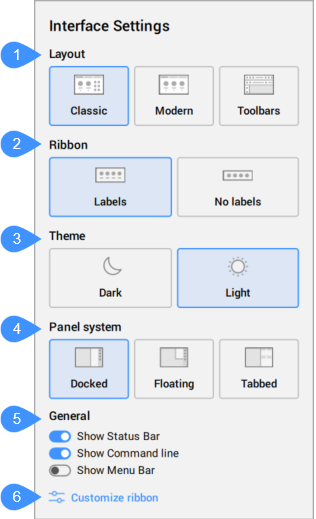
- Layout
- Ribbon
- Theme
- Panel System
- General
- Customize ribbon
Layout
Defines the general layout of the interface.
- Classic
- Sets the interface to the classic layout.
- Modern
- Sets the interface to the modern layout.Note: Modern is the default layout.
- Toolbars
- Sets the interface to a layout using only toolbars (the Ribbon is closed).
Ribbon
Defines the displaying mode of the ribbon.
- Labels
- Displays ribbon labels.
- No labels
- Hides ribbon labels.
Theme
Defines the color theme of the interface.
- Dark
- Sets the interface theme to dark.
- Light
- Sets the interface theme to light.
Panel System
Defines how panels should be displayed when open.
- Docked
- Organises the panels in a docked way, reducing the model space depending on the width of the selected panel.
- Floating
- Organises the panels in a floating way. The model space is not reduced in width as panels are floating above.
- Tabbed
- Organises the panels in a tabbed way on both sides of the screen.
General
Allows you to toggle on and off several interface components:
- Show Status bar
- Show Command line
- Show Menu bar
Customize ribbon
Displays the Customize dialog box which allows you to customize the interface to own preferences in a more detailed way.