
Interface Settings dialog box
Opens via: Ribbon panel
The Interface Settings dialog box allows you to manage the interface display of your BricsCAD workspace.
Click the Interface Settings button to open the Interface Settings dialog box.
The Interface Settings button is located at the top-right corner of the Ribbon. The RIBBONSETTINGSENABLED system variable controls whether the button is displayed or not.
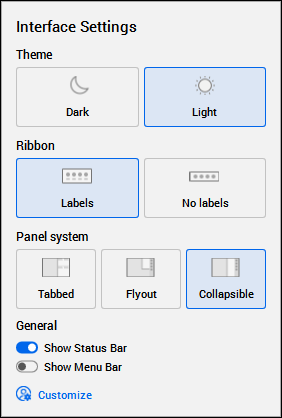
Theme
Defines the color theme of the interface.
- Dark
- Sets the interface theme to dark.
- Light
- Sets the interface theme to light.
Ribbon
Defines the displaying mode of the ribbon.
- Labels
- Displays ribbon labels.
- No labels
- Hides ribbon labels.
Panel System
Defines how panels are displayed when open.
Note: This setting is stored by the STACKPANELTYPE system variable.
- Tabbed
- Panels are arranged as horizontal textual tabs on both sides of the screen. The drawing space is resized depending on the width of the panels.
- Flyout
- Panels are arranged as vertical icon tabs. The drawing space is not resized when a panel is open.
- Collapsible
- Panels are arranged as vertical icon tabs. The drawing space is resized depending on the width of the selected panel.
General
Allows you to toggle on and off several interface components:
- Show Status Bar
- Show Menu Bar
Customize
Displays the Customize dialog box, allowing you to customize the user interface of BricsCAD.