
Launching BricsCAD in trial mode
About
The BricsCAD Setup dialog box opens when you start BricsCAD in trial mode and the GETSTARTED system variable is On.
BricsCAD trial mode runs with a BricsCAD Ultimate license by default.
Use the BricsCAD Setup dialog box to choose the license level and workspace you want to evaluate during the trial. You can change both settings later to explore different configurations.
Note: The number of days remaining in the trial period is displayed in the upper-right corner.
BricsCAD Setup
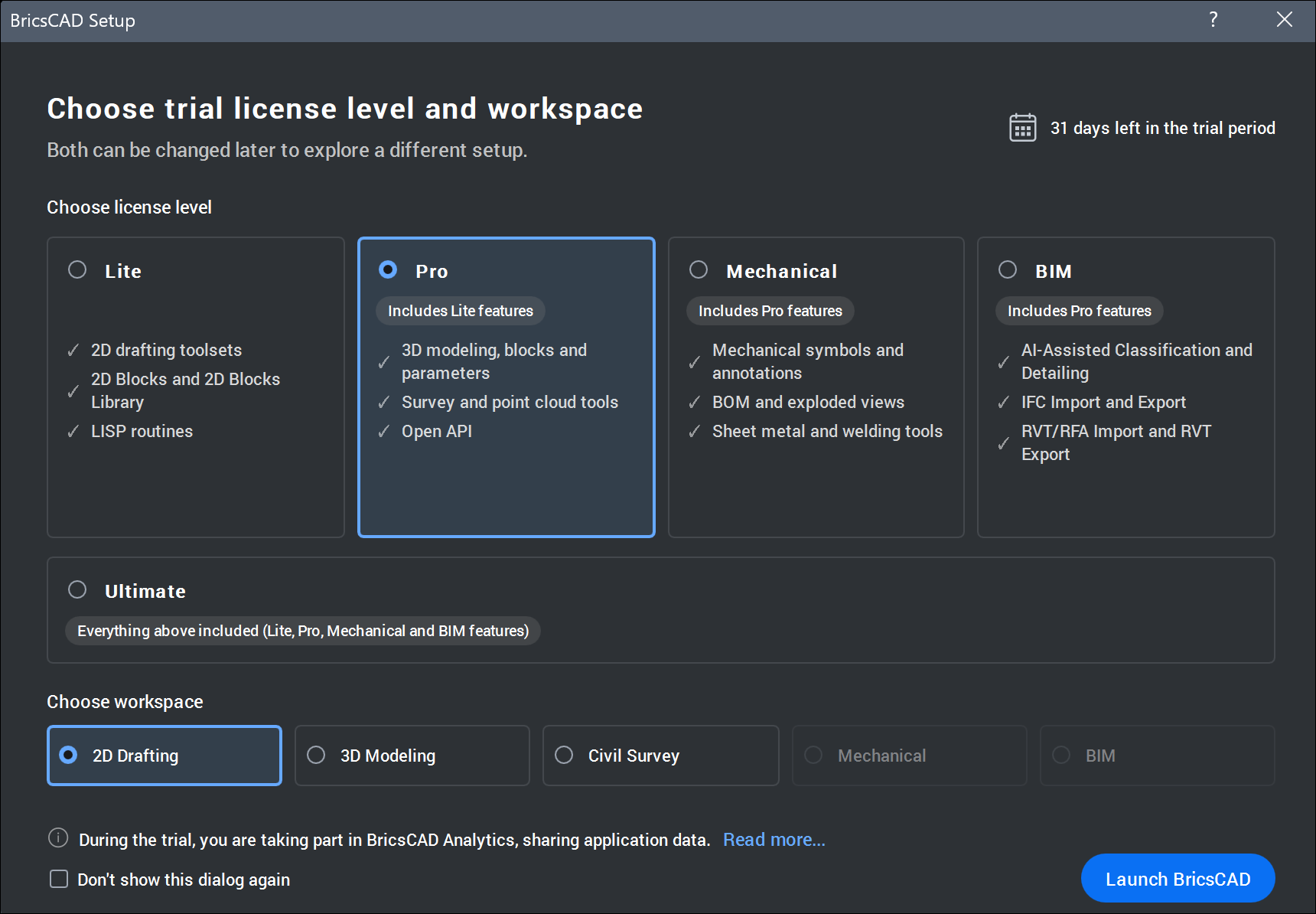
- Choose license level
- Lists the available license levels. Click the desired license level to select it.
- Choose workspace
- Lists the available workspaces for the selected license level. Each license level has a default workspace selected automatically. Click the desired workspace to select it.
BricsCAD Setup Option Workspace License Level 2D Drafting 2D Drafting Lite or higher - 2D Drafting (Modern) Lite or higher 3D Modeling Modeling Pro or higher BIM BIM BIM or Ultimate Mechanical Mechanical Mechanical or Ultimate Civil Survey Civil Survey Pro or higher - Ultimate Ultimate - Toolbars (Classic) Lite or higher
Note:
- The default selection is Pro, with the 2D Drafting workspace selected.
- The most recent selection is retained.
- Don't show this dialog again
- Sets the GETSTARTED system variable to 0. To display the BricsCAD Setup dialog box again, set the GETSTARTED system variable to 1.Note: On the BricsCAD Start page, the Show Trial Startup Setup option also sets the GETSTARTED system variable.