Opens via: Civil Explorer panel > Settings tab > TIN Surface Styles context menu > Create or Edit options
The TIN Surface Style dialog box defines the display settings for TIN Surfaces in drawings.
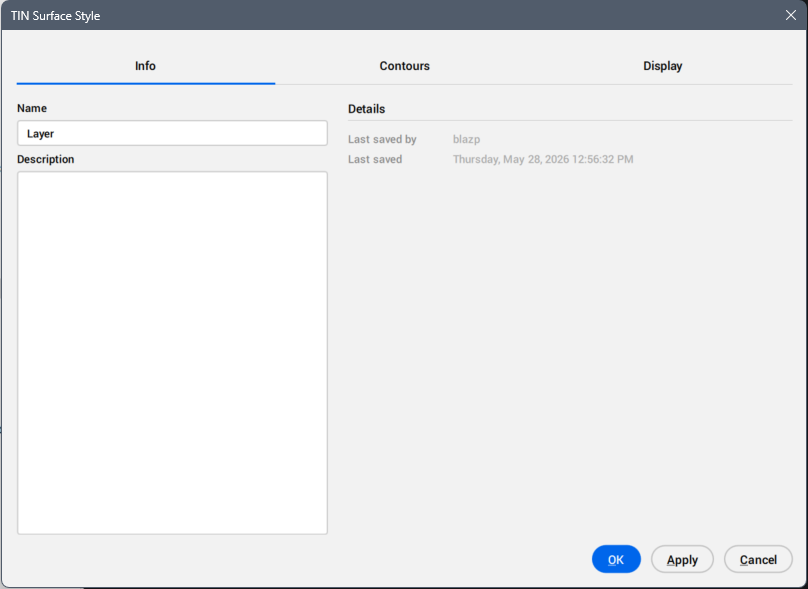
Info tab
Displays information about the TIN Surface style.
Name
Sets the TIN surface style name.
Description
Sets the TIN surface style description.
Details
Displays the Last saved by and Last saved dates.
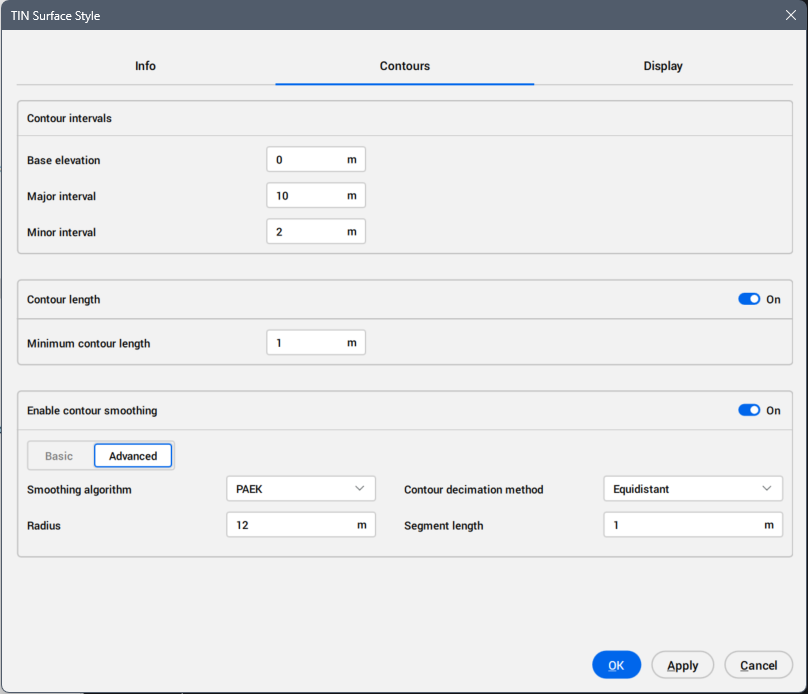
Contours tab
Defines contour intervals displayed on the TIN surface.
Contour intervals
Defines contour intervals for the TIN Surface.
Base elevation
Sets the elevation reference for generating contours.
Major interval
Sets the interval between major contour lines on the TIN surface.
Minor interval
Sets the interval between minor contour lines on the TIN surface.
Contour length
Turns on or off the visibility of the contour length setting.
Minimum contour length
Sets the minimum length of a contour segment to display.
Enable contour smoothing
Turns on or off the visibility of the contour smoothing settings.
Basic
Adjusts the smoothing intensity using the slider.
Advanced
Displays detailed contour smoothing parameters.
Smoothing algorithm
Sets the smoothing calculation method from the drop-down list.
Radius
Sets the smoothing radius.
Controls how far along the contour neighboring points are used to fit the smoothed curve. Smaller values preserve more detail, while larger values reduce the wider wiggles and create smoother contours.
A good starting range is 1-5 times the average contour segment length or roughly 1-50 drawing units, depending on the TIN scale and contour density.
Contour decimation method
Sets the contour decimation method from the drop-down list.
Segment length
Defines the segment length used for smoothing.
Use values between half and twice the minor contour interval.
Equidistant reduction averages the length of shorter segments.
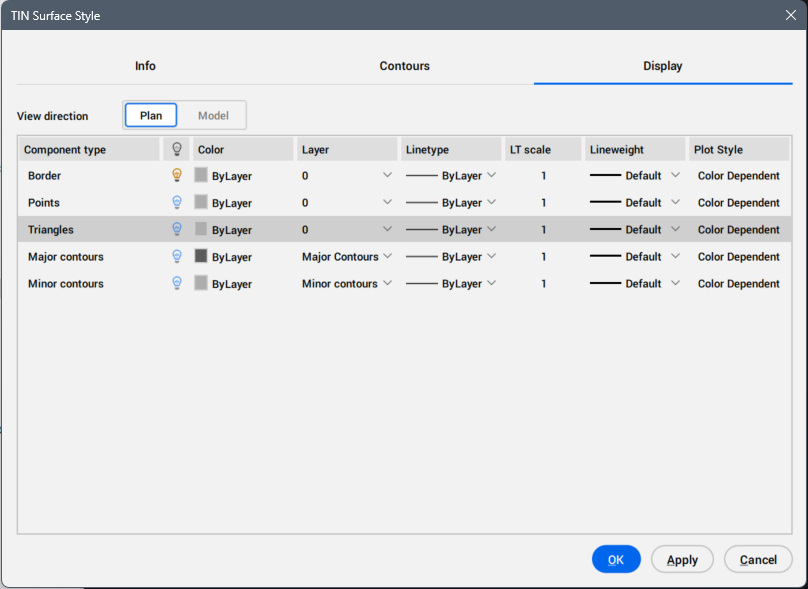
Display tab
Controls the visibility and display properties of each TIN Surface component.
Note:
To sort the list, click a column heading to arrange items in ascending or descending order.
Right-click a column heading to open a context menu, where you can hide columns or reset them to their default positions.
Table of components
Lists TIN surface components with their assigned visibility and layer.
Component type
Displays the component types.
Visible
Displays the component visibility state. Click the light bulb icon to change the visibility state.
Color
Displays the color for the component. Click the field to open the Color dialog box. See the Color dialog box article for more information.
Layer
Displays the layer for the component. Choose another one from the drop-down list of available layers.
Linetype
Lists the available linetypes for the component. Click the Load... option from the drop-down list to open the Load Linetypes dialog box.
LT scale
Displays the linetype scale for the component. Click the field to edit it.
Lineweight
Specifies the weight of the lines for the component. Click the field to open a drop-down list with additional lineweight options.
Plot style
Displays the plot style for the component from the drop-down list of available plot styles.