Getting started with a Network license
It is recommended that a network/system administrator be responsible for downloading, deploying and configuring the Network license server. The server then distributes the license seats.
Server machine actions
- Download and install one of the following Network license servers:
- Bricsys Network License Server (Serveur de licences réseau Bricsys) 1.1.0 (based on RLM 15.2)
- 2.0.0 (based on RLM 17.1)
- Info related to server security policies
- The RLM.exe must be allowed to use the following ports:
- 5053 - Default for the license seats broadcasting
- 5054 - Default for the RLM web UI (localhost:5054)
- ISV port - Dynamically assigned at startup
- After the installation:
- The Activate New Network License dialog box opens and you can enter your network license to activate it. See also the Where can I find my licenses? article.
- Info related to server security policies
- The Network license manager executable can be found in the license server installation folder.
The NetworkLicenseManager.exe must be able to reach the following:
NWLS 1.1.0 NWLS 2.0.0 license.bricsys.com ✓ ✓ api.bricsys.com ✓ ✓ port 443 ✓ ✓ port 80 ✓ -
- The Reprise License Server Administration web interface opens on localhost:5054.Note: You must change the default password after logging in using the default credentials (username: admin and password: admin), otherwise the license server will automatically shut down in 10 minutes.
- The Activate New Network License dialog box opens and you can enter your network license to activate it. See also the Where can I find my licenses? article.
Client machine actions
Note: The client machine must meet the following requirements:
- It must be on the same Local Area Network (LAN) with the Network license server, either physically or via VPN.
- It must be able to communicate with the Network license server on port 5053 and the ISV port over TCP/UDP.
- Install BricsCAD with default settings.
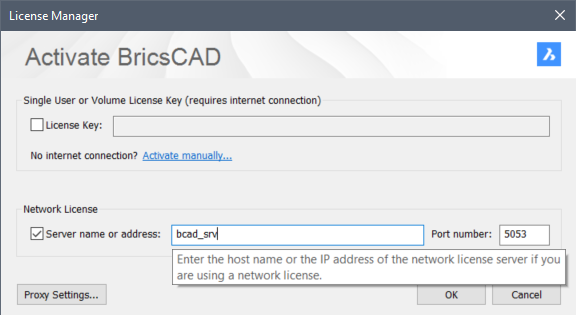
- Start BricsCAD and click the Activate license button in the BricsCAD dialog box.
- Select the Network License option in the dialog box.
- Type the host name or IP address of the license server in the Server name or address field to use the network license. If needed, change the port number in the Port Number field.