
Roaming a Network license
A network license can be roamed on a client computer to use BricsCAD without a connection to the Network license server (for example, to work outside the office or at home).
The license can be used in roaming for a specified number of days. After this period, the license is automatically checked back in to the Network license server. If necessary, you can return the roaming license to the license server earlier.
Steps for roaming a network license and returning the roamed license to the server
Note: Make sure you are connected to the server before roaming or returning the network license.
- Launch BricsCAD.
- Launch the LICENSEMANAGER command to open the BricsCAD License Manager dialog box.
- Click the Manage License button to open the dialog box.
- Click the Roaming... button to open the dialog box.
The Roaming status section displays whether your license is checked out for roaming or not, and allows you to change these settings.
- To roam a network license on a client computer you are prompted to enter the desired number of days to check out the roaming license, then click the Checkout button.
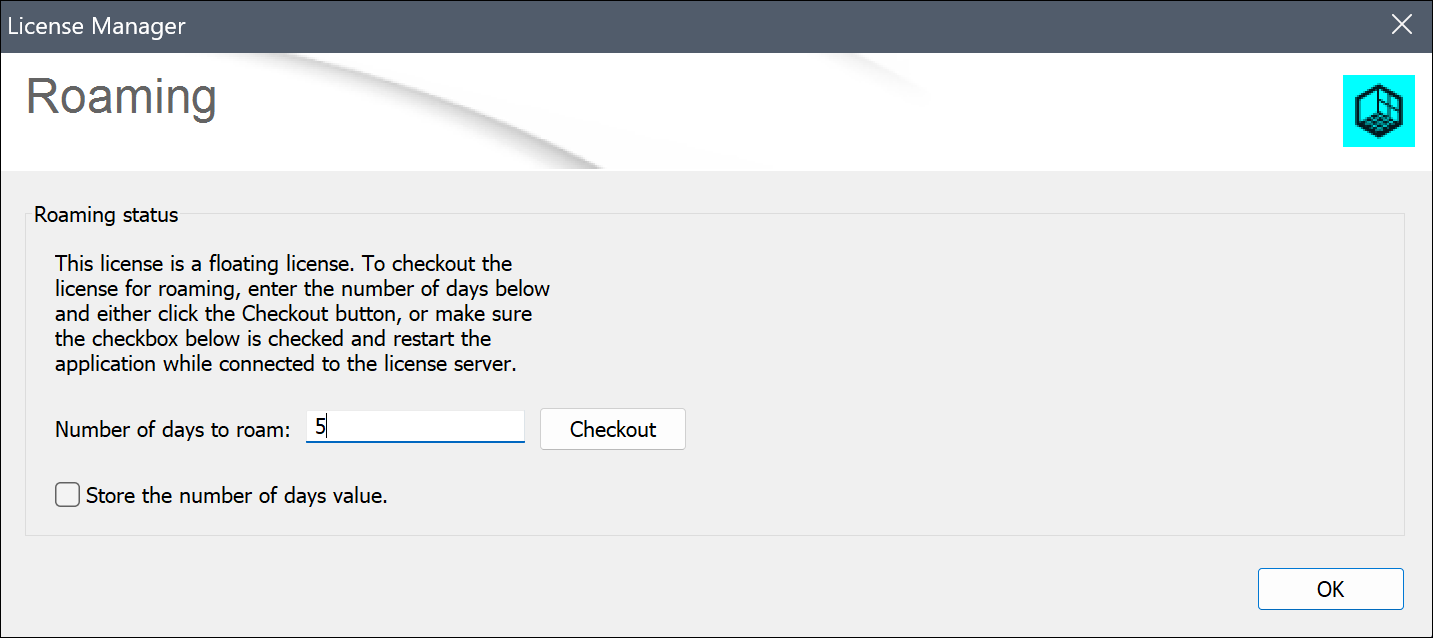 Note: Select Store the number of days value if you want to automatically refresh the roaming period when your computer is connected to the server.
 - To return a roamed network license on the server, you are prompted to click the Checkin button.
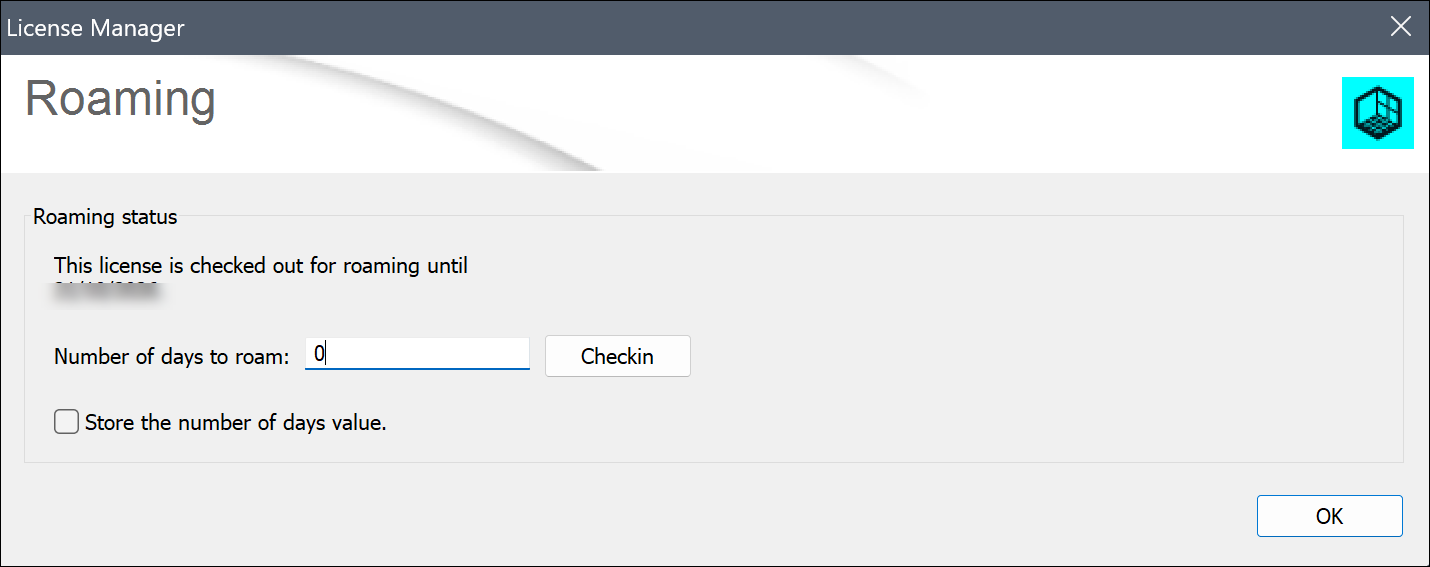
Important: Restart BricsCAD to apply the changes. - To roam a network license on a client computer you are prompted to enter the desired number of days to check out the roaming license, then click the Checkout button.