
POINTCLOUDTOMESH command
Generates a mesh from a point cloud.

Icon: 
Description
The command generates a mesh based on the visible points of a point cloud with normals.
Method
Isolate the part of the point cloud you want to generate a mesh from. You can use classes, cropping or regions.
Launch the command to open the Point Cloud to Mesh command context panel.
Specify a mesh resolution and trim the mesh by adjusting the Clean up value. Optionally, specify the desired number of faces for the final mesh.
Click Finish to create the mesh as displayed in the preview and exit the command.
Click Cancel to exit the command without creating a mesh. This can take longer depending on how advanced the processing is.
Options within the command context panel
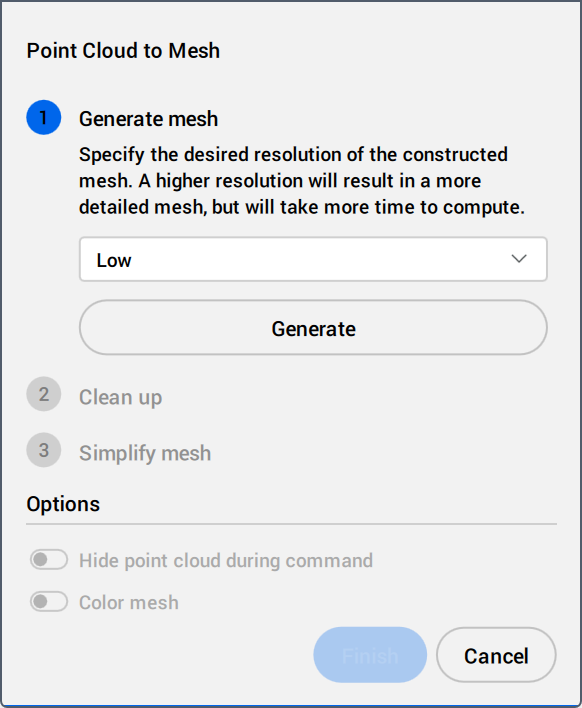
- Generate Mesh
- Specifies the desired resolution of the constructed mesh. A higher resolution will result in a more detailed mesh, but will take more time to compute.
The options are Low, Medium, High and Very high.
Note: The Very high setting may take a log time to compute or may not succeed depending on the point cloud and available memory resources. This option is recommended only if lower resolutions do not produce satisfactory results.- Generate
- Click to start the process and proceed.
The system displays a progress bar on the lower-right side of the screen.
- Clean up
- Removes faces that are poorly supported by point data and helps eliminate unwanted surfaces created when the algorithm closes gaps.
- Simplify mesh
- Simplifies the mesh to make it lighter to work with and to decrease the overall file size.
Specify the desired number of faces for the final mesh.
Use the slider to adjust the value or type the value in the field. A preview of the mesh displays in the model space after the value change.
Note: You can also use the MESHSIMPLIFY command after the mesh is generated.
- Hide point cloud during command
- Displays only the preview of the mesh in the model space.
- Color mesh
- Colors the preview of the mesh in the model space to better distinguish it from the point cloud.