BIMPROJECTINFO command
Opens the BIM Project Info dialog box.

Description
Opens the BIM Project Info dialog box to view and modify BIM project information.
The BIM Project Info dialog box shows information about properties, materials, compositions, profiles and spatial structures of the Project and Central databases. It allows you to import or export the database and set the project database as embedded or external. Project and Central databases of BIM models can be changed using this dialog box.
Project Database tab
Shows the BIM project info.
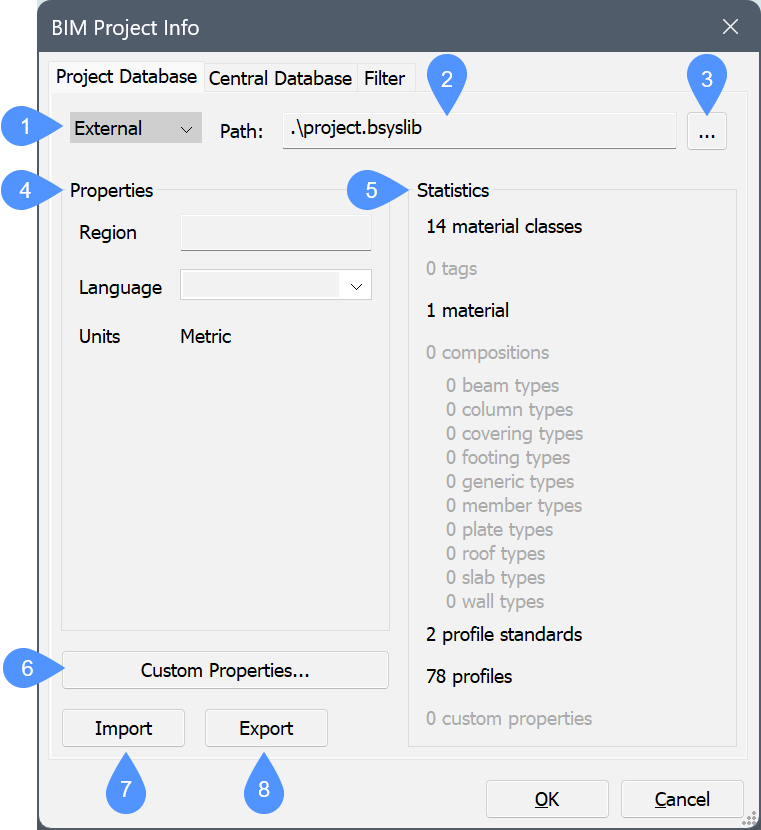
- Project database drop-down list
- Path
- Browse
- Properties
- Statistics
- Custom properties…
- Import
- Export
- Project database drop-down list
- Choose between Embedded or External.
- Path
- Displays the path of the project database.
- Browse
- Opens the Select or create a Bricsys Library dialog box.
- Properties
- Shows the properties of the BIM project.
- Region
- Fill out the region field.
- Language
- You can choose one of the language options from the drop-down list.
- Units
- Displays the system of measurement used in the BIM project (metric, imperial).
- Statistics
- Shows the location, properties, spatial structures (the amount of buildings, stories, etc.) and the content of the current project database of the BIM model (materials, compositions, profiles).
- Custom properties…
- Adds custom properties to materials and compositions. Opens the Edit Custom Properties dialog box (see the Edit Custom Properties dialog box related article).
- Import
- Imports the selected XML or CSV library files to enlarge the database, for example, to add materials, compositions or profiles. Opens the Select xml/csv file to import dialog box.
- Export
- Saves XML library files in the defined location. Opens the Select location to save xml file dialog box.
Central Database tab
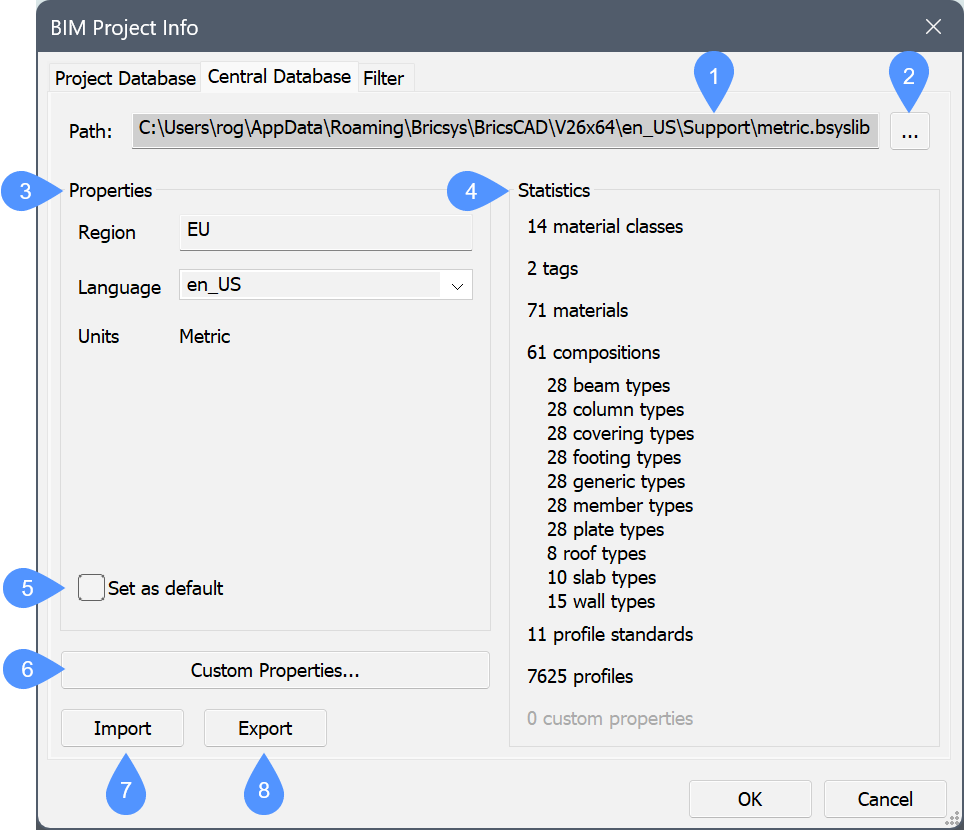
- Path
- Browse
- Properties
- Set as default
- Statistics
- Custom Properties…
- Import
- Export
- Path
- Displays the path of the central project database.
- Browse
- Opens the Select or create a Bricsys Library dialog box.
- Properties
- Shows the properties of the BIM project.
- Region
- Fill out the region field.
- Language
- You can choose one of the language options from the drop-down list.
- Units
- Displays the system of measurement used in the BIM project (metric, imperial).
- Set as default
-
This option allows you to set the selected database as the default library database for the next projects.
Note: You can edit the default library database settings (DEFAULTBSYSLIBMETRIC and DEFAULTBSYSLIBIMPERIAL system variables) in the Settings dialog box under .
- Statistics
- Shows the location, properties, spatial structures (the amount of buildings, stories, etc.) and the content of the current project database of the BIM model (materials, compositions, profiles).
- Custom properties…
- Adds custom properties to materials and compositions. Opens the Edit Custom Properties dialog box (see the Edit Custom Properties dialog box related article).
- Import
- Imports the selected XML or CSV library files to enlarge the database, for example, to add materials, compositions or profiles. Opens the Select xml/csv file to import dialog box.
- Export
- Saves XML library files in the defined location. Opens the Select location to save xml file dialog box.
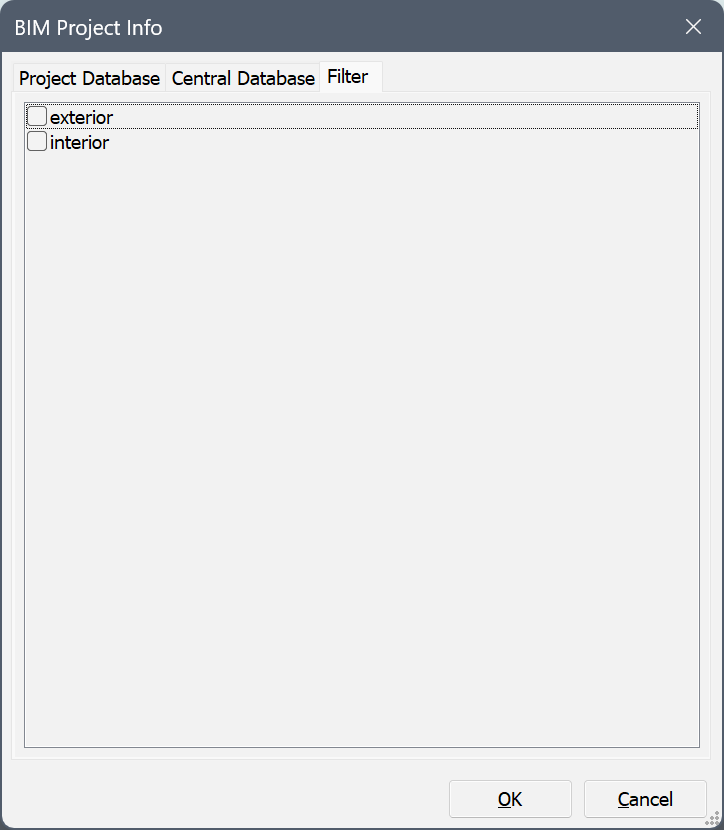
Filter tab
Check the tags that you want to use in the filter.