
LAYOUTMANAGER command
Manages layout tabs in the current drawing.

Description
Opens the Layout Manager dialog box and allows you to manage all layouts in the current drawing. You can create new layouts, duplicate existing ones, rename or delete them, reorder their position, adjust page setup settings, or publish selected layouts.
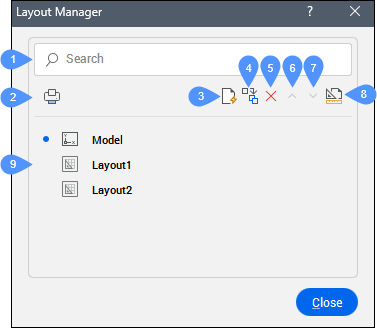
- Search
- Publish
- Add new layout
- Copy selected layout(s)
- Delete one or multiple layouts
- Move up
- Move down
- Page Setup
- Model and layouts list
Search
Searches for a layout name and displays only the searched layout. This is useful when a drawing contains many layouts.
Publish
Opens the Publish dialog box to publish layouts. See the Publish dialog box article for more information.
Add new layout
Adds a new layout to the list.
Copy selected layout(s)
Copies the selected layouts to the list.
- Copying the layout (4) creates (5).
- Copying the layout abc(2) creates abc(3).
Delete one or multiple layouts
Deletes one or multiple layouts in the list.
Move up
Moves the selected layouts up the list.
Move down
Moves the selected layouts down the list.
Page Setup
Opens the Page Setup dialog box to edit the page setup of the current layout or model space. See the Page Setup dialog box for more information.
Model and layouts list
Displays the available layouts and allows you to set the current layout.
- When you right-click a layout name, a context menu opens with the following options: Rename Layout, Copy Layout, Publish and Delete.
- Click in front of the layer name and icon to set it as the current layout. The current layout is marked in the list with a blue dot.
- Double-click a layout name to rename it.