
VIEWDETAILSTYLE command
Opens the Drawing explorer dialog box with the View Detail Styles category selected.

Icon: 
Description
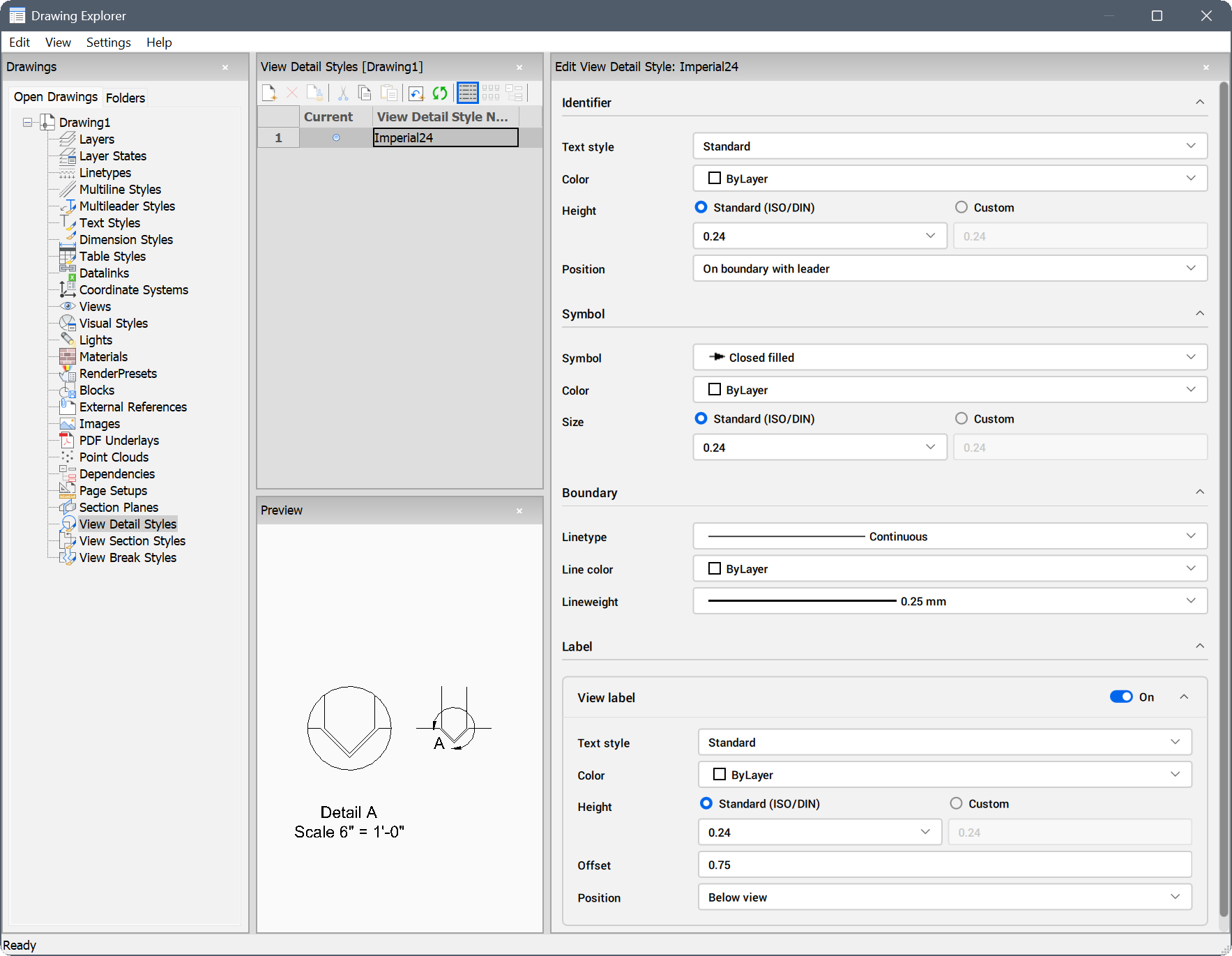
Opens the Drawing Explorer dialog box with the View Detail Styles category selected, where you can create and modify view detail styles in the current drawing.
The category includes the following panes:
- View Detail Styles: displays all view detail styles available in the drawing.
- Edit View Detail Style: provides customization options for the selected style.
- Preview: shows a preview of the selected style.
For more information on the Drawing Explorer layout, see the Drawing Explorer dialog box article.
Method
Select a style in the View Detail Styles pane to display and modify its options in the Edit View Detail Style pane, or preview the selected style in the Preview pane.
Options within the Edit View Detail Style pane
- Identifier
-
- Text style
- Specifies the text style used by the identifier text. Use the STYLE command to create a new text style.
- Color
- Specifies the color of the identifier.
- Height
- Specifies the height of the identifier.
- Standard (ISO/DIN)
- Sets the height value to standard dimensions. Choose a value from the drop-down list.
- Custom
- Sets the height value to a custom dimension.
- Position
- Determines where the identifier is located.
- Outside boundary
- Places the identifier outside the detail boundary. No symbol is used.
- Outside boundary with leader
- Places the identifier outside the detail boundary and draws a leader from the parent view to the detail. No symbol is used.
- On boundary
- Places the identifier on the detail boundary.
- On boundary with leader
- Places the identifier on the detail boundary and draws a leader from the parent view to the detail.
- Symbol
-
- Symbol
- Specifies the look of the symbol.
- Color
- Specifies the color of the symbol.
- Size
- Specifies the size of the symbol.
- Standard (ISO/DIN)
- Sets the size value to standard dimensions. Choose a value from the drop-down list.
- Custom
- Sets the size value to a custom dimension.
- Boundary
-
- Linetype
- Specifies the line type of the boundary.
- Line color
- Specifies the color of the boundary line
- Lineweight
- Specifies the weight of the boundary line.
- Label
-
- View label
- Toggles the display of labels and their associated options.
- Text style
- Choose the style of the text from the drop-down list.
- Color
- Lists the available colors.
- Height
- Specifies the height of the label.
- Standard (ISO/DIN)
- Sets the height value to standard dimensions. Choose a value from the drop-down list.
- Custom
- Sets the height value to a custom dimension.
- Offset
- Specifies the distance between the section view and the label.
- Position
- Specifies where the label is located.
- Above view
- Places the label above the section view.
- Below view
- Places the label below the section view.
Note: Each option section and subsection is collapsible. Click the arrow next to a section or subsection name to collapse it. Toggling off a subsection automatically collapses it.