
VIEWBASE command
Generates associative orthographic and isometric views of 3D models in paper space layouts.

Icon: 
- This command is valid in Model Space only.
- Use the Tab key to select obscured entities.
- When the GENERATEASSOCVIEWS (Generate associative drawings) system variable is On, associative dimensions for generated views are updated automatically when the 3D model is modified.
- Setting the GENERATEASSOCATTRS (Generate associative attributes) system variables On allows the VIEWBASE command to generate drawings in which dimensions and tags are updated automatically when the 3D model has been modified.
- The DRAWINGVIEWQUALITY system variable defines the quality of drawing views.
- When the DRAWINGVIEWBGEN system variable is On, user interaction during the generation of drawing views is allowed.
- When the DRAWINGVIEWBGENPAR system variable is On, the parallel generation of drawing views is enabled. This can reduce view processing time, but uses more resources.
- The DRAWINGVIEWASM system variable enables the use of assembly data structures to optimize generation of drawing views.
- When the DRAWINGVIEWENTS system variable is On, points are displayed in generated drawing views in accordance with the PDMODE and PDSIZE system variables settings.
- Parallel hidden line removal is faster when the HLRNEXTGEN system variable is On, the MTFLAGS system variable has the 8-bit flag set, the DRAWINGVIEWASM system variable is Off and the DRAWINGVIEWBGEN system variable is Off.
Method
Select one or more entities (3D solids, blocks, components) or press Enter to select all 3D entities in the Model Space from which to generate the drawing views in a layout tab or choose an option. Press the Tab key to select nested entities.
Enter the name of a new or existing layout or press Enter to accept the current layout.
The command switches to the layout tab where a point must be picked to define a position for the base view or enter an option.
Select the position for each projected view by moving the cursor. Depending on the cursor position relative to the base view, you can insert one of five orthogonal views (Top, Left, Right, Back, or Bottom) or one of four isometric views. The views are aligned automatically according to the selected projection type.
Press the Ctrl key to turn the alignment on and off. When it is off, you can place the current view in any location.
Options within the command
- Entire model
- Selects all the 3D entities in model space.
- preseTs
- Opens the Drawing View Presets dialog box to set the attributes of the generated drawing and their placement in the layout.
The selected preset is saved through the DRAWINGVIEWPRESET system variable.
- Preset
- Specifies the preset for the drawing view from the drop-down list.
- View Scale
- Specifies the scale of the drawing view. Click the field to open a drop-down list with the available options.
- Hidden lines
- Sets the visibility status of the hidden lines.
- Tangent lines
- Sets the visibility status of the tangent lines.
- Trailing lines
- Sets the visibility status of the trailing lines.
- Special views
- Selects a style of exploded representations, if any exist in the drawing.
- Exploded view
- Creates an exploded drawing view if an exploded representation exists in the drawing.
The created views correspond to the selected step. If the <All steps> option is selected, the views correspond to the final state of the exploded view (the last step).
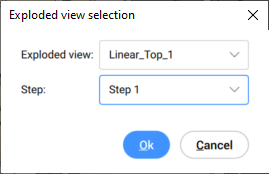
- Exploded view
- Sets a style for the exploded representation from the drop-down list.
- Step
- Sets a step for the exploded representation from the drop-down list.
- For <All steps>, the views correspond to the final state of the exploded view (last step).
- For a specified step, the views correspond to the selected step.
- Unfolded view
- Creates an unfolded drawing view for solids with associated unfolded view.
- Back
- Returns to the previous prompt.
- Scale
- Adjusts the scale of the paper space viewports.
- fit 4 views
- The scale is adjusted to fit the four standard orthographic views: Front, Top, Left, Right. The Front view (base view) is defined by the Orientation option.
- fit 9 views
- Adjusts the scale to fit five orthographic views and four isometric views.
- fit 5 views
- Adjusts the scale to fit five orthographic views: Front, Top, Left, Right, Back.
- fit 10 views
- Adjusts the scale to fit six orthographic views and four isometric views.
- Standard scales
- Sets the scale number from the scale list, as listed by the SCALELISTEDIT command.
- Custom scales
- Prompts you to type a scale in the Command line.
- Hidden Lines
- Controls the visibility of hidden lines.
When the BM_Ortho_Hidden and BM_Isometric_Hidden layers are off or frozen, hidden lines will not display.
- Tangent Lines
- Toggles whether tangent edges between tangent faces are created. Visible tangent edges are created on the BM_Tangent_Visible layer. Hidden tangent edges are created on the BM_Tangent_Hidden layer.
- No
- Does not display tangent lines.
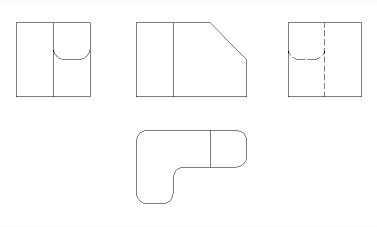
- Yes
- Displays the tangent lines.
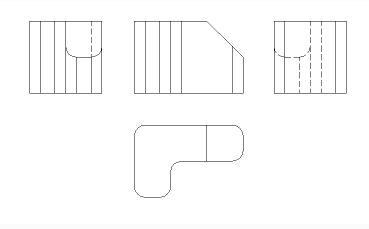 Note: Tangent edges are always created for isometric views. Freeze or switch off the display of the BM_Tangent_Visible layer to hide tangent edges in isometric views.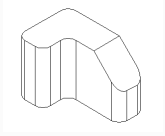
- INterferance edges
- Turns on or off the visibility of interference edges between solids that intersect with each other. When turned on, a line is drawn where the solids meet.
- trailiNg lines
- Controls the visibility of trailing lines.
To create exploded views, use the BMEXPLODE command. The model must have inserts of mechanical components to use this command.
- Orientation
- Defines the base view orientation.
Choose between Front, bAck, Left, Right, Top, Bottom, SW iso, SE iso, NE iso, NW iso, or Current options.
Note: The Current option uses the same model orientation as in model space.
- Projection type
- Defines the layout of the views.
The default projection type depends on the value of the MEASUREMENT system variable.
- First angle
- It is also known as European projection.
- Third angle
- It is also known as American projection.
- Isometric Geometry
- Defines the style for the isometric views.
- 2D views
- Draws isometric views as 2D drawings.
- 3D views
- Draws isometric views as 3D solids with the Conceptual visual style applied.
- sElect
- Selects additional entities to include or exclude.
- Remove
- Removes entities from drawing views.
- Entire model
- Includes all entities from model space in the drawing views.
- Layout
- Opens the previous layout with updated drawing views.