
Import Civil 3D dialog box
Opens via: CIVIL3DIMPORT command
The Import Civil 3D dialog box creates BricsCAD civil objects from an AutoCAD® Civil 3D drawing.
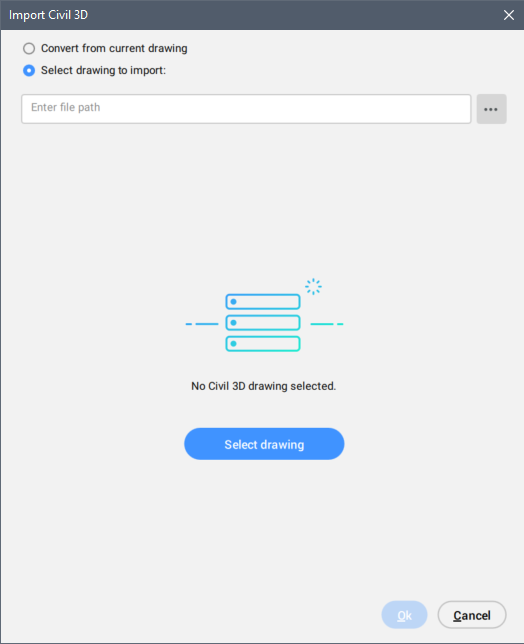
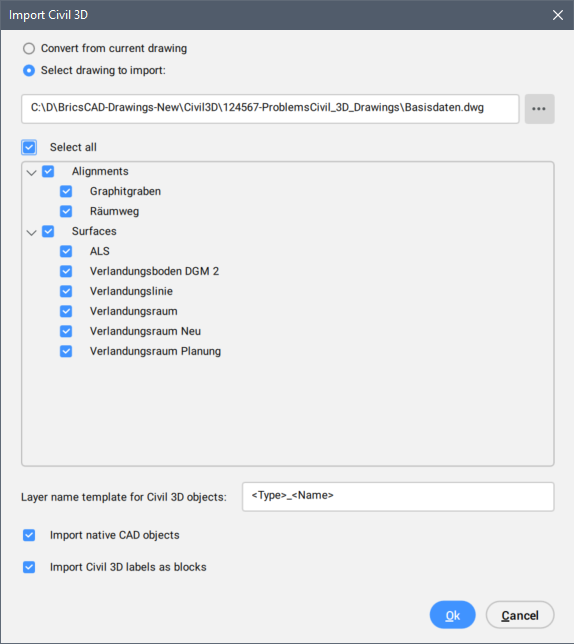
Convert from current drawing
Converts AutoCAD® Civil 3D objects in the current drawing.
Select drawing to import
Sets the drawing path or click the Select drawing button ( ) to select the drawing manually.
Select All
Selects all AutoCAD® Civil 3D objects in the drawing.
Layer name template for Civil 3D objects
Specifies the layer name template for imported AutoCAD® Civil 3D objects.
The following settings are available for defining the Layer name template:
- <Type>: includes AutoCAD® Civil 3D object type in the Layer name.
- <Name>: includes AutoCAD® Civil 3D object name in the Layer name.
- <SourceLayer>: Civil objects are created on same layer as source AutoCAD® Civil 3D objects.
To draw BricsCAD Civil objects on layers, use a Layer name that includes three elements: the source Civil 3D object type, the object name and the source AutoCAD® Civil 3D Layer name, as in the example below:
<Type>_<Name>_<SourceLayer>Import native CAD objects
Imports native CAD objects from the drawing, along with AutoCAD® Civil 3D objects.
Import Civil 3D labels as blocks
Imports AutoCAD® Civil 3D labels from the drawing as blocks.