
Import Points From Point File dialog box
Opens via: CIVILPOINTSFROMFILE command
The Import Points From Point File dialog box allows you to select one or more point files to create Civil points.
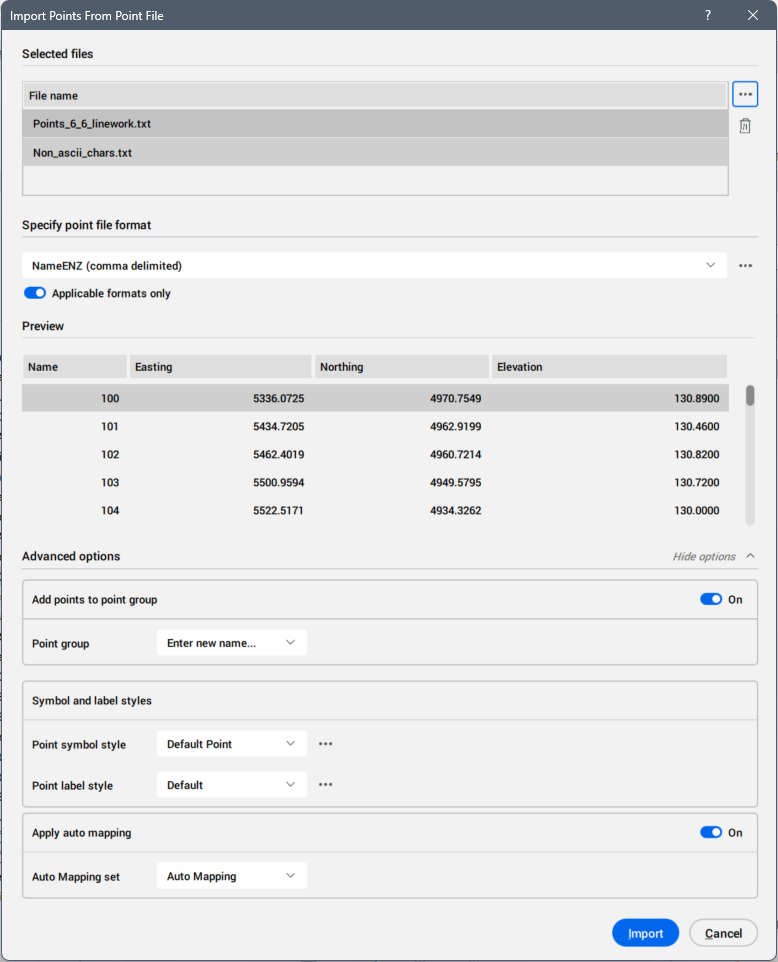
Selected files
Displays the available point files for import into the drawing.
- Select point file(s)... button
- Opens the Open file dialog box to select a point file. The input point file can be any ASCII file of points with any extension, any separator between columns and arbitrary arrangement of data in columns. Multiple point files could be selected.
- Remove point file(s)... button
- Removes the selected point file from the list.
Specify point file format
Selects a point file format from the opened drop-down list.
- Manage point file formats... button
- Opens the Manage Point File Formats dialog box (see the related article Manage Point File Formats dialog box).
- Applicable formats only
- When turned on, only formats that are applicable to all files in the list are shown.
Preview
Displays all point's coordinate and details (such as position number, full description, or raw description).
Advanced options
Allows you to add the points into a Point group, to set symbol and label styles and apply an auto mapping set.
- Add points to point group
- When turned on, allows you to choose if you add the points in a new or existing point group.
- Symbol and label styles
-
Allows you to select the symbol and label styles for the imported points.
- Point symbol style
- Allows you to choose the point symbol style for the imported points.
- Point label style
- Allows you to choose the label symbol style for the imported points.
- Apply auto mapping
- When turned on, allows you to apply an auto mapping set.Note: This section is only available when there is at least one auto mapping set previously created in .
- Auto mapping set
- Allows you to choose from the drop-down list an auto mapping set to be applied.