
Civil Explorer panel
To open the Civil Explorer panel:
- Run the CIVILEXPLOREROPEN command.
- Right-click a ribbon panel or toolbar and choose Civil Explorer from the Panels list.
- In the Civil Survey workspace > Ribbon Home tab > click the Civil Explorer icon to show or hide the panel.
Civil Explorer is the main panel for managing and accessing Civil objects. Civil objects are arranged in a tree view and grouped by Civil object type.
Through this panel, you can access settings and properties of Civil objects, add new Civil objects, and edit existing Civil objects and their components.
The Civil Explorer panel contains three tabs: Civil, GIS and Settings.
Civil Tab
If there are no Civil objects in the drawing, only the Create, Import and Attach Civil objects buttons are available on the Civil tab:
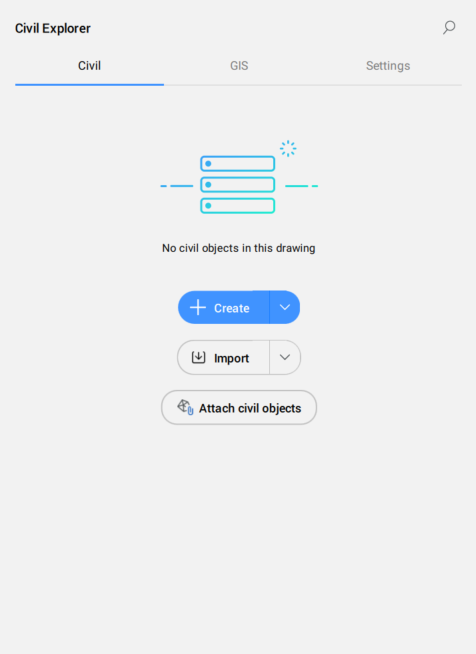
The Civil tab manages the Civil objects in the current drawing.
The panel is divided in two parts. The upper part displays a list of Civil objects in a tree view. The bottom part displays the available properties based on the Civil object type selected in the tree view.
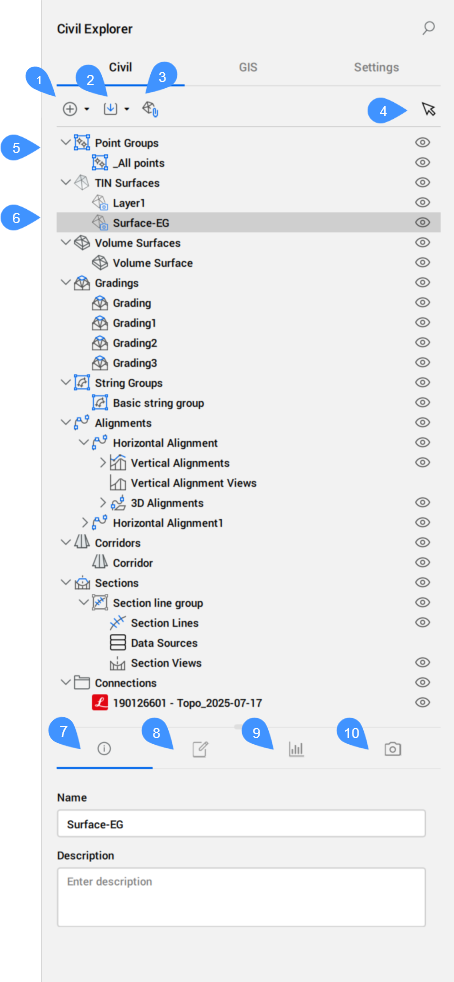
- Create (1)
- Creates all types of Civil objects. Select from the drop-down list the Civil object type you want to create.
- TIN Surface
- Launches the TIN command.
- Volume Surface
- Launches the TINVOLUME command.
- Grading
- Launches the GRADING command.
- Civil point
- Launches the CIVILPOINT command.
- Point Group
- Launches the CIVILPOINTGROUP command.
- String
- Launches the STRING command.
- Alignments
- Launches the ALIGNMENT command.
- Corridors
- Creates a corridor.
- Corridor
- Launches the CORRIDOR command.
- Corridor Template
- Launches the CORRIDORTEMPLATE command.
- Template Element
- Launches the CORRIDORTEMPLATEELEMENT command.
- Sections
- Creates section lines and section views.
- Import (2)
- Imports civil drawing files.
- Import Civil 3D...
- Launches the CIVIL3DIMPORT command.
- Import LandXML...
- Launches the LANDXMLIMPORT command.
- Convert Leica DWG
- Launches the LEICACONVERT command.
- Add Leica Connection
- Launches the LEICACONNECTOR command.
- Attach Civil objects (3)
- Launches the ATTACHCIVILOBJECT command.
- Pick a Civil object (4)
- Highlights the Civil object selected in the drawing in the Civil Explorer panel.
- Civil object types (5)
- Civil objects are arranged in a tree view. The top level displays all Civil object types existing in the drawing, and each type expands to show its individual components.
The context menu for a Civil object type contains the following common options:
- Create: launches the specific command to create the corresponding Civil object.
- Hide: switches on or off the visibility of Civil object.
- Selected Civil object (6)
- Highlights the selected Civil object in a tree-view.
- Sections
- Lists the Section Lines and Section Views objects existing in the drawing.
- Connections
- Lists the connections to the Leica Infinity file.
-
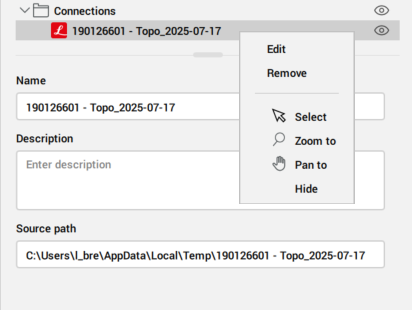
The context menu includes the following options:
- Edit opens the Leica connector dialog box.
- Remove removes the Leica connection.
- Info (7)
-
Displays information about the selected Civil object (Name and Description). Both fields are editable.
Note: For string groups, the Interact with other strings in the group switch is available.
- Definitions (8)
-
Displays the components (source data) used to build the TIN surface objects, the editing operations used, and the order in which definitions were added.
The TIN surface build process is incremental. Adding or editing data updates the surface, while removing data rebuilds it. The definition list displays all operations performed in sequential order.
The ID field indicates the step at which each component was added to the TIN Surface.
The context menu offers the option to change the order of definitions and to Delete or Disable them. Additionally, for most TIN surface definitions, there are the options Select and Zoom to, which make finding them in the drawing very easy. Double-click a definition or press the Edit option from the context menu to open the Surface: Surface name, Definition step ID dialog box, which displays all details for the selected definition (see the TIN Definitions in the TIN command article). You can edit the definition parameters.
Also displays the components used to build the String objects. The context menu provides all string specific options for editing.
- Statistics (9)
-
The Statistics displays statistical data for the selected TIN surface (number of points and triangles, minimum,maximum and mean elevations, 2D and 3D areas) or for the Volume Surface (cut and fill volumes, 2D and 3D areas).
- Visual Styles (10)
-
Defines the visual styles for the TIN and Volume surface components (borders, points, triangles), contours and TIN analysis.
- General
- Switches on or off the display of specific TIN surface components.
- Contours
- Specifies parameters for displaying contours on a TIN surface.
- Enable major or minor contours
- Switches on or off the display of TIN surface contours. The visual style of contours can be adjusted.
- Major contours interval
- Sets the interval for major contours.
- Minor contours interval
- Sets the interval for minor contours.
- Major contours color
- Sets the color for major contours.
- Minor contours color
- Sets the color for minor contours.
- TIN Analysis
- Sets parameters for TIN surface elevation and slope analysis.
- Elevation analysis
- Switches on or off the display of TIN surface elevation analysis. Click the Edit elevation analysis button (
 ) to open Elevation Analysis dialog box to define the visual style.
- Slope analysis
- Switches on or off the display of TIN surface slope analysis. Click the Edit slope analysis button () to open Slope Analysis dialog box to define the visual style.
GIS Tab
If there is no GIS layer in the drawing, there are three options on the GIS tab:
- Import GIS Layer
- Create GIS Layer
- Convert from Object Data
The GIS Tab displays all GIS layers in the drawing and controls their visibility.
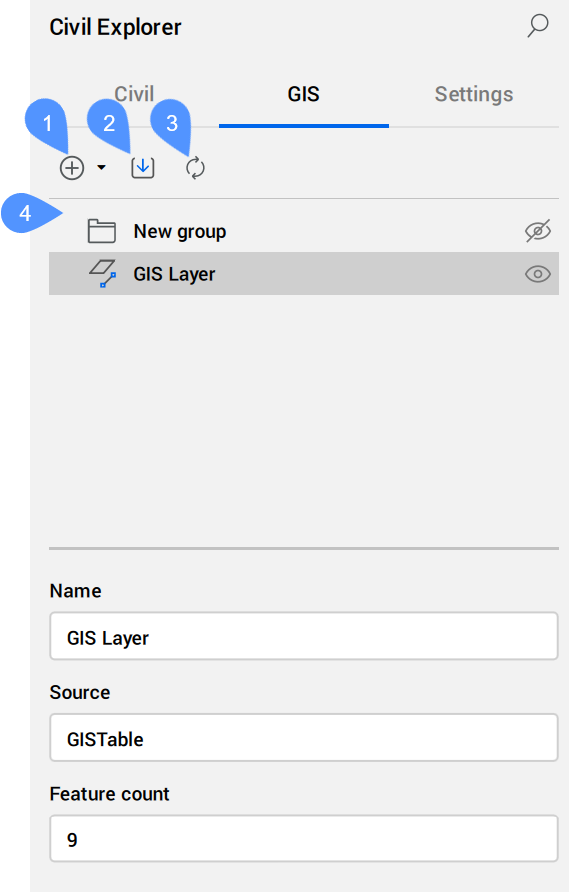
- Create (1)
- Creates a new GIS layer or a group. Select from the drop down list the GIS type you want to create.
- Create group
- Creates a new group in the GIS tree view.
- Create GIS layer
- Opens the Create New GIS Layer dialog box.
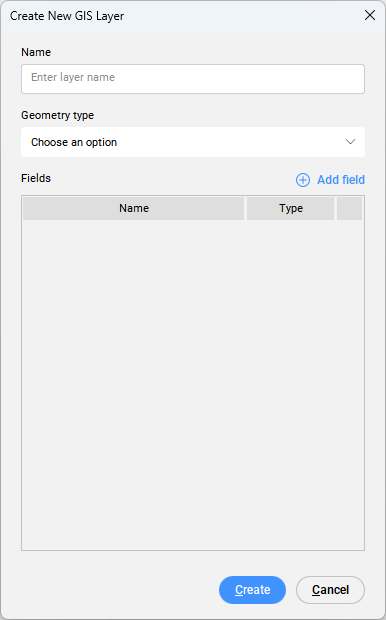
- Name
- Sets the new layer name.
- Geometry type
- Defines the geometry type as:
- Point
- Line
- Polygon
- Add Field
- Adds a new field to the GIS layer.
Click the Add field button to add a new field to the fields list, with the default name NewField and String type. You can edit the Name and Type fields.
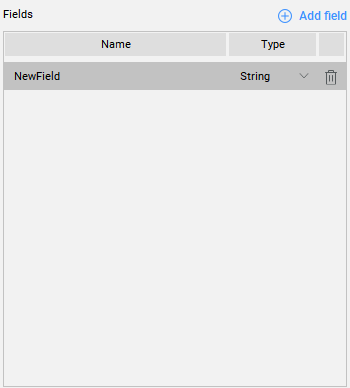
The following field Types are available:
- String
- Real
- Integer
Click the trash button (
 ) to delete a field.
When you double-click a newly created GIS Layer for the first time, an empty GIS Attribute Table dialog box opens. To add GIS features, click the Add GIS features button. Select entities in the drawing and press Enter. The GIS Attribute table dialog box displays the selected GIS features and their associated GIS data.
- Import GIS layers (2)
- Imports ESRI SHP, GML, KML, or ESRI Geodatabase files. For details, see the GISIMPORT command and the GIS Import dialog box articles.
- Convert from Object Data (3)
- Converts AutoCAD® Map 3D and Autodesk® Civil 3D GIS features from the current drawing to BricsCAD GIS data.Note: The AutoCAD® Map 3D and Autodesk® Civil 3D Object Data can be viewed and edited directly in the Properties panel.
- GIS tree view (4)
- Lists all GIS layers and groups.Note: You can rearrange groups and GIS layers using drag and drop.
The following context menu opens when you right-click a GIS layer:
- Open attribute table...
- Opens the GIS Attributes Table dialog box.
- Edit GIS layer...
- Opens Edit GIS Layer dialog box.
- Select
- Selects the GIS Layer.
- Zoom to
- Zooms to the GIS Layer.
- Add GIS features
- Adds entities to a GIS Layer. A command prompt appears for selecting entities in the drawing. The GIS Attributes Table dialog box opens, and new features are added at the end of the table.Note: The geometry type of the GIS Layer must be Point in order to add a block to it.
- Convert GIS data to Object data
- Converts BricsCAD GIS data from the current drawing to AutoCAD® MAP 3D and Autodesk® Civil 3D Object Data.
- Export GIS layer
- Exports the GIS layer.
- Remove GIS layer
- Removes the GIS layer.
The following context menu opens when you right-click a group:
- Rename group
- Renames the group.
- Add sub-group
- Adds a sub-group.
- Remove group
- Removes the group.
Settings Tab
The Settings tab manages Civil object styles, label styles and configuration settings.
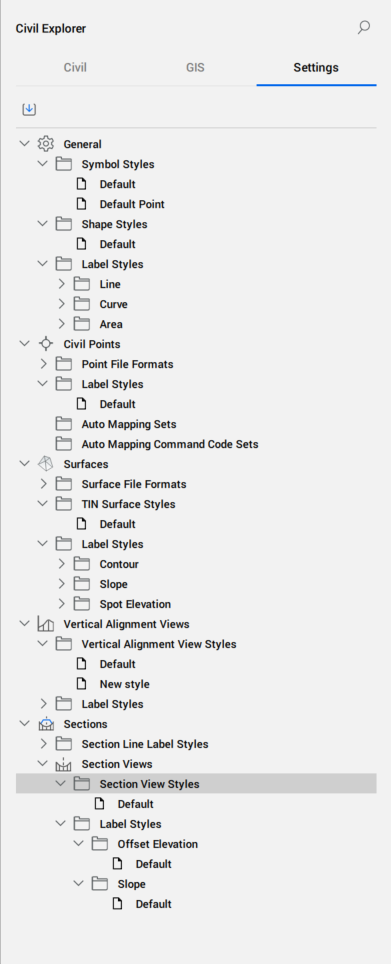
- Import Styles and Settings button
- Imports civil label styles and civil drawing settings from other drawings. For more details, see the IMPORTSTYLESANDSETTINGS command.
- General settings
- Defines general symbol and label styles for Civil objects.Note: The context menu associated with each Civil object style provides options to Create, Edit, Copy and Delete styles.
- Symbol styles
- Lists predefined and custom-created symbol styles. Click the corresponding option from the context menu to open the Symbol Style dialog box.
- Area Label Styles
- Lists predefined and custom-created area label styles.
- Line Label Styles
- Lists predefined and custom-created line label styles.
- Curve Label Styles
- Lists predefined and custom-created curve label styles.
- Civil Points
- Defines Civil points file formats and label styles for Civil points.
- Point File Formats
- Lists predefined and custom-created point file formats. Double-click the Point File Formats field or click the corresponding option to open the Manage Point File Formats dialog box.
- Label Styles
- Lists predefined and custom-created label styles for Civil Points. Click the corresponding option to open the Label Style Editor dialog box.
- Auto Mapping Sets
- Lists predefined and custom-created auto mapping sets for Civil points. The context menu contains also the Set current option. Click the corresponding option to open the Auto Mapping Set dialog box.
- Auto Mapping Command Code Sets
- Lists predefined and custom-created auto mapping command code sets for Civil points. Click the corresponding option to open the Auto Mapping Command Sets dialog box.
- Surfaces
- Defines surface file formats and label styles for Contour, Slope and Spot elevation.
- Surface File Formats
- Lists predefined and custom-created surface file formats. Double-click the Surface File Format field or click the corresponding option to open the Manage Surface File Formats dialog box.
- TIN Surface Styles
- Lists predefined and custom-created TIN surface styles. Click the corresponding option to open the TIN Surface Style dialog box.
- Label styles
- Lists predefined and custom-created styles for contour, slope and spot elevation entities. Click the corresponding option to open the Label Style Editor dialog box.
- Vertical Alignment Views
- Defines the vertical alignment view style and label styles.
- Sections
- Defines the section line label styles and section view styles.
- Section Line Label Style
- Lists predefined and custom-created section line label styles. Click the corresponding option to open the Label Style Editor dialog box.
- Section Views
-
Lists predefined and custom-created section view styles and label styles.