
Select Style dialog box
Opens via:
- ALIGNMENTVIEW command > Create Vertical Alignment View dialog box > Style option > Select or edit style... button (
 )
) - ADDAREALABELS, ADDLINECURVELABELS, ADDSECTIONVIEWLABELS, ADDSURFACELABELS, ADDVERTICALSECTIONLABELS command > Add Labels dialog box > Styles section > Select style... button ()
- CALCULATESECTIONVOLUMES command > Calculate Section Volumes dialog box > Material style option > Edit material styles button ()
- CIVILPOINT command > Create Civil Points dialog box > Symbol Style or Label Style option > Select style... button ()
- SECTIONLINES command > Create Section Lines dialog box > Labels Style option > Select or edit style... button ()
- SECTIONVIEWS command > Create Section Views dialog box > Style option > Select or edit style... button ()
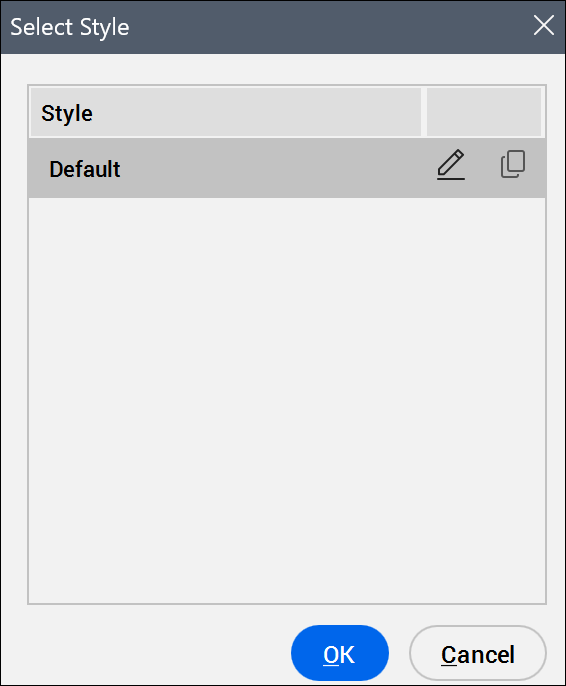
Style list
Displays the available styles.
Edit style...
Opens the Symbol Style, Label Style Editor, Section View Style, Shape Style or Vertical Alignment View Style dialog box to edit the selected symbol, label, section view, vertical alignment view or shape styles.
Copy style...
Opens the Symbol Style, Label Style Editor, Section View Style, Shape Style or Vertical Alignment View Style dialog box to create a copy of the selected symbol, label, or section view style.
Note: The symbol and label styles are defined in the Settings tab of the Civil Explorer panel (see the article Label Style Editor dialog box).