
Project Database dialog box
Opens via: BIM Project Browser panel > Info tab > Project Database ellipsis button (...)
Shows the project database location. All drawings are connected to the Project database.
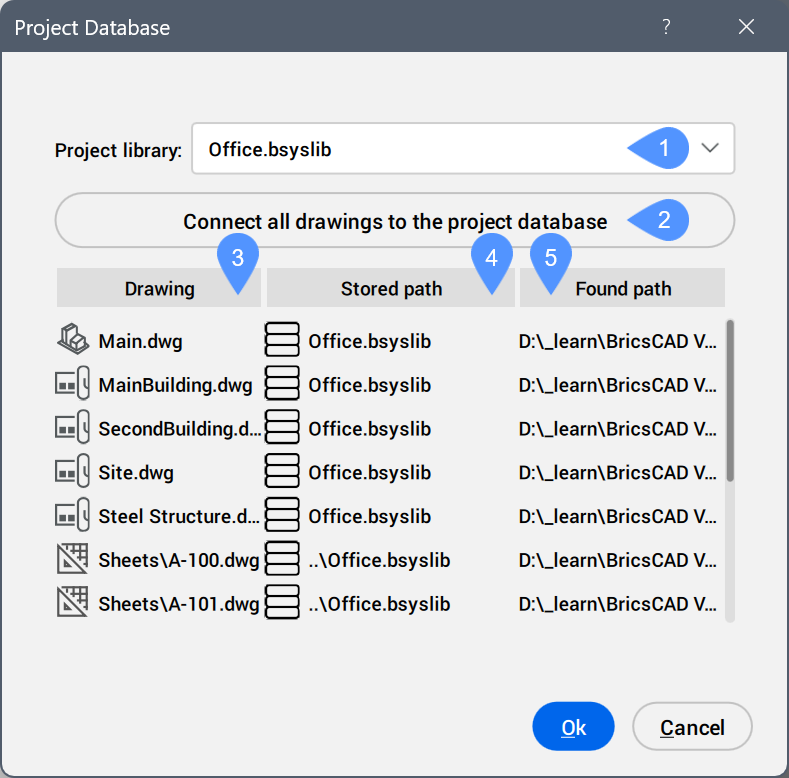
- Project library: lists all found BSYSLIB files in the current project folder. To change the BSYSLIB file, choose another one from the drop-down list.
- Connect all drawings to the project database: Allows to link all drawings to the project library in one click (setting this library as their external BSYSLIB file).Note:
- This button is only enabled when not all drawings are connected to the current library file.
- A drawing that is not yet connected to the project database is marked with a yellow triangle. To connect it, right-click the drawing and select Connect to the project database.

- Drawing: displays the project drawings.
- Stored path: displays each drawing's path.
- Found path: displays the found path of the drawings.